Set "Related issues" when importing issues from CSV in Redmine
Created on 2021-01-28
•

(Supported versions: Redmine 4.2 or later / RedMica 1.1 or later)
In Redmine, you can specify "Related issues" when you import issues from CSV. Assign temporary issue numbers in the CSV file, and specify the number that you want to set as the related issue.
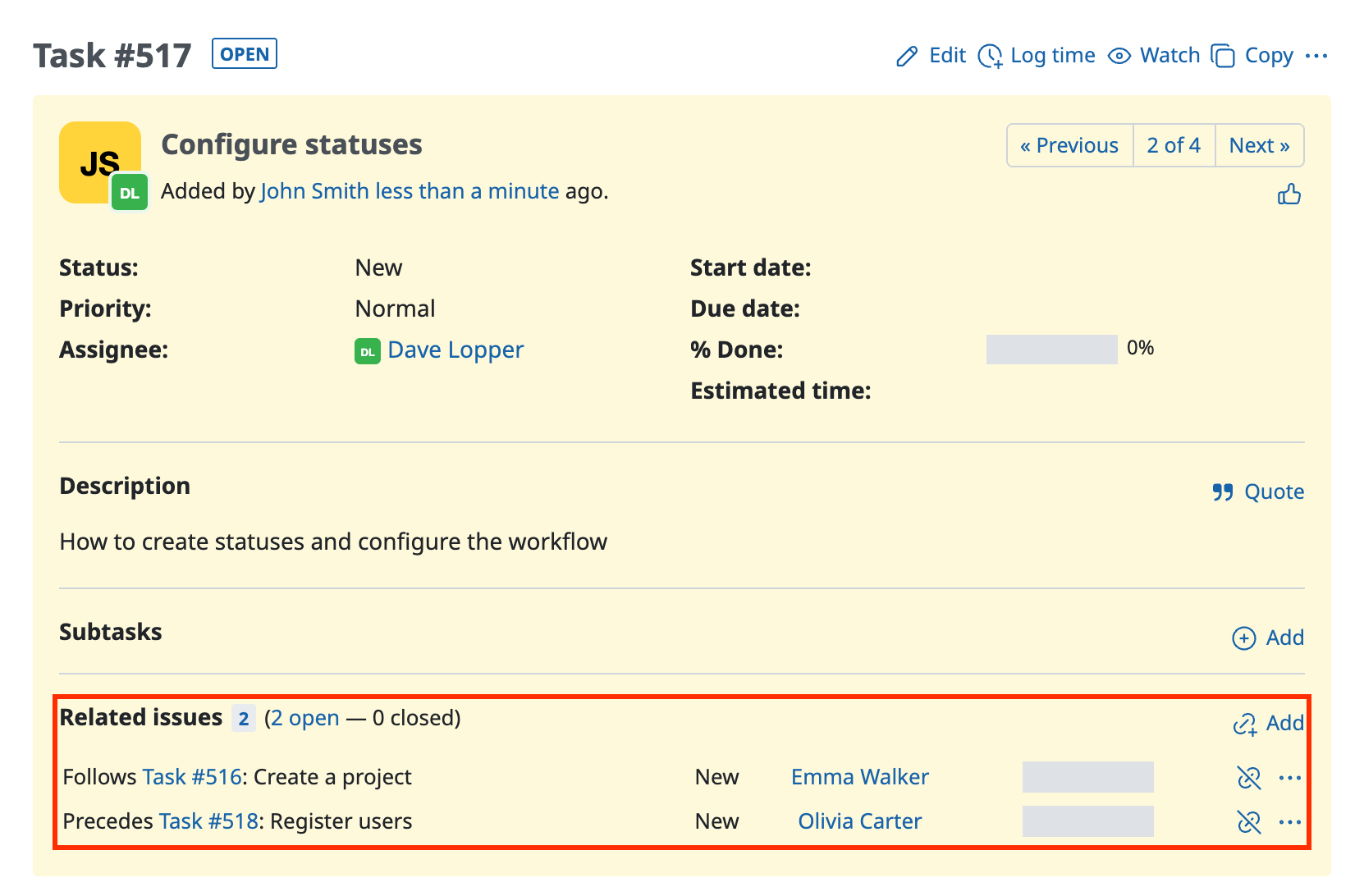
"Related issues" that you can set in a CSV import
- Related to
- Precedes
- Follows
- Is duplicate of
- Has duplicate
- Blocks
- Blocked by
- Copied to
- Copied from
① Create a CSV file
Create a CSV file that contains the information of the issues to register and the numbers of the issues that you want to set as related issues.
The following CSV file specifies relations in which the issue "Create a project" precedes "Configure statuses", and the issue "Configure statuses" precedes the issue "Register users".

In the next example of a CSV file, the issue "Register users" is specified as a related issue of the issue "Lock a user".

② Import the CSV file
Step 1. Click "Import" from "•••" on the issues page
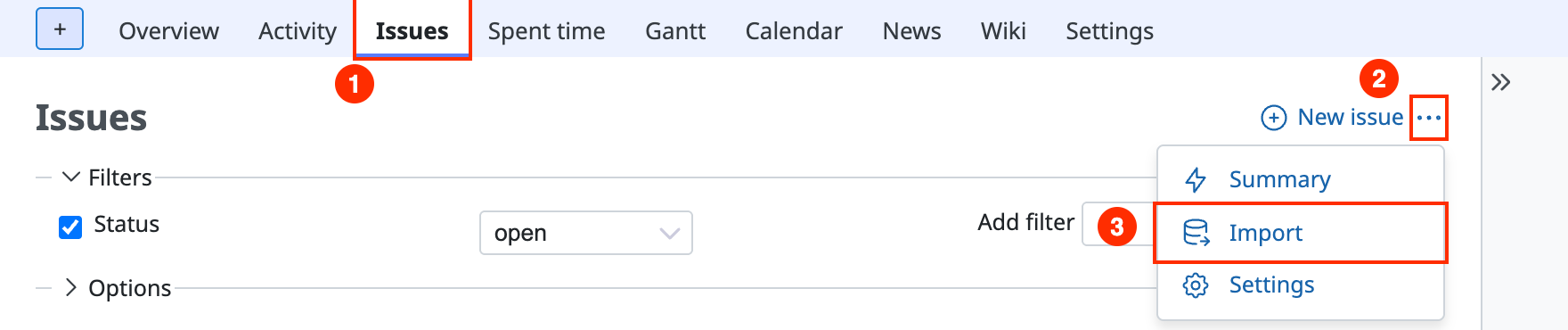
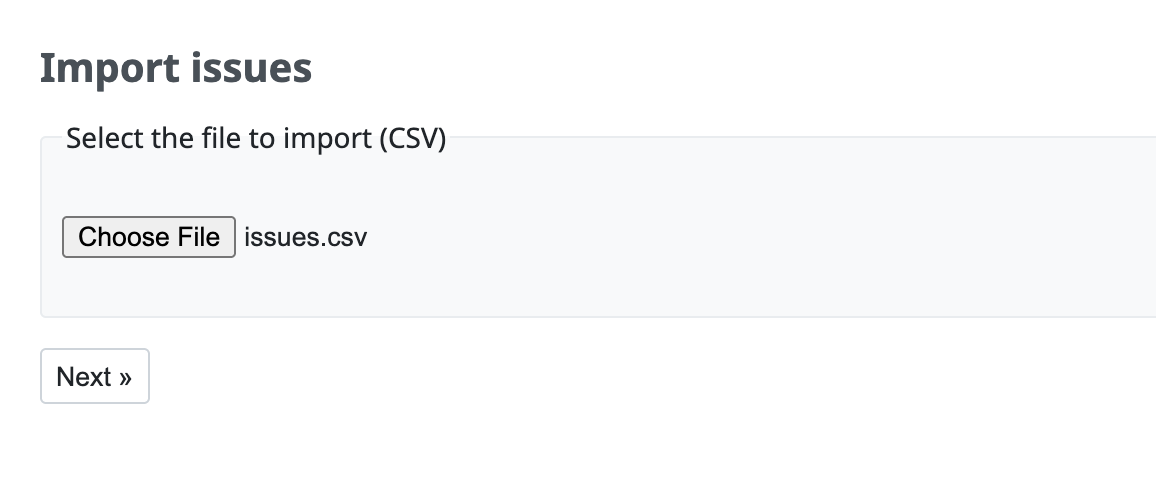
Step 2. Click the button to choose a file, select the CSV file that you created, and click "Next"
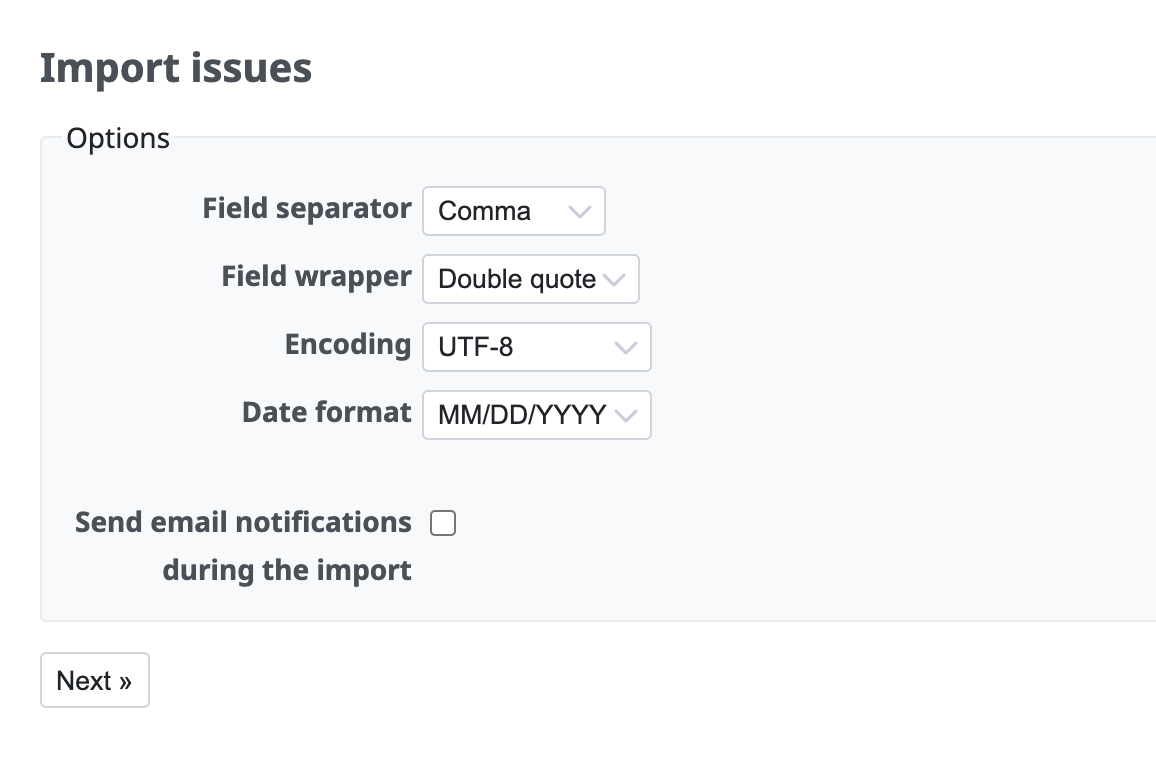
Step 3. Change the "Options" to match the format of the CSV file and click "Next"
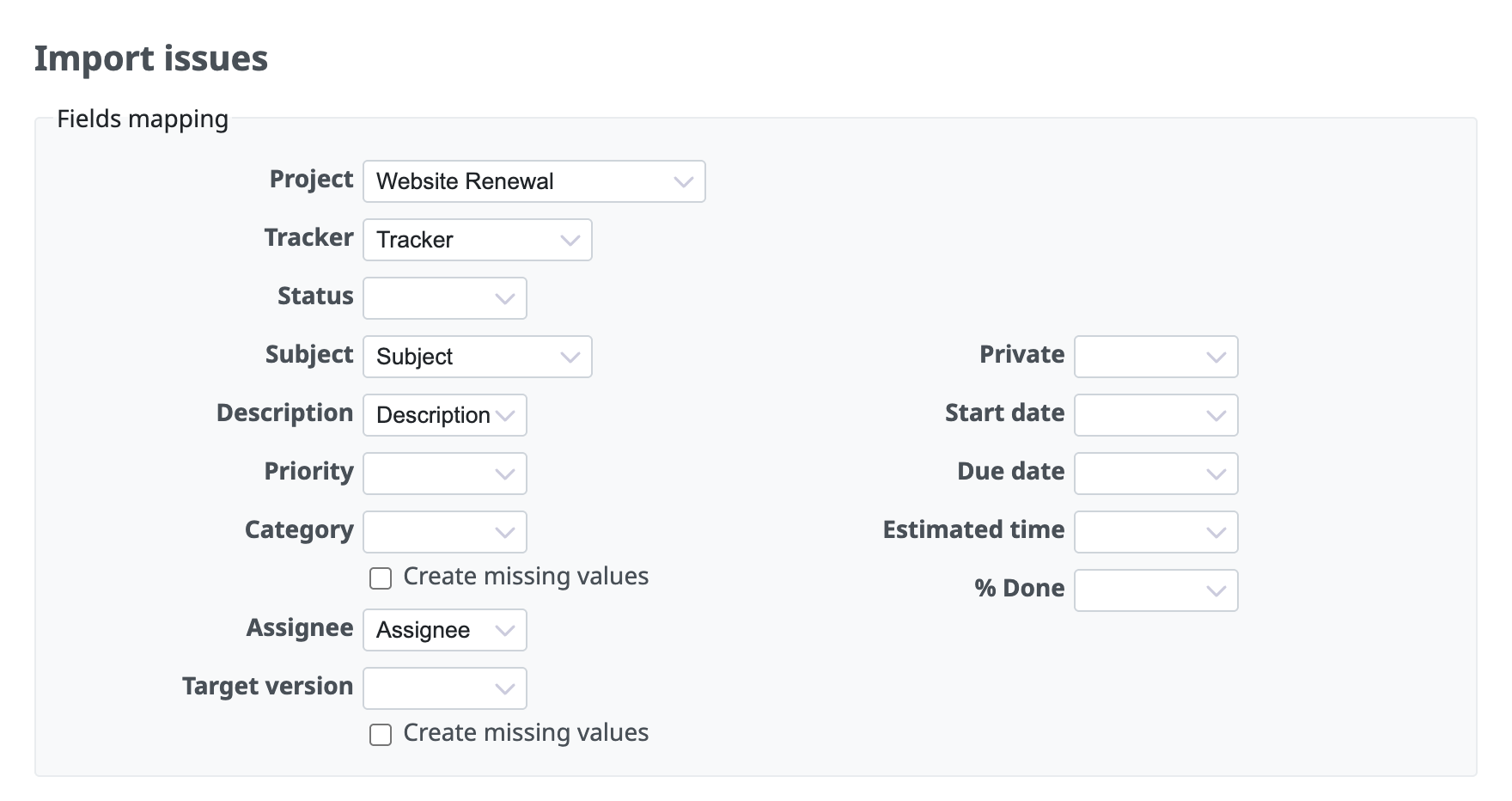
Step 4. Redmine automatically sets which issue field each column of the CSV file corresponds to. Check that the mapping is correct
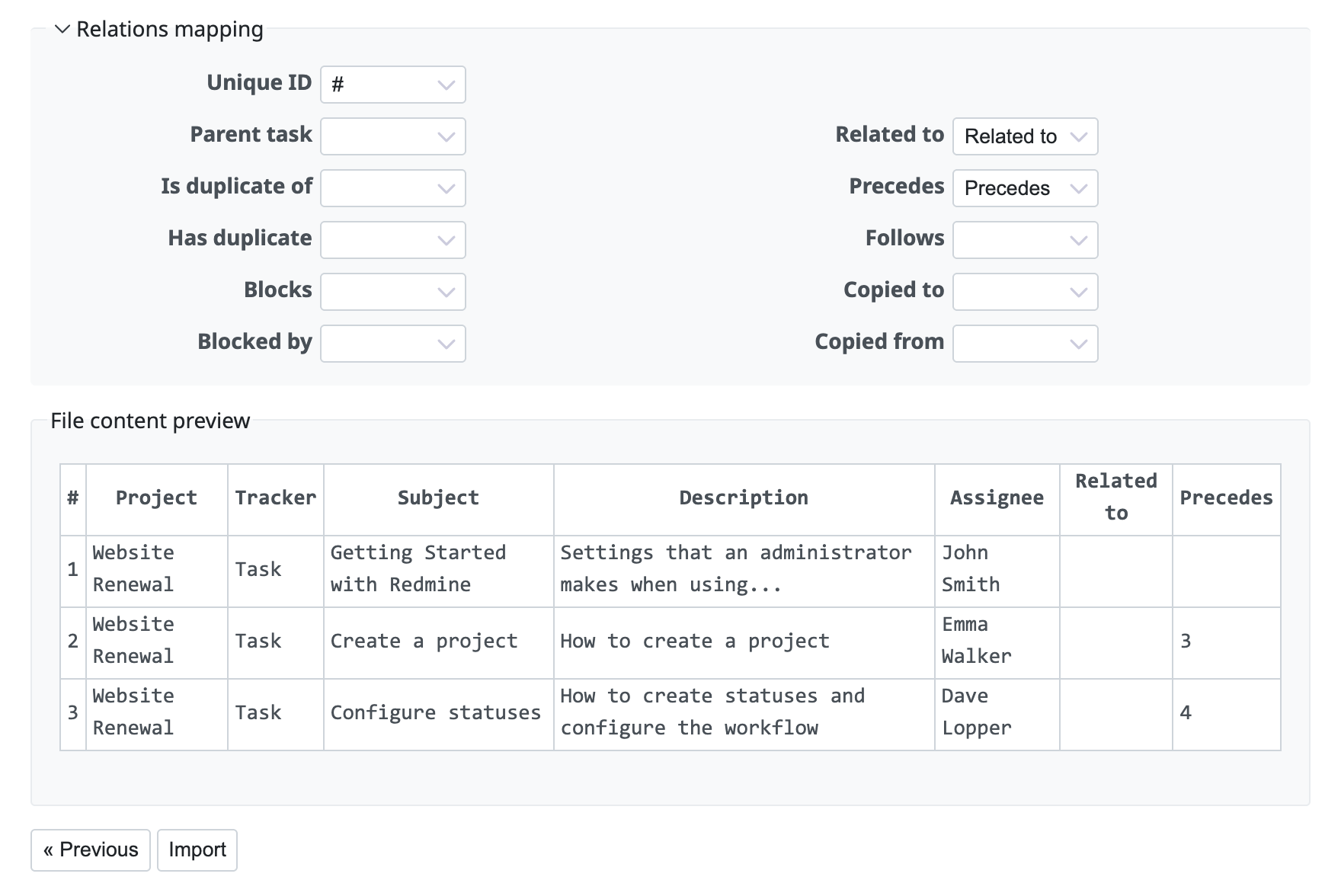
Step 5. Click "Relations mapping", set the mapping between the columns of the CSV file and the related issues, and then click "Import"
(For Unique ID, set the column that holds the temporary issue numbers. If the CSV file does not specify temporary issue numbers, you do not need to set Unique ID.)
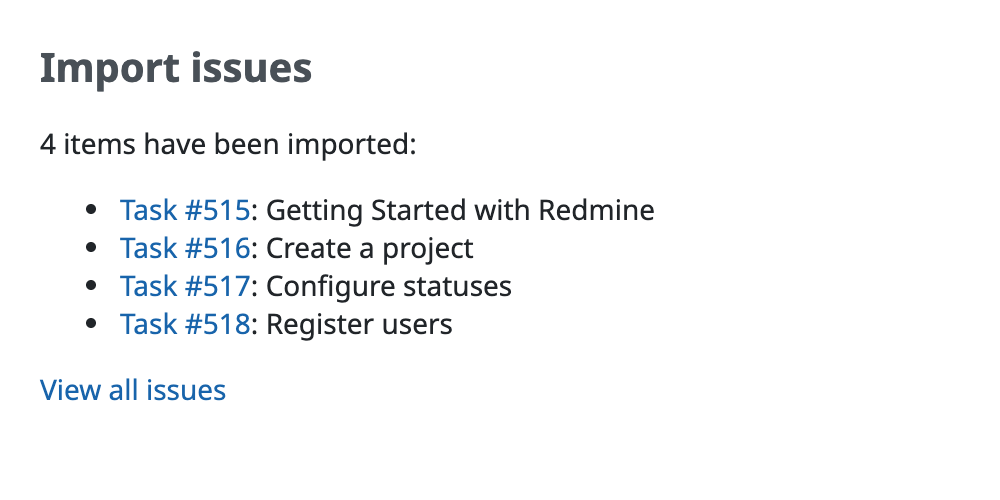
Step 6. After the import is complete, the list of the registered issues is displayed
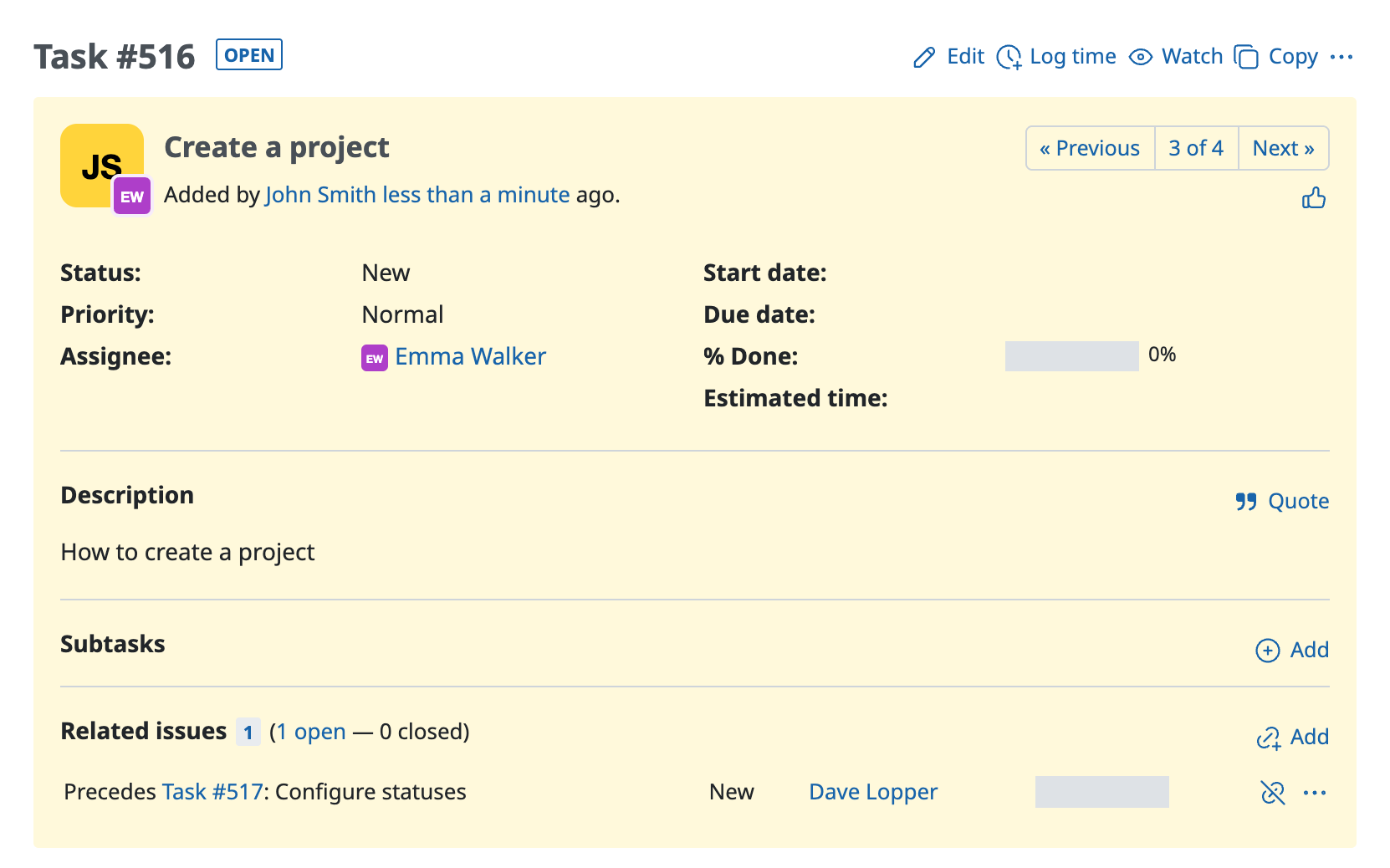
Please check that the issues are registered as you expected.
Related information