Import issues from a CSV file in Redmine
Updated on 2022-03-07
•
Created on 2009-02-11
•

Redmine can register the contents of a CSV file as issues. This is useful when you want to register a large number of issues at once.
This page introduces how to use the standard "Import" feature. It imports a CSV file from the Redmine page and creates new issues. (Available in Redmine 3.2 or later)
Advantages and disadvantages of the "Import" feature
Advantages
- You can restrict the users who can import with the permission settings
Disadvantages
- It only creates new issues. It cannot update existing issues. To update existing issues from an external program, use the REST API
- You cannot mix several projects in one CSV file
How to use
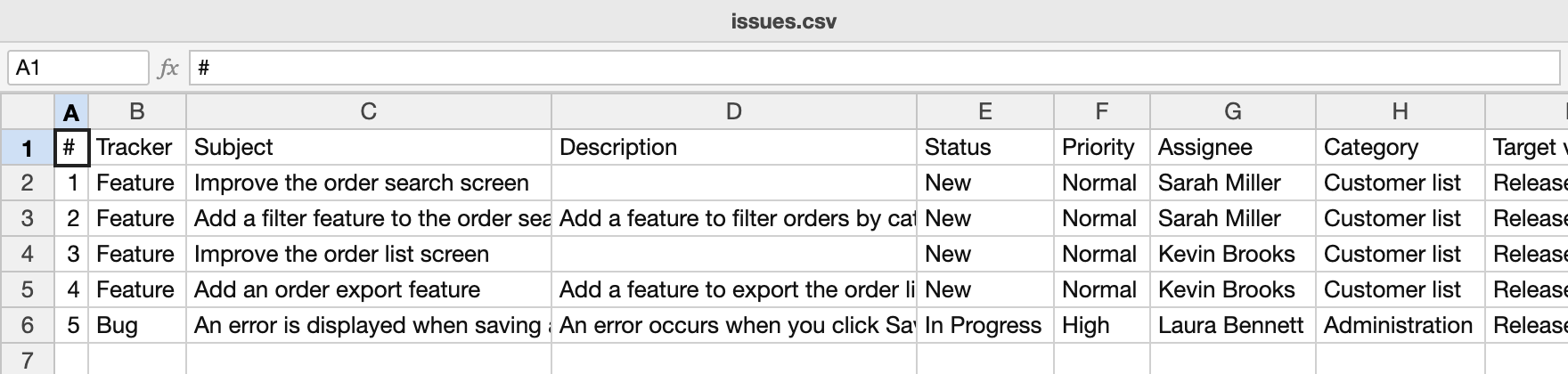
1. Create a CSV file
It is easier to create the file if you use a CSV file exported from "CSV" at the bottom right of the issue list page as a template.
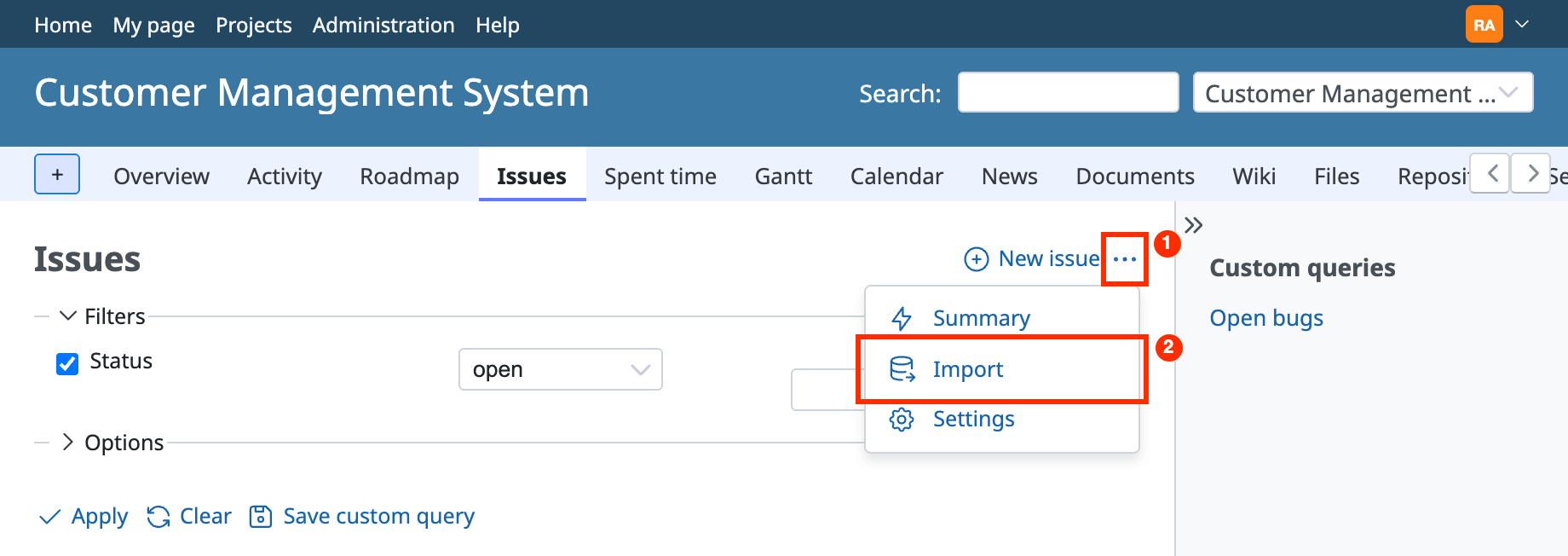
2. Click "…" → "Import" at the top right of the issue list page
3. Click the button to choose a file and select the CSV file that you created → click the "Next" button
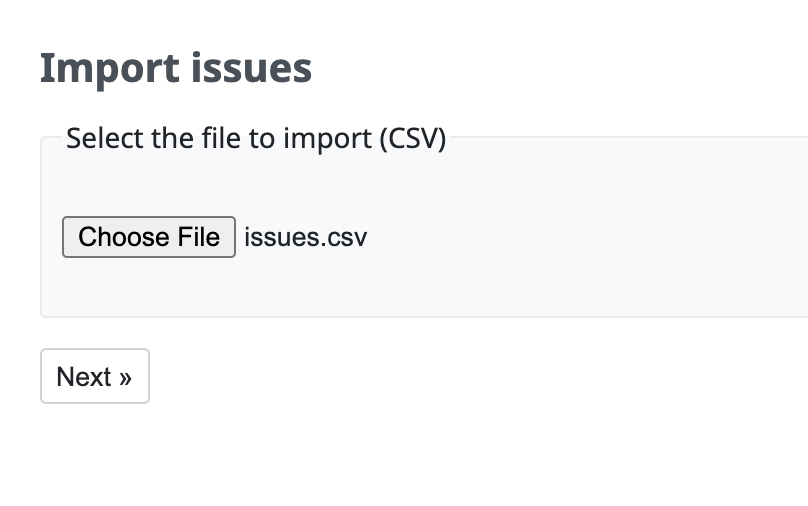
4. Specify the options to match the format of the CSV file that you created → click the "Next" button
If you created the CSV file with Excel, you usually do not need to change the options.
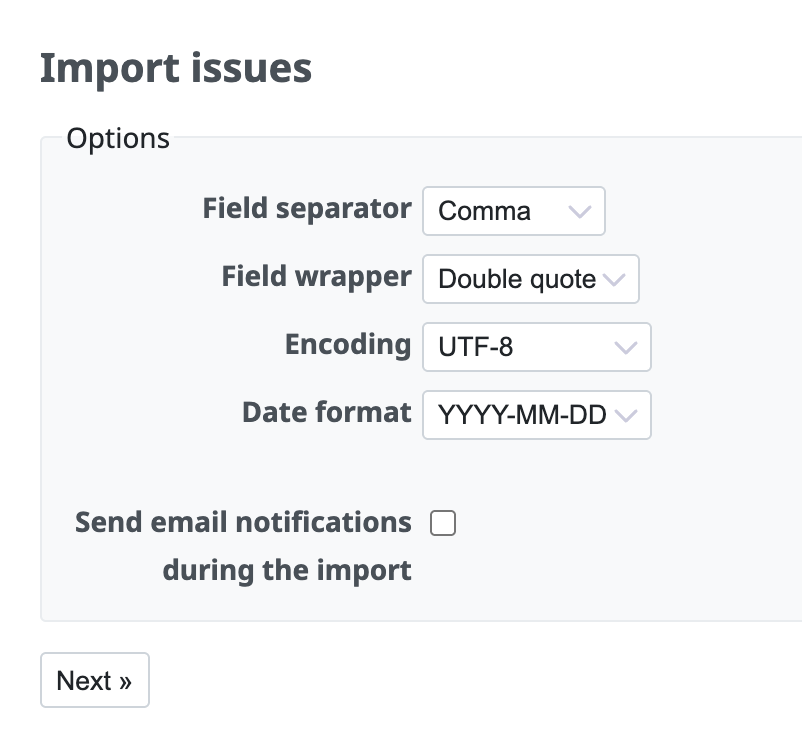
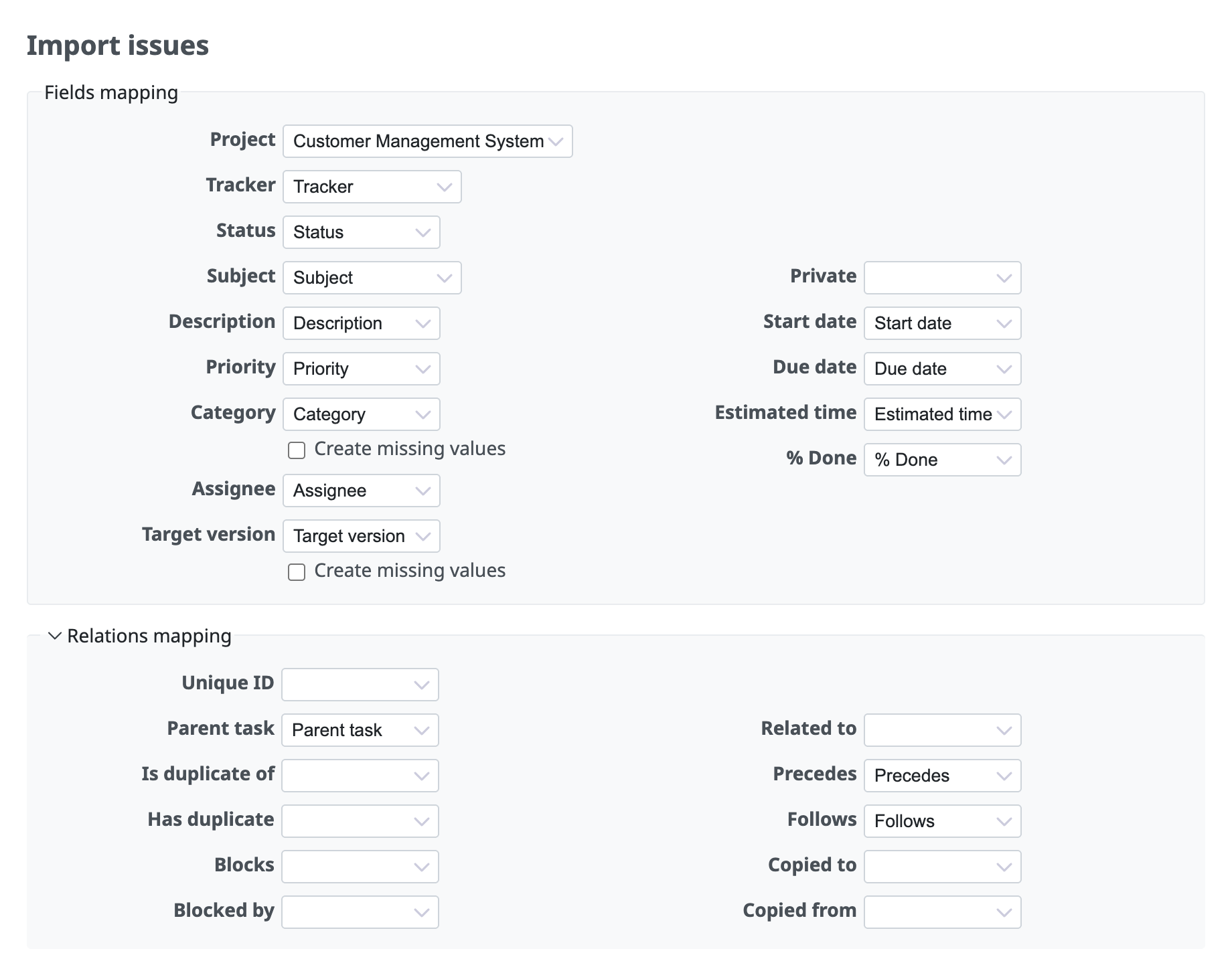
5. Specify the fields mapping → click "Import"
Redmine automatically sets which issue field each column of the CSV file corresponds to. If you specify parent tasks or related issues, open "Relations mapping" and specify the mapping.
6. The import succeeds
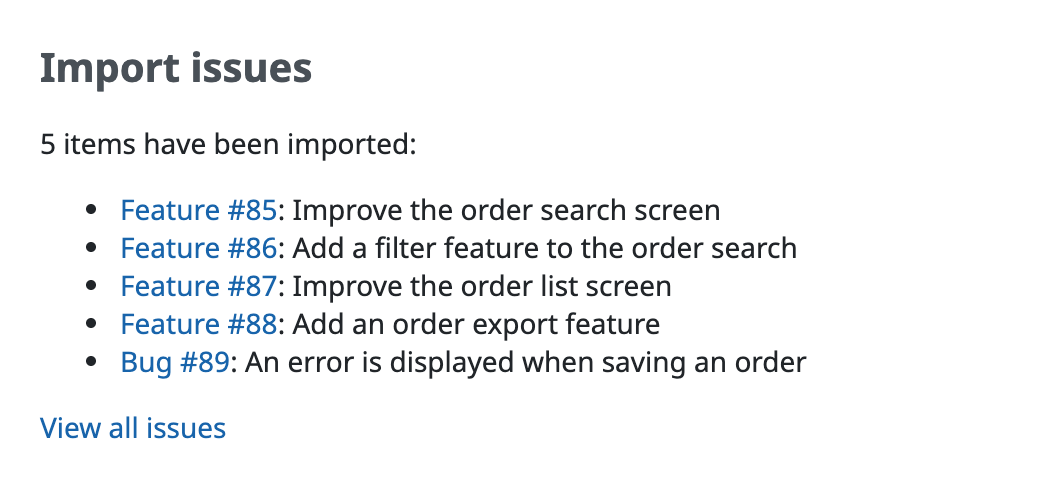
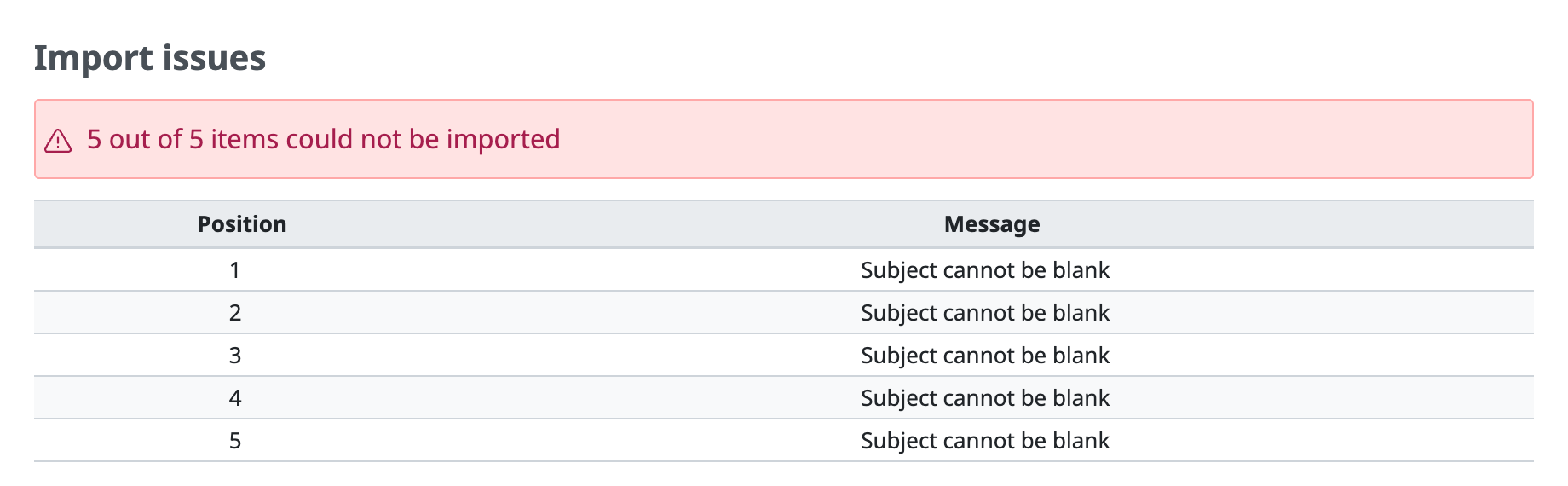
Example of a failure
If the CSV data is not sufficient, for example because a required field is empty, the reason why the import failed is displayed.