How to hide the priority of issues in Redmine
Updated on 2024-08-02
•
Created on 2017-12-29
•

(Supported versions: Redmine 5.1 / RedMica 2.3 or later)
You can disable the standard field "Priority" of issues for each tracker. For a tracker with the priority disabled, the priority does not appear on the issue page.
Settings
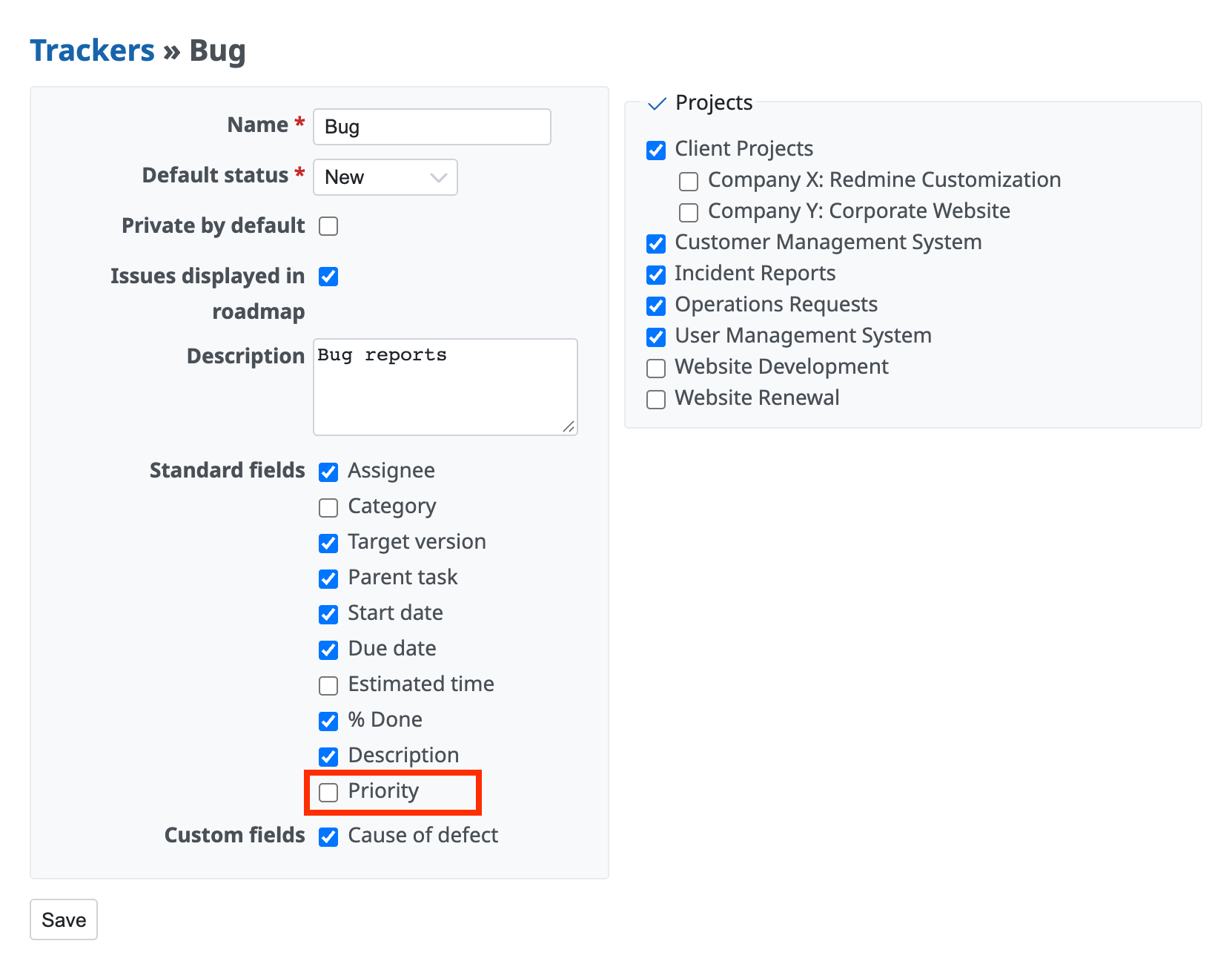
Procedure to set on the settings page of each tracker
- Click "Administration" → "Trackers" → the name of the tracker for which you want to disable the priority
- Turn off "Priority" in "Standard fields"
- Click "Save"
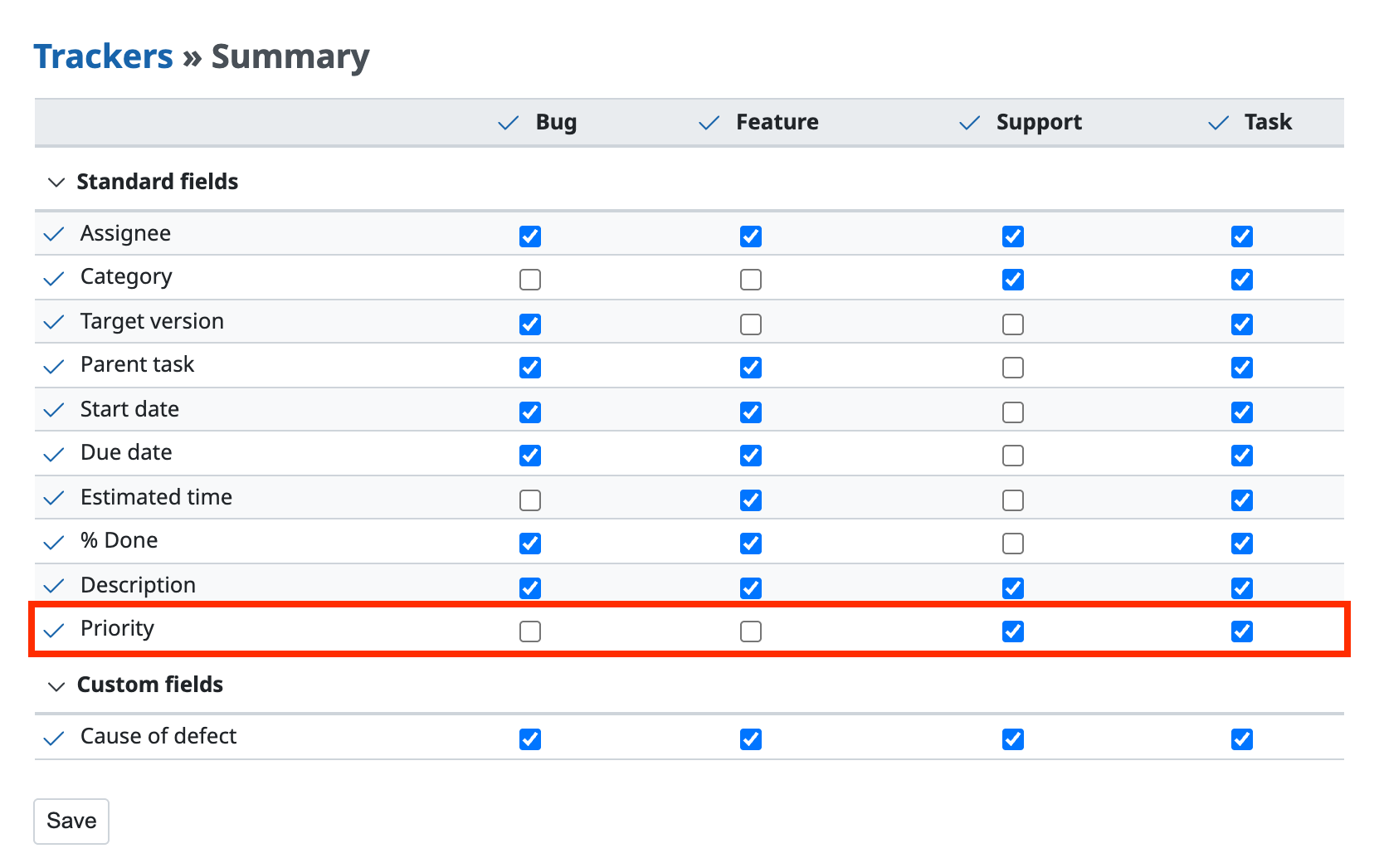
Procedure to set all trackers at once
- Click "Administration" → "Trackers" → "Summary"
- In the Priority row, turn off the trackers for which you want to disable it
- Click "Save"
Set "Read-only" in "Fields permissions" on the Workflow page (Redmine 5.0 / RedMica 2.2 or earlier)
In Redmine 5.0 / RedMica 2.2 or earlier, you cannot disable the priority of issues on the tracker settings page.
Instead, if you set "Priority" to "Read-only" in "Fields permissions" on the Workflow page, it no longer appears on the pages to create and edit issues. If the purpose of hiding the priority is to prevent users from entering it, this setting also serves the purpose.
With the following settings, the drop-down list to select the priority no longer appears on the pages to create and edit issues.
- Open the "Administration" → "Workflow" → "Fields permissions" tab
- Select the "Role" and the "Tracker" and click "Edit"
You can configure the settings for each combination of role and tracker. For example, to hide the priority for all combinations of roles and trackers, select "all" for both "Role" and "Tracker". - Set "Priority" to "Read-only" for all statuses
You can set a permission ("Required" or "Read-only") for each combination of a standard field or custom field and a status. - Click "Save"
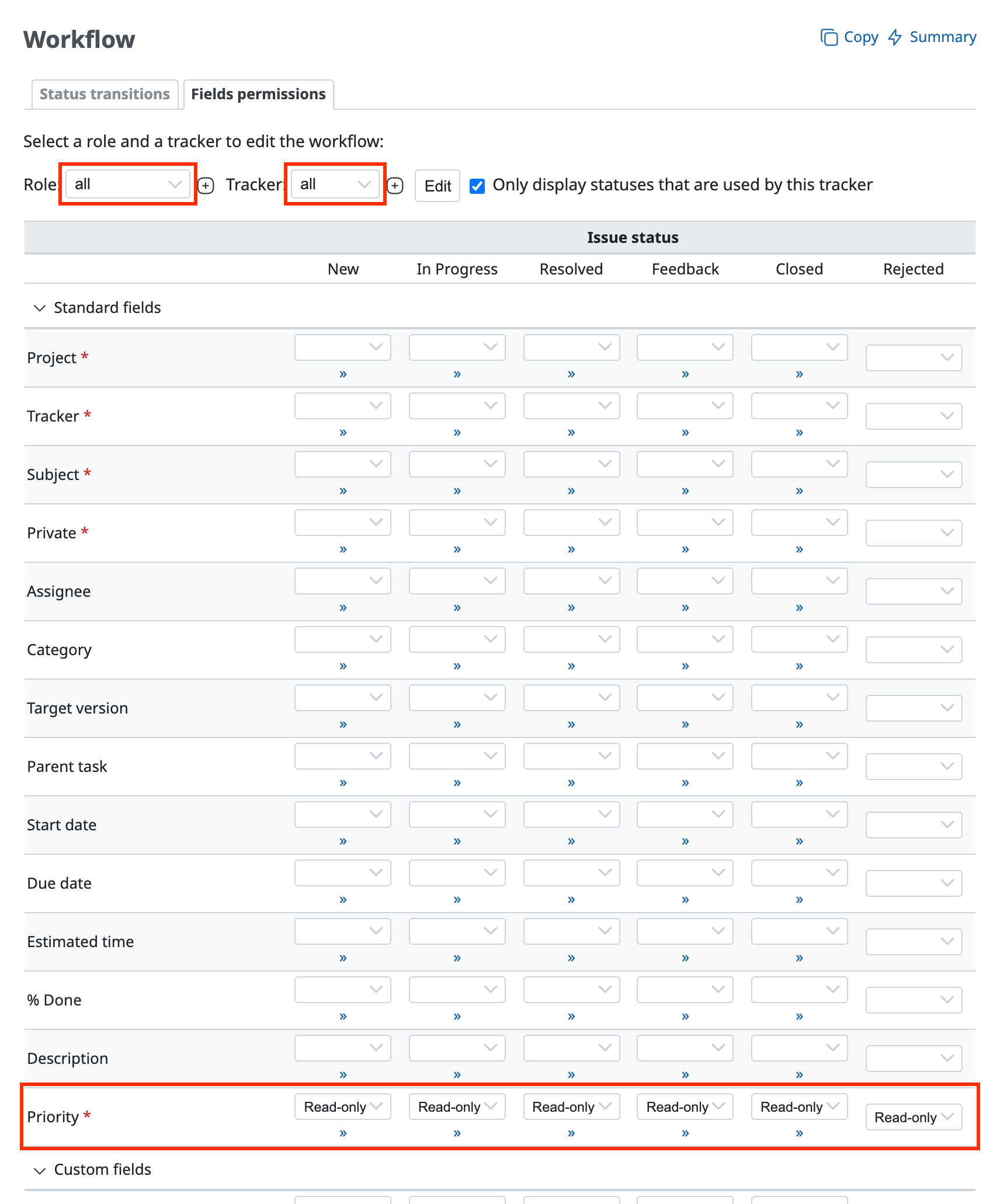
If you click "»", you can select the drop-down lists of several statuses at once.
Related information