Change the interval of % Done of Redmine issues from 10% to 5%
Updated on 2025-12-16
•
Created on 2024-06-11
•

(Supported versions: Redmine 6.0 or later / RedMica 3.0 or later)
Redmine issues have a field called % Done. You can select a value from 0% to 100% to show how far the work has progressed.
By default, you can select values in steps of 10%. If you want to enter values in smaller steps, you can change the step to 5% in the application settings of Redmine.
You can set whether the list of % Done options uses steps of 10% or 5% in "Done ratio options interval" on the "Administration" → "Settings" → "Issue tracking" tab.
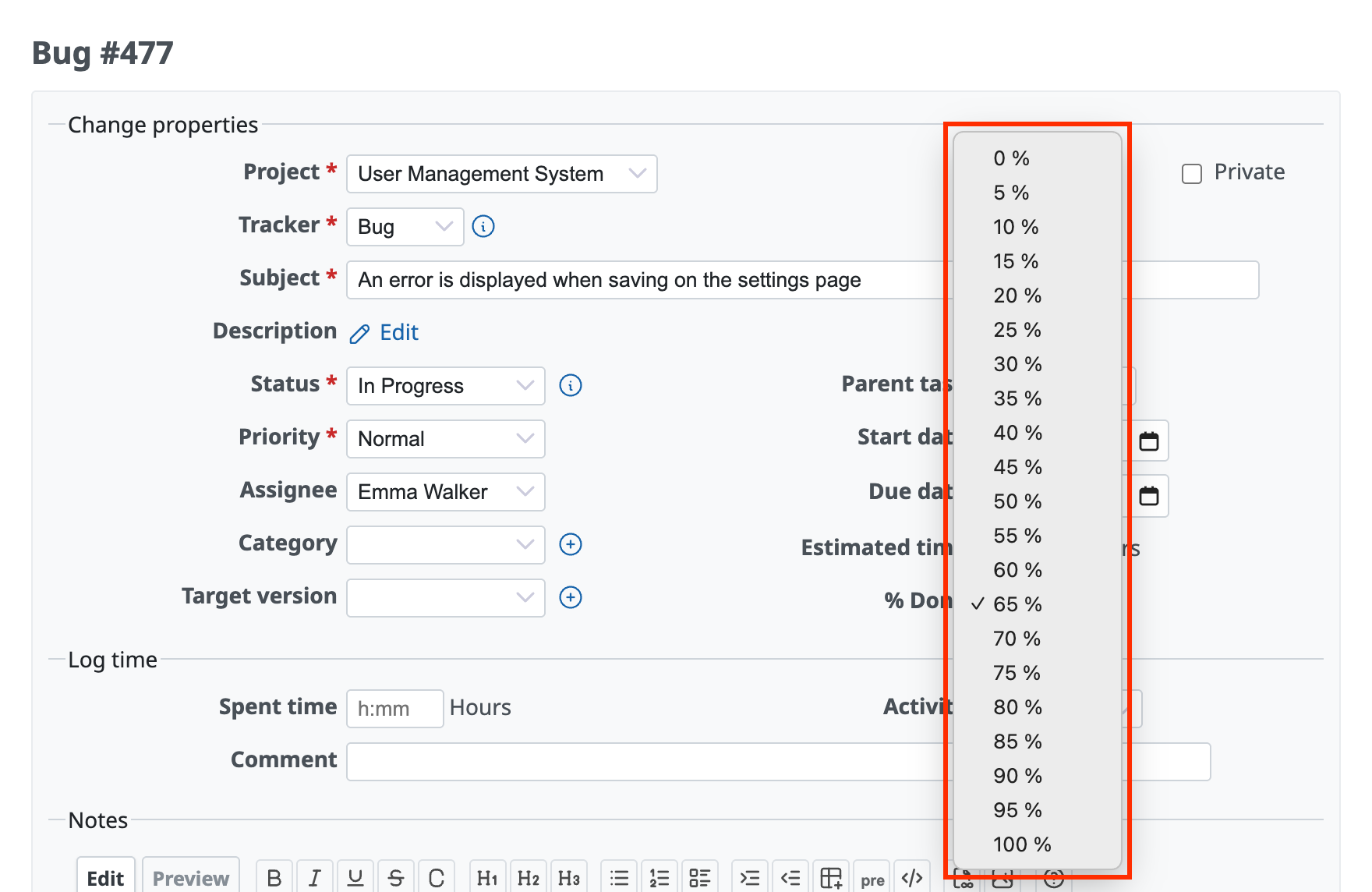
% Done in steps of 5%
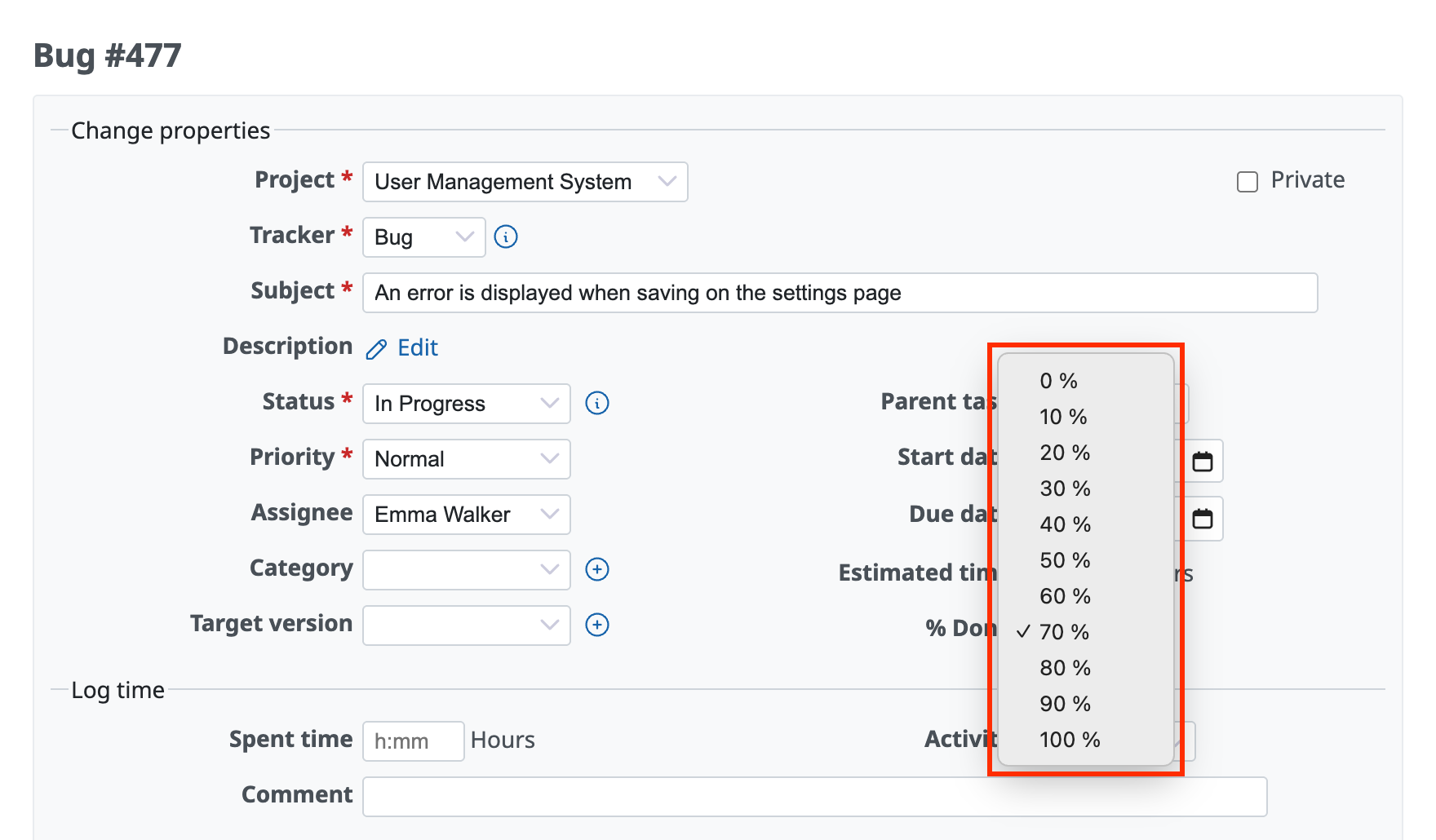
% Done in steps of 10%
Settings
Go to "Administration" → "Settings" → "Issue tracking" tab → "Done ratio options interval", select "5%" and click "Save"

When "Calculate the issue done ratio with" is set to "Use the issue status"
If "Calculate the issue done ratio with" on the "Administration" → "Settings" → "Issue tracking" tab is set to "Use the issue status", you can set the % Done of each status in steps of 5% in "Administration" → "Issue statuses".
With this setting, the % Done is updated at the same time as you update the status of an issue (Update the % Done together with the status of an issue in Redmine).

% Done for fixing keywords
On the "Administration" → "Settings" → "Repositories" tab, you can set in steps of 5% the % Done that is set when a fixing keyword is specified.
A fixing keyword is a keyword that you use in a commit message of a version control system, together with a Redmine issue number, to change the state of the issue. When you make a commit with a fixing keyword and an issue number in the commit message, Redmine changes the % Done of that issue to the value that you set on this tab.