How to embed images in issues and other content in Redmine
Created on 2026-01-30
•

In Redmine, you can embed and display images in the text of issues and wiki pages. Redmine supports operations such as pasting from the clipboard and drag and drop, so anyone can use this feature easily.
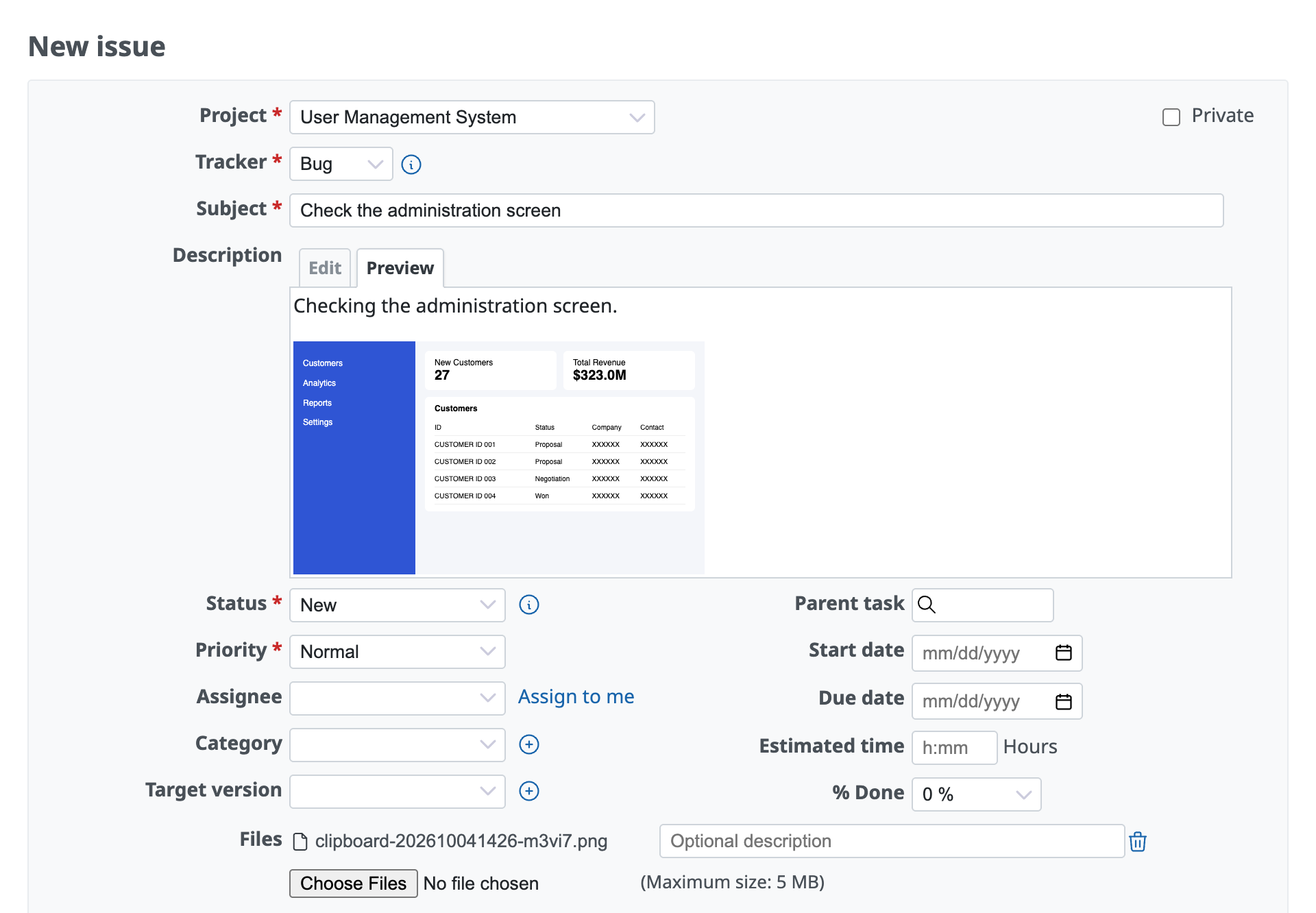
Checking an embedded image in the preview of the issue description
You can embed images not only in the description and notes of issues but also in wiki pages and news.
Ways to embed and display images
1. Paste directly from the clipboard (Ctrl+V)
The fastest and easiest way is to paste with a keyboard shortcut. You can take a screenshot on your PC and paste it directly into the Redmine input field.
Steps
- Take a screenshot on your PC, or copy an image in image editing software.
- Windows:
PrintScreenkey orWin+Shift+S - Mac:
Command+Control+Shift+4, and so on
- Windows:
- Click the "Description" or "Notes" text area of the issue to place the cursor in it, and paste with the keyboard shortcut.
- Windows:
Ctrl+V - Mac:
Command+V
- Windows:
- When you paste, the file is uploaded automatically, and code like the following is inserted in the input field.
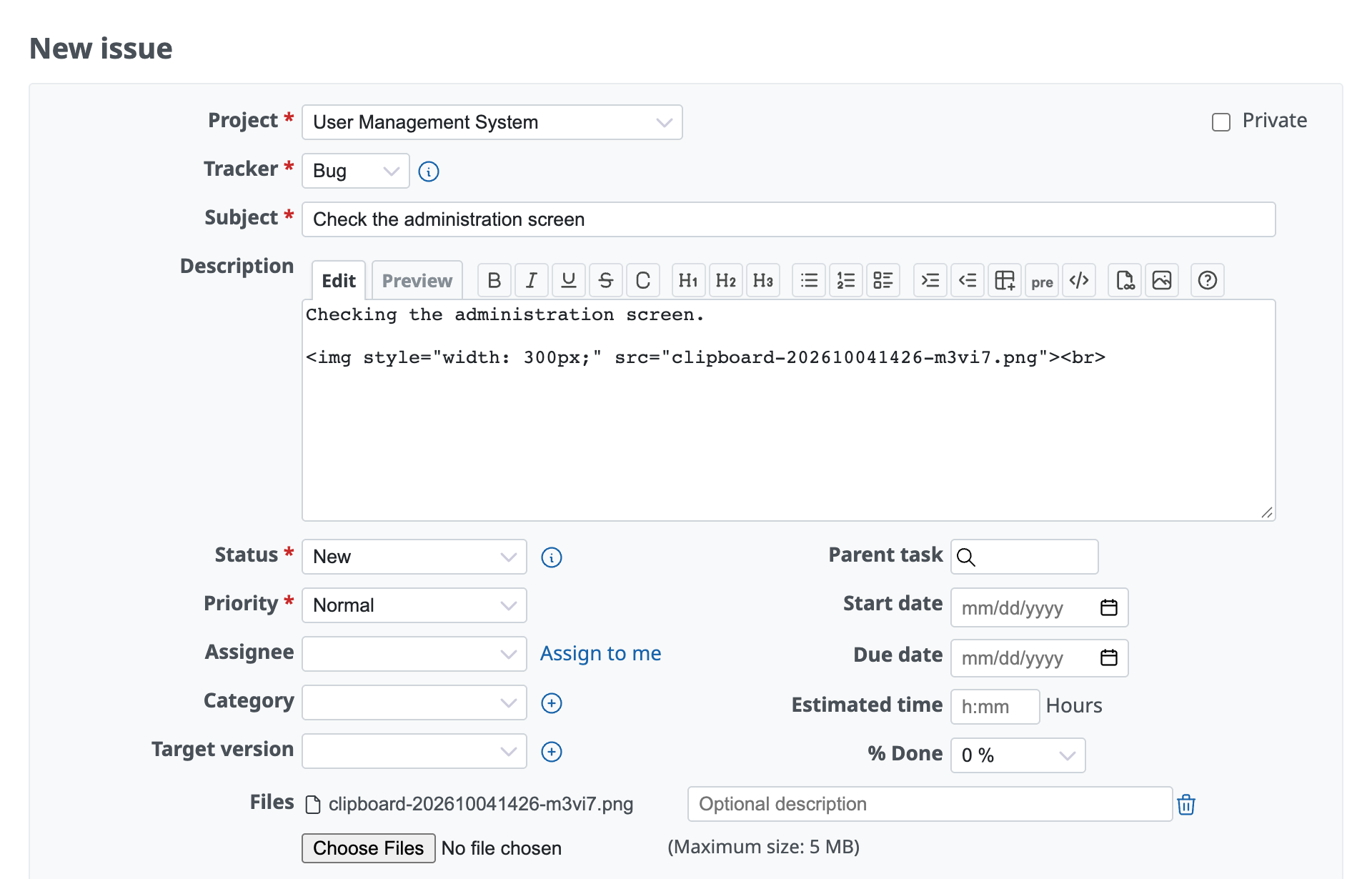
For Markdown
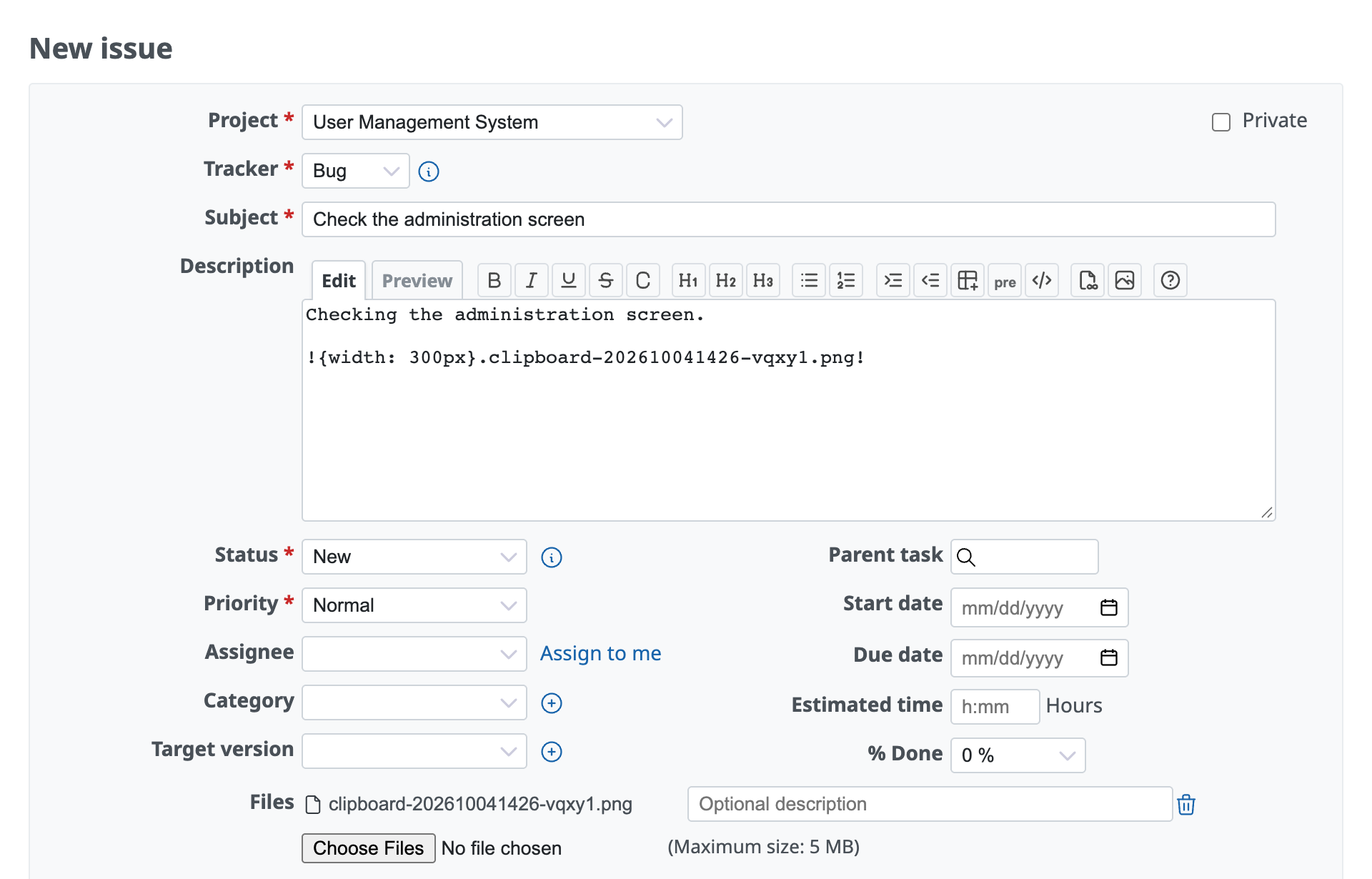
For Textile
2. Drag and drop
Drag and drop is convenient when you want to use image files saved in a folder or on the desktop of your PC. It is useful when you want to insert several images that you already have at one time, for example when you create a wiki page.
Steps
- Click and hold the image file that you want to insert.
- Drop it directly into the Redmine input area (text box). (The area turns purple when you move the image over an area that accepts attachments.)
With only these steps, the file is uploaded and the embedding code is inserted automatically, in the same way as pasting from the clipboard.


3. Attach a file and then write the code

If you uploaded the file manually with the "Choose Files" button, or if you want to display an image that is already attached to the issue, write the code manually.
To display the image, put an ! (exclamation mark) before and after the image file name.
You can also insert the code with the image icon in the toolbar.
Markdown syntax

Textile syntax
!image.png!
Related information