Adding a link to an image in Redmine
Created on 2025-11-05
•

This page explains how to add a link to a website on an image uploaded to Redmine. You do this by combining the Markdown/Textile syntax to embed an image with the syntax to add a link.
If you display an image on the Home page, a wiki page, or another page and add a specific URL to it, you can open a website that you visit often at any time.

Preparation
- In "Administration" → "Roles and permissions" → "Permissions report", turn on the "View files" permission for all roles.
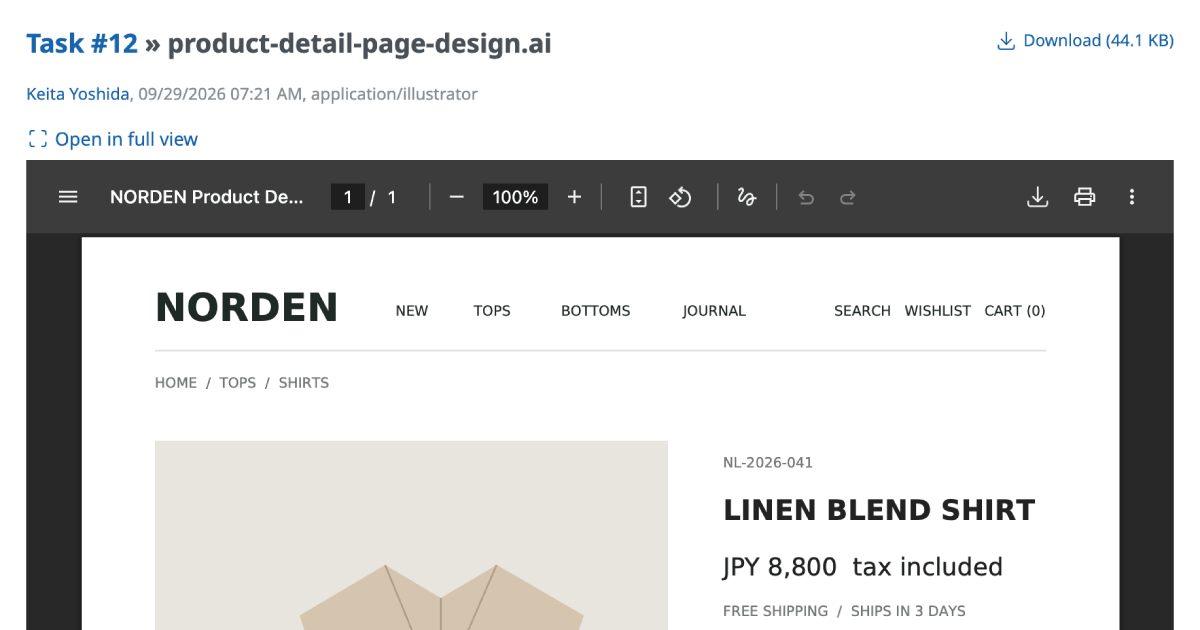
- In the "Files" module of the project, upload the image with "New file". (If the "Files" module is not displayed, enable it: in the "Settings" → "Project" tab of the project, turn on "Files" under "Modules" and click "Save".)
- Right-click the download icon and copy the URL.


Steps to display the image
- Check "Text formatting" in the "Administration" → "Settings" → "General" tab.
On the Home page (Welcome text), a wiki page, or another page, enter the following according to the text formatting.
For Markdown: Combineand[link text](link URL)[](link URL)For Textile: Combine
!image URL!and"link text":link URL!URL copied in step 3 of the preparation!:link URLClick "Save".