Python-Redmine Tutorial: Managing Projects, Issues, and More
2026-08-21
•
Tags: REST API
•

I will introduce how to connect to Redmine and manipulate projects and issues using Python-Redmine, a library that allows you to interact with the Redmine REST API via Python.
By using Python-Redmine, you can handle Redmine projects, issues, and other resources as Python objects without needing to manage the complex details of raw API requests.

What is Redmine:
Redmine is a versatile, open-source project management tool built on Ruby on Rails. It offers features like multi-project support, issue tracking, time tracking, and custom fields. Visit the official website at www.redmine.org to access a wealth of comprehensive information.
About Python-Redmine
Python-Redmine is a library for using the Redmine REST API from Python. After connecting with a Redmine URL and API key, you can search for and retrieve projects and issues, along with other Redmine resources, using Python code.
Python-Redmine GitHub repository
In this article, I will create a Python virtual environment, install the library, and operate Redmine using the Python interactive shell.
Prerequisites
- Python 3 must be available (you can check this with
python3 --version). - A Redmine instance with the REST API enabled.
Installing Python-Redmine
Create a working directory. In this article, I will create a directory named python-redmine in the home directory.
mkdir ~/python-redmine
cd ~/python-redmine
Create and activate a Python virtual environment.
python3 -m venv .venv
source .venv/bin/activate
When the virtual environment is active, .venv or similar is displayed in the terminal prompt. Run all subsequent commands with the virtual environment activated.
Install Python-Redmine with pip.
python3 -m pip install python-redmine
Starting the Python Interactive Shell
Start the Python interactive shell with the virtual environment activated.
python3
The >>> prompt is displayed. Run the following steps while this prompt is shown.
Loading the Python-Redmine library
Import the Python-Redmine library into your shell.
from redminelib import Redmine
Connecting to Redmine
Connect to Redmine using your API key. For information about using API keys, see REST API - Redmine Glossary.
Specify your Redmine URL and API key. Replace https://redmine.example.com/ and YOUR_API_KEY below with the values you actually use.
redmine = Redmine( "https://redmine.example.com/", key="YOUR_API_KEY" )
Listing Projects
You can retrieve a list of projects with project.all(). The following example outputs each project name and identifier.
projects = redmine.project.all()
for project in projects:
    print(project.name, project.identifier)
(Example Output)
AI Chatbot Implementation ai-chatbot-impl
Cloud Migration Project cloud-migration
Website Redesign Project website-redesign
Creating a project
Run the following to create a new project. The minimum required fields are name and identifier.
project = redmine.project.create(
    name='Publish an article about Python-Redmine',
    identifier='pub-article-python-redmine',
    description='Publish a blog article introducing Python-Redmine',
    is_public=False
)
Adding Members to a Project
To add a member to a project, you need to specify the ID of the user and the ID of the role you want to assign.
Listing Users
You can output a list of active users registered in Redmine as follows.
users = redmine.user.filter(status=1)
for user in users:
    print(user.id, user.login, user.firstname, user.lastname, user.mail)
(Example Output)
40 mai_akada Mai Akada mai_akada@example.com
41 saburo_kameda Saburo Kameda saburo_kameda@example.com
42 daisuke_sato Daisuke Sato daisuke_sato@example.com
Listing Roles
You can output a list of roles as follows.
roles = redmine.role.all()
for role in roles:
    print(role.id, role.name)
(Example Output)
3 Manager
4 Developer
5 Reporter
Adding a member
The following registers the user “Mai Akada” (ID: 34) as a “Manager” (ID: 3) in the project "Publish an article about Python-Redmine" (identifier: pub-article-python-redmine).
membership = redmine.project_membership.create(
    project_id='pub-article-python-redmine',
    user_id=40,
    role_ids=[3]
)
Listing project members
You can output a list of members already registered in a project as follows.
memberships = redmine.project_membership.filter(
    project_id='pub-article-python-redmine'
)
for membership in memberships:
    print(membership.user)
(Example Output)
Mai Akada
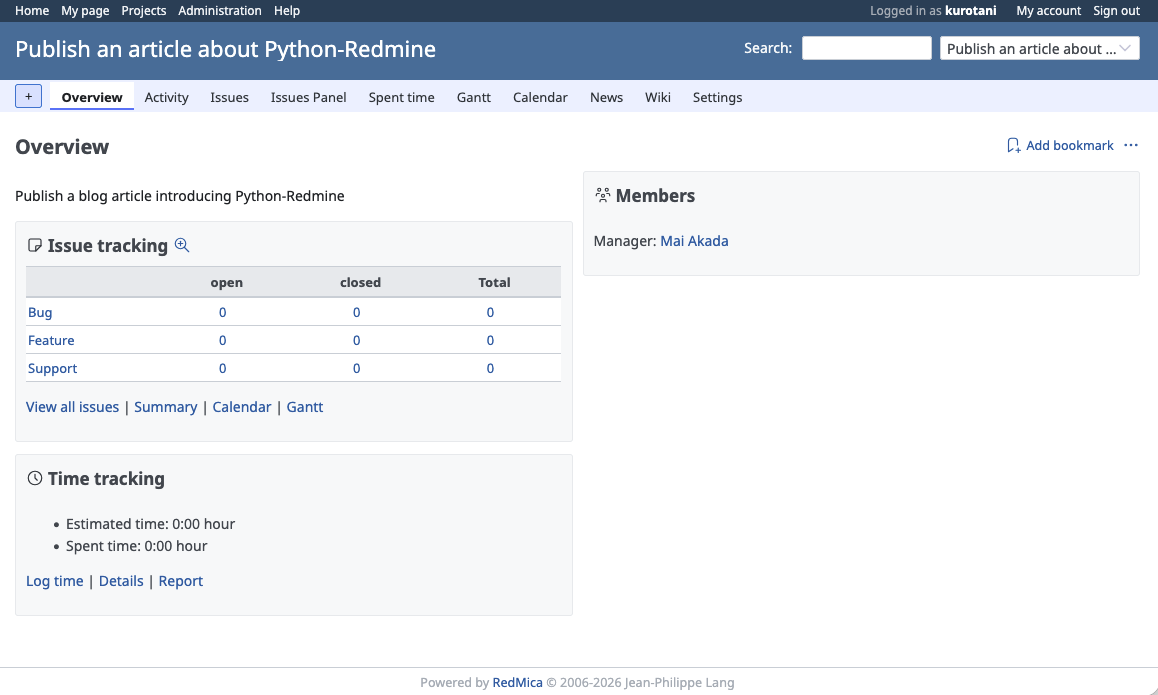
Project Overview
Creating an Issue
To create an issue, execute the following code. The minimum required fields are project_id (the project identifier) and subject (the issue title).
issue = redmine.issue.create(
    project_id='pub-article-python-redmine',
    subject='Verify that the Python-Redmine library works',
    description='Try running the Python-Redmine library in practice',
    assigned_to_id=40
)
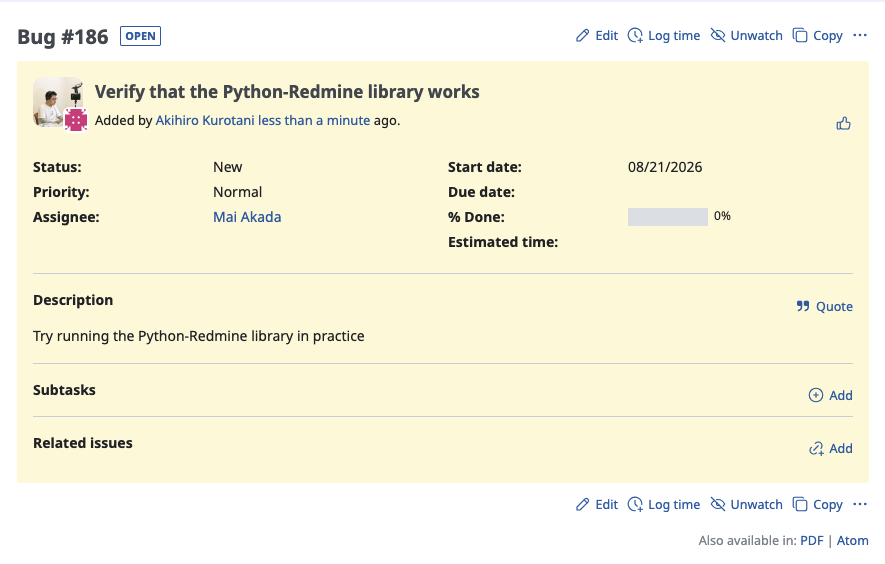
Created Issue Details
Listing Issues registered in a project
To output a list of issues registered in a project, specify the project identifier as follows.
issues = redmine.issue.filter(project_id="pub-article-python-redmine")
for issue in issues:
    print(issue.id, issue.subject)
(Example Output)
186 Verify that the Python-Redmine library works
Outputting Issue Details in JSON Format
Specify an issue number in issue.get() to retrieve information about a specific issue. Calling raw() outputs the retrieved data as a JSON-formatted string.
issue = redmine.issue.get(186)
print(issue.raw())
(Example Output)
{'relations': None, 'time_entries': None, 'children': None, 'attachments': None, 'changesets': None, 'journals': None, 'watchers': None, 'allowed_statuses': None, 'id': 186, 'project': {'id': 44, 'name': 'Publish an article about Python-Redmine'}, 'tracker': {'id': 1, 'name': 'Bug'}, 'status': {'id': 1, 'name': 'New', 'is_closed': False}, 'priority': {'id': 2, 'name': 'Normal'}, 'author': {'id': 5, 'name': 'Akihiro Kurotani'}, 'assigned_to': {'id': 40, 'name': 'Mai Akada'}, 'subject': 'Verify that the Python-Redmine library works', 'description': 'Try running the Python-Redmine library in practice', 'start_date': '2026-08-21', 'due_date': None, 'done_ratio': 0, 'is_private': False, 'estimated_hours': None, 'total_estimated_hours': None, 'spent_hours': 0.0, 'total_spent_hours': 0.0, 'created_on': '2026-08-21T04:25:40Z', 'updated_on': '2026-08-21T04:25:40Z', 'closed_on': None}
Exit the interactive shell
Run exit() or press Ctrl-D to exit the interactive shell.
Start it again
To start the interactive shell again after exiting the terminal, activate the virtual environment first.
cd ~/python-redmine
source .venv/bin/activate
python3
Summary
Python-Redmine makes it easy to connect to Redmine from Python. This article demonstrated how to operate Redmine using the Python interactive shell, but you could also automate creating and updating issues by using generative AI to generate scripts. We encourage you to give it a try.