Quick 5-Minute Guide to the Watch Feature in Redmine
Updated on 2026-09-17
•
Tags: 5-minute
•


Here’s a simple and easy-to-understand guide to the “Watch” feature in Redmine, the open-source issue tracking system.
Table of Contents
Overview of the Watch Feature
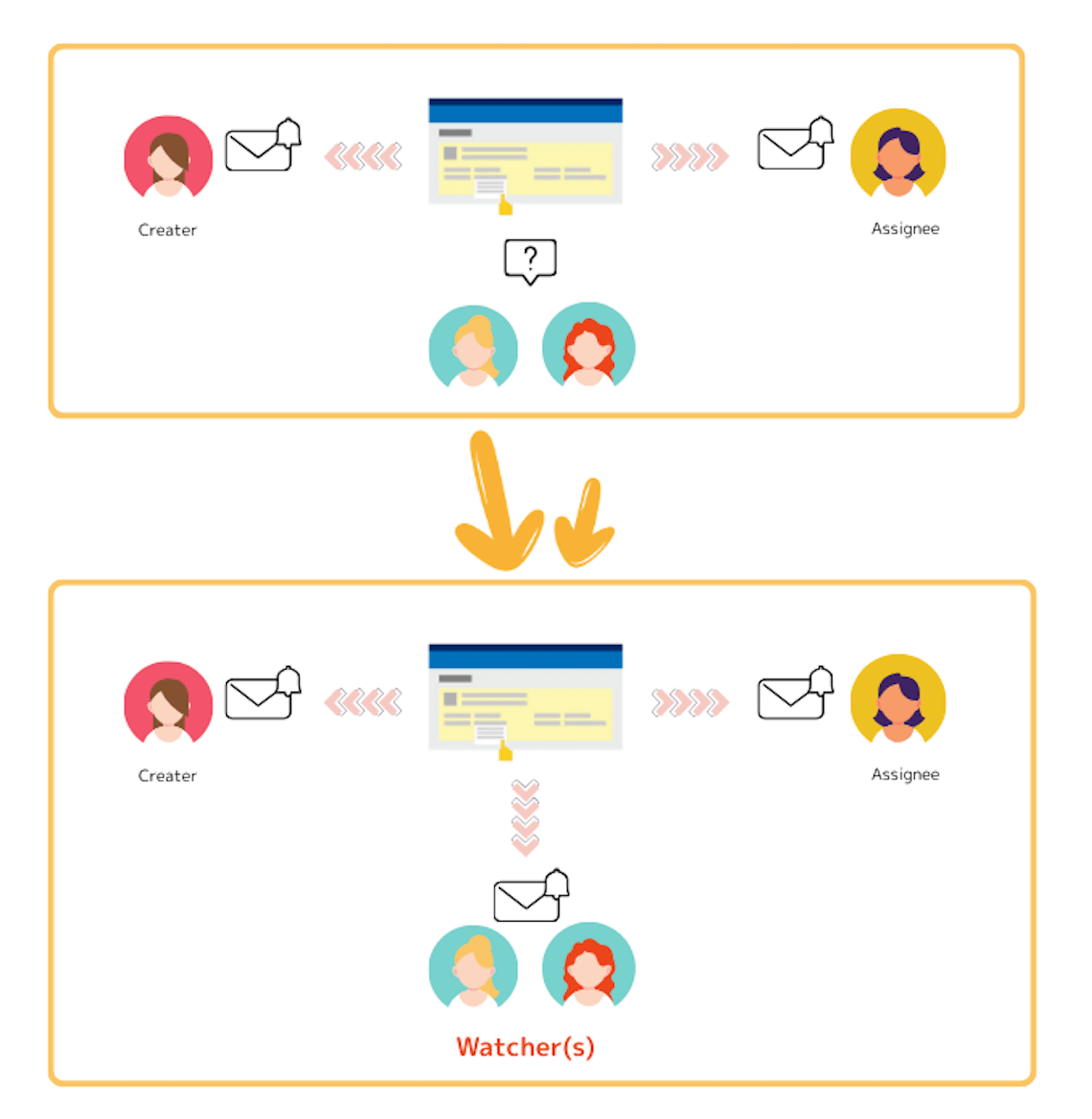
Follow issue updates and receive notifications
As explained in the article Quick 5-Minute Guide to the Email Notification Settings in Redmine, Redmine can notify you by email when issues are updated.
Which updates you receive depends on your email notification settings. For example, with the default setting in Redmine 6.0 and later, you receive notifications for issues you are assigned to and items you are watching.
If you're a project leader and want to stay informed about your team’s activities—including updates to issues handled by other users—you can use the Watch feature to follow specific issues.
When you watch an issue, you can receive notifications about its updates even if you are not assigned to it. If you no longer need to follow the issue, you can simply unwatch it.
The Watch feature is a convenient way to control which issues you want to keep track of, based on your needs.
Watch / Unwatch an Issue
To watch an issue yourself, click “Watch” with the eye icon near the top of the issue detail page. If you have permission to add watchers, you can also click “Add” with the link icon in the Watchers section on the right side to add other users as watchers.
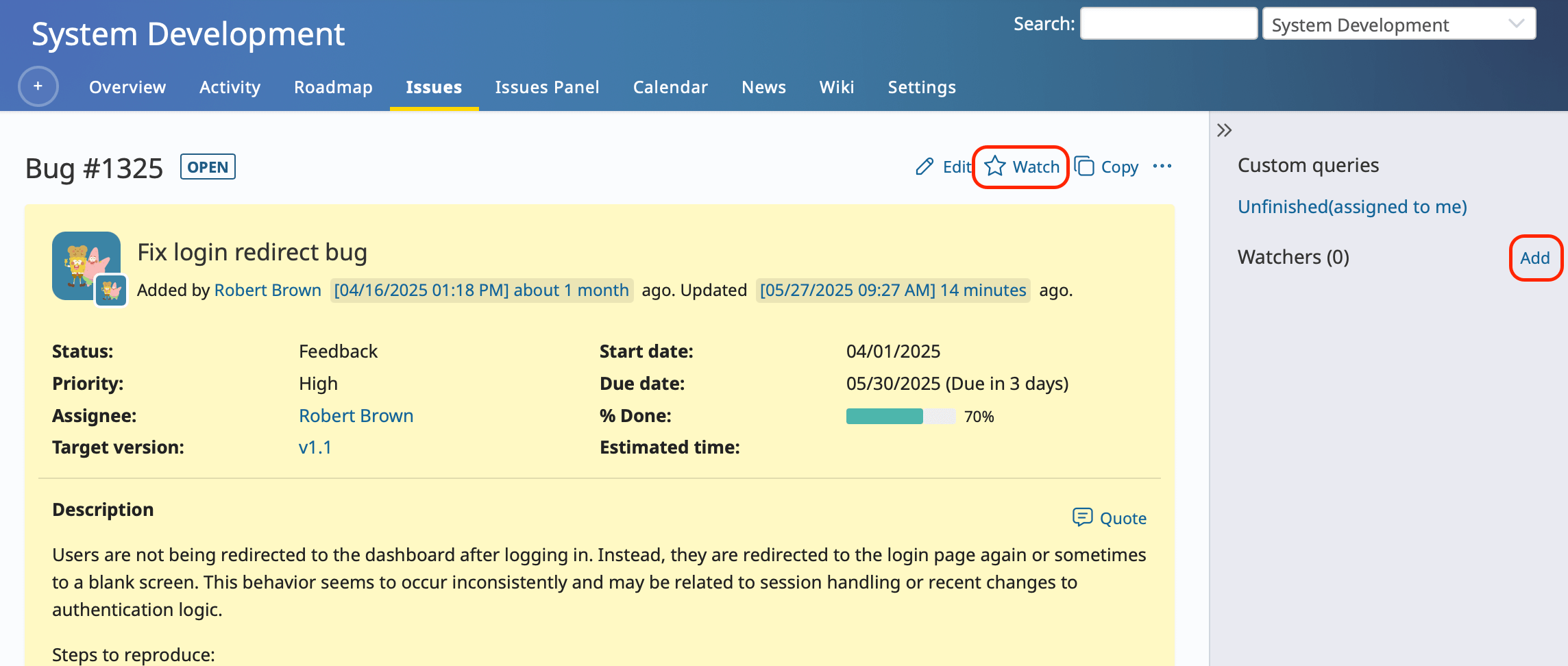
Click the "Watch" button or select "Add watcher"
To stop watching an issue yourself, click “Unwatch” near the top of the issue detail page. If you have permission to remove watchers, you can also remove other users from the Watchers section.
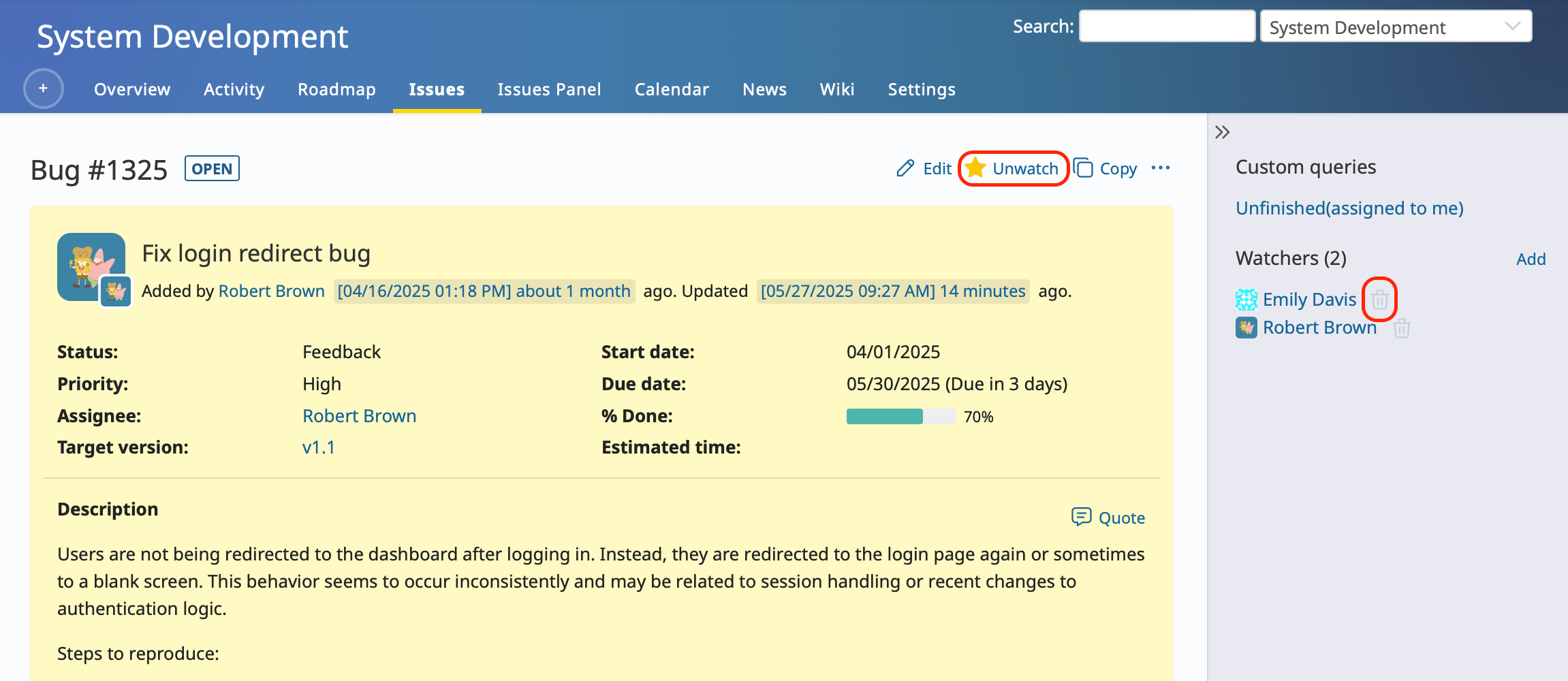
Click "Unwatch" or the trash icon
The watch/unwatch feature works not only for issues but also for wiki pages, news articles, and forum posts.
Recommended Watch Feature Settings
How Redmine Handles Email Notifications by Default
Depending on your Redmine version, the default email notification setting may vary.
- In Redmine 6.0 or later, the recommended setting discussed here is already enabled by default.
- In Redmine 5.1 or earlier, the default setting is:
“Only for things I watch or I'm involved in”, which includes:
- Issues you're watching
- Issues you created
- Issues you are assigned to
If you're using an older version, we encourage you to review and adjust this setting to reduce unnecessary emails.
Choose an Email Notification Setting That Fits Your Workflow
Redmine lets you control which updates you receive by email. The available options include settings based on whether you are watching an issue, assigned to it, or involved in it. If you want to use the Watch feature to choose which issues you receive notifications about, the following settings are particularly useful.
Redmine 7.0 or later: “Only for things I watch”
Starting with Redmine 7.0, a new email notification option, “Only for things I watch,” is available.
With this setting, you receive email notifications for items you are watching. You will not normally receive update notifications simply because you are the author or assignee of an issue unless you are also watching it.
This makes it easy to manage notifications directly with the Watch / Unwatch feature:
- Want to receive updates about an issue? → Watch it.
- No longer need updates? → Unwatch it.
Even when this setting is selected, notifications for mentions using the @user notation are still sent.
To enable this setting, go to My Account → Email notifications and select “Only for things I watch.”
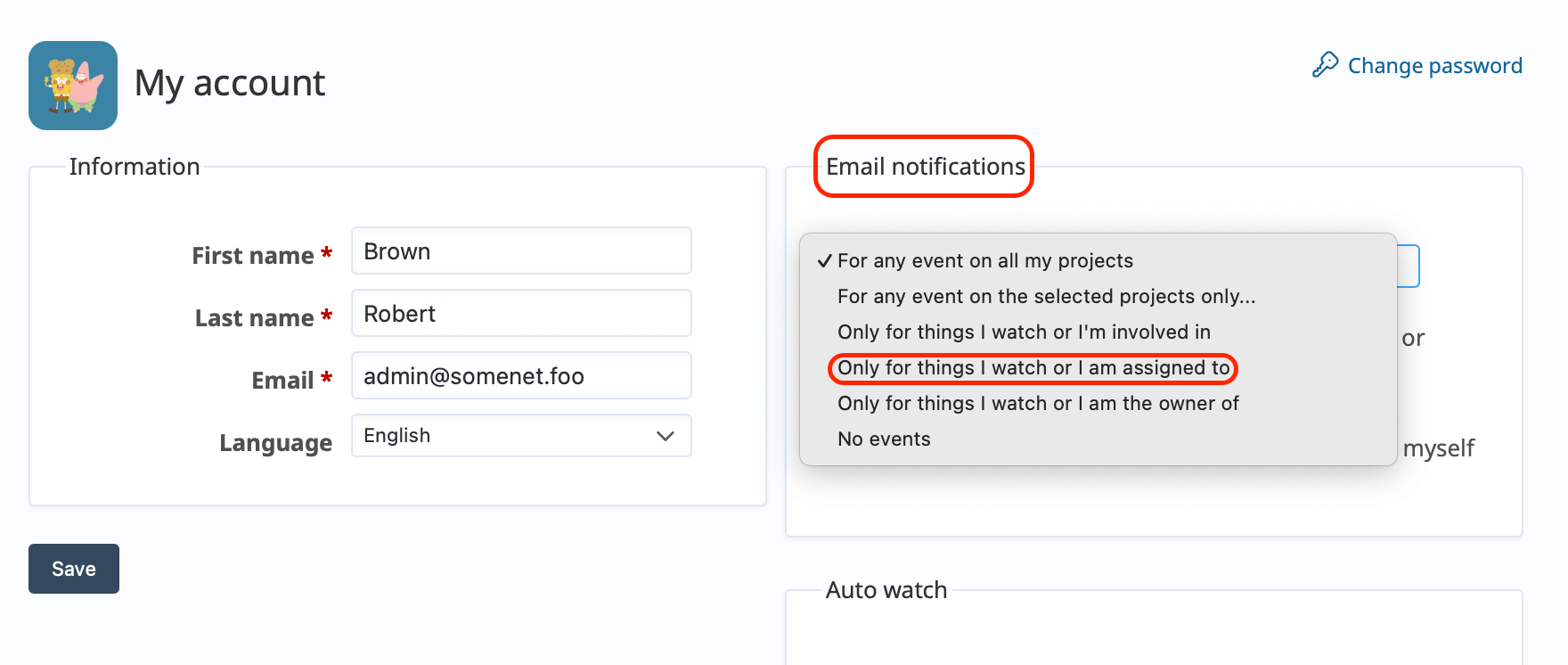
My Account → Email notifications
Other Notification Settings
Depending on how you use Redmine, you may prefer another notification setting.
For example, “Only for things I watch or I am assigned to” sends notifications for:
- Issues you are watching
- Issues assigned to you
This option is useful if you always want to receive updates for issues assigned to you, while using the Watch feature to follow additional issues.
Since Redmine 6.0, “Only for things I watch or I am assigned to” has been the default notification option for new users.
In Redmine 5.1 or earlier, the default setting was “Only for things I watch or I'm involved in,” which also sends notifications for issues you created.
Changing the Default Setting for New Users (Admin Only)
Administrators can set the default email notification option for newly created users.
Go to:
Administration → Settings → Users → Default notification option for new users
If your organization wants users to manage most notifications explicitly with the Watch / Unwatch feature, you can select “Only for things I watch” in Redmine 7.0 or later.
If users should always receive notifications for issues assigned to them, “Only for things I watch or I am assigned to” may be more appropriate.
The setting applies to newly created users. Individual users can change their own notification preferences from My Account → Email notifications.
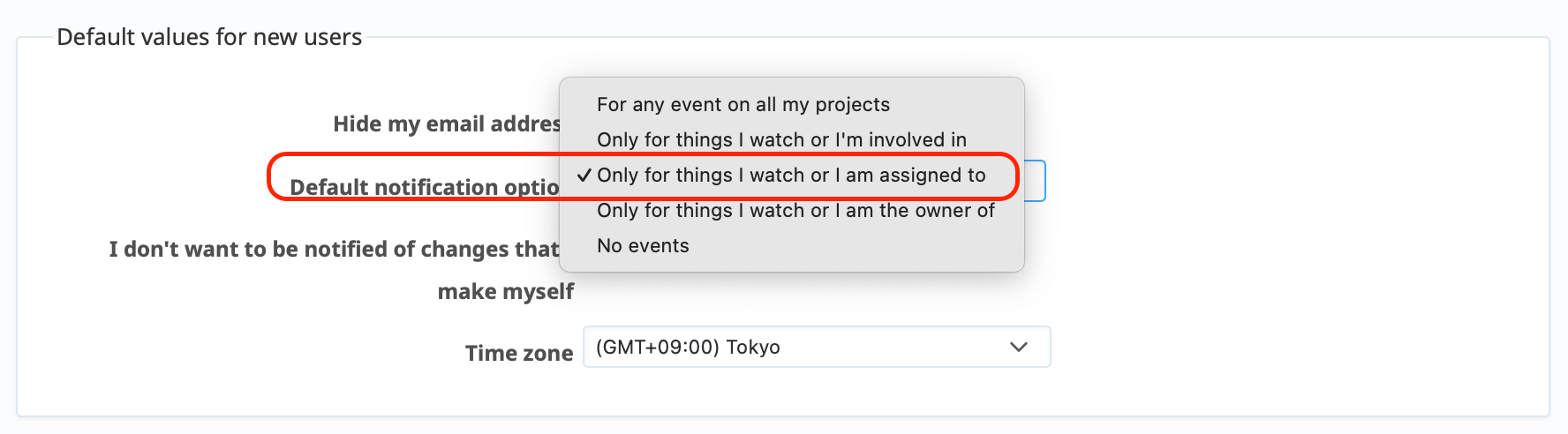
Administration → Settings → Users → Default notification option
Auto Watch
Redmine also offers an Auto Watch feature that automatically adds you as a watcher based on your activity or relationship to an issue.
In Redmine 7.0 or later, you can choose from the following three options:
- Issues I created — Automatically watch issues you create.
- Issues I contributed to — Automatically watch issues when you make changes to them.
- Issues assigned to me — Automatically watch issues when they are assigned to you.
You can enable any combination of these options depending on how you want to receive notifications.
This setting is configured per user. Go to My Account → Auto Watch and select the options you want to enable.
The “Issues assigned to me” option was added in Redmine 7.0. When this option is enabled, you are automatically added as a watcher when an issue is assigned to you.
Auto Watch can also be useful in combination with the “Only for things I watch” email notification setting available in Redmine 7.0 or later. For example, you can automatically watch issues you create, contribute to, or are assigned to, while manually using Watch / Unwatch for other issues.
This gives you more control over which issue updates you receive by email.
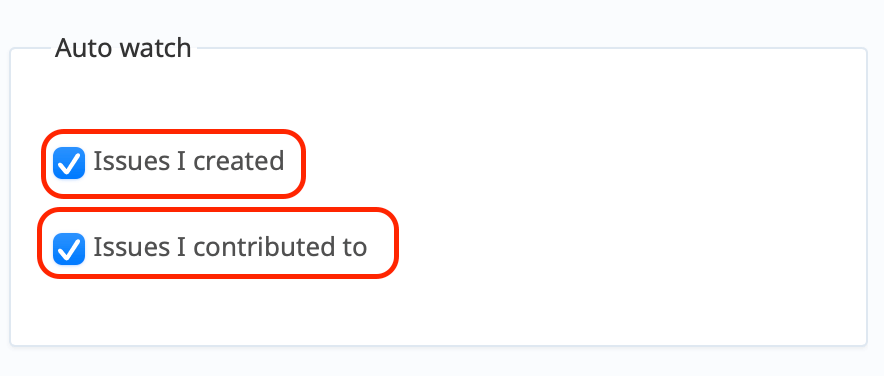
My Account → Auto Watch
We encourage you to explore this feature and make the most of it in your Redmine projects! Explore Redmine's capabilities firsthand on the demo site: demo.redminecloud.net
Return to the "Quick 5-Minute Guide to Redmine" Article List