Quick 5-Minute Guide to the Basic Operations in Redmine
2024-10-24
•
Tags: 5-minute
•

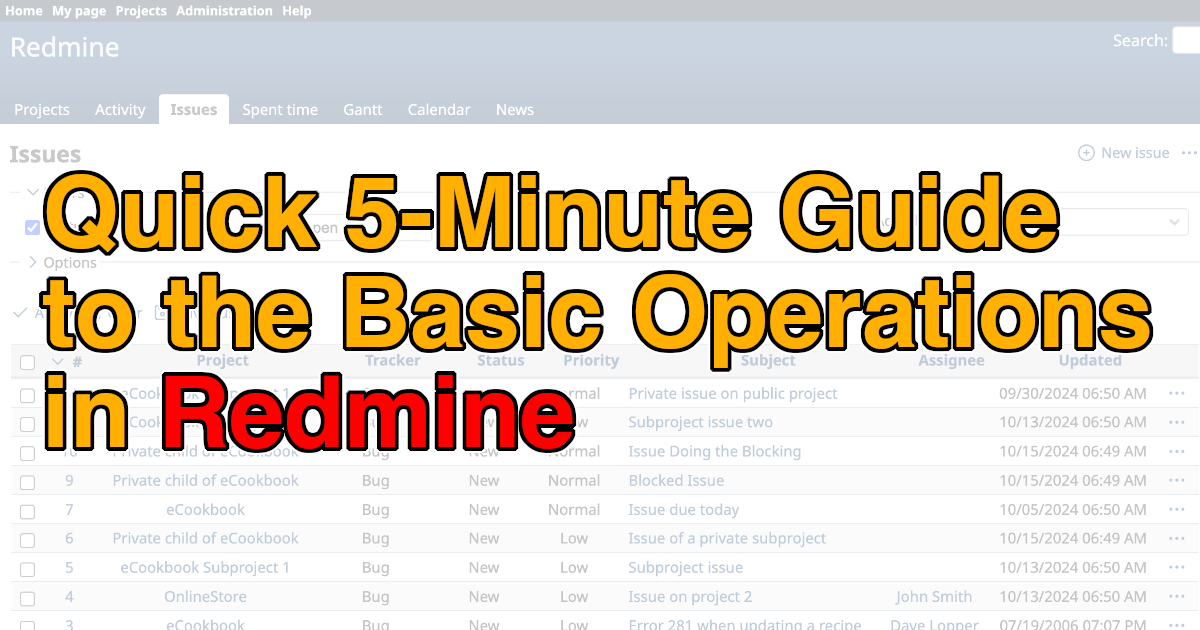
This article provides an easy-to-understand guide to the basic operations of Redmine, an open source project management tool.
Table of Contents
Home
The top page of Redmine is called "Home." When you access Redmine in a web browser, the Home page is displayed.
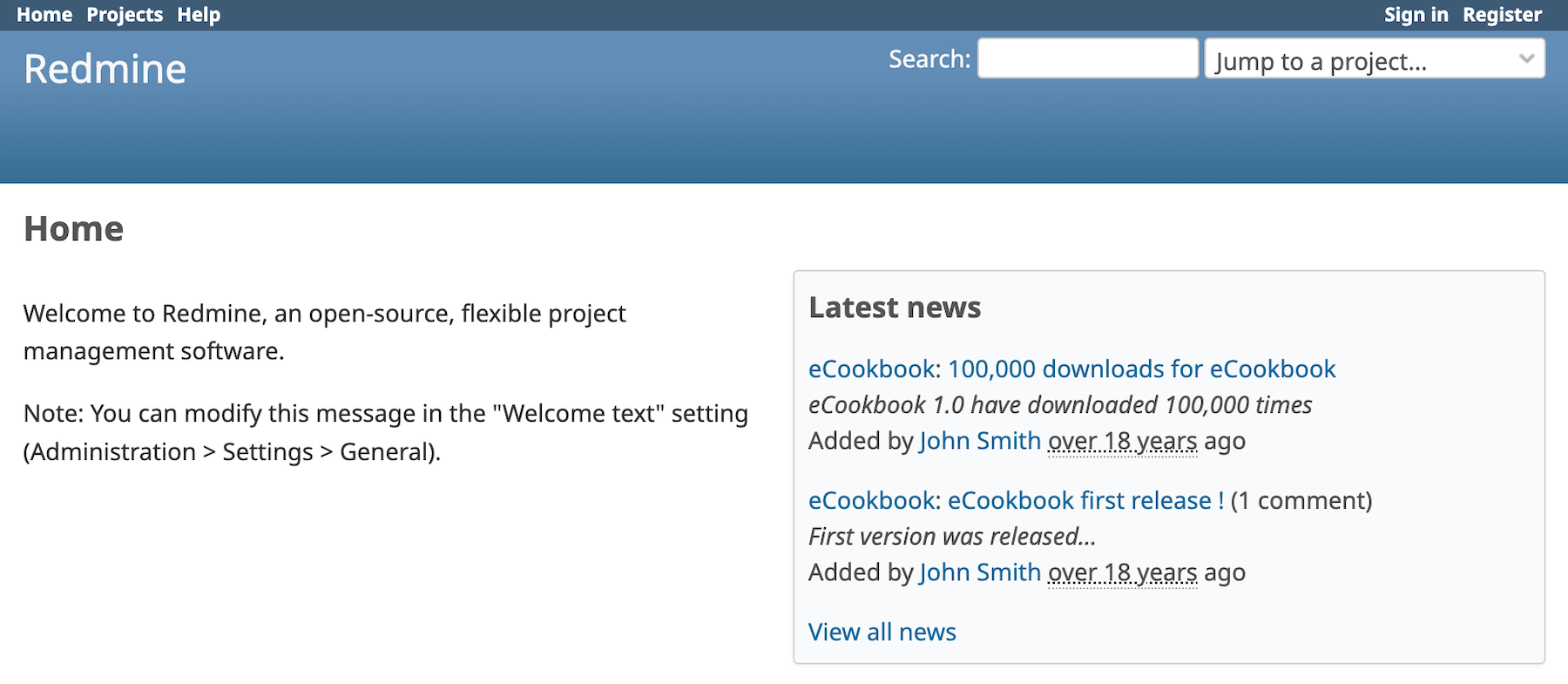
By default, the Home page is publicly accessible, so anyone can view it. An administrator can change the authentication settings to require users to sign in before accessing Redmine. For more details, see RedmineSettings on the official Redmine website.
Sign In
Click "Sign in" in the upper-right corner of the Home page to display the sign-in page.
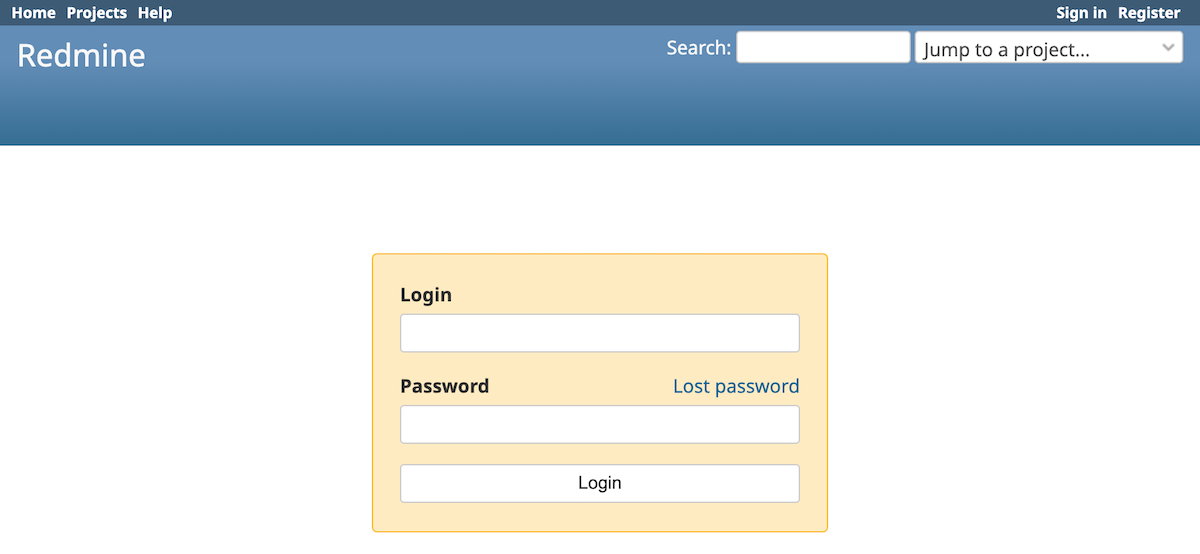
Immediately after Redmine is installed, an administrator account with the login ID "admin" is available. You can sign in by entering "admin" as both the login ID and password. For security, be sure to change the default password after signing in for the first time.
Layout
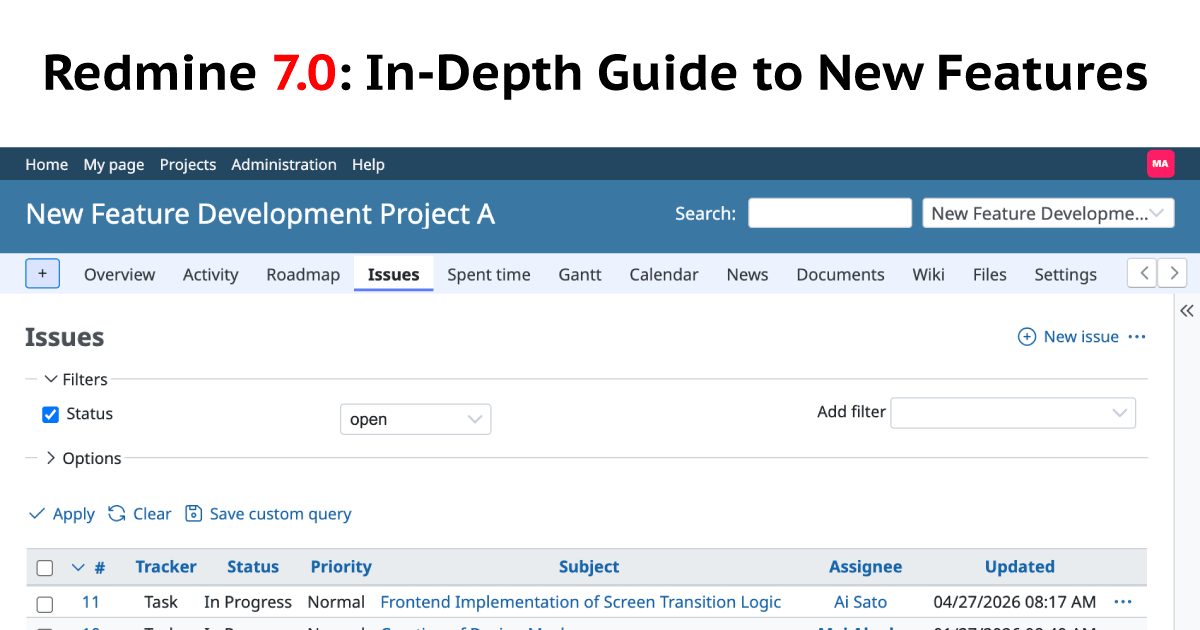
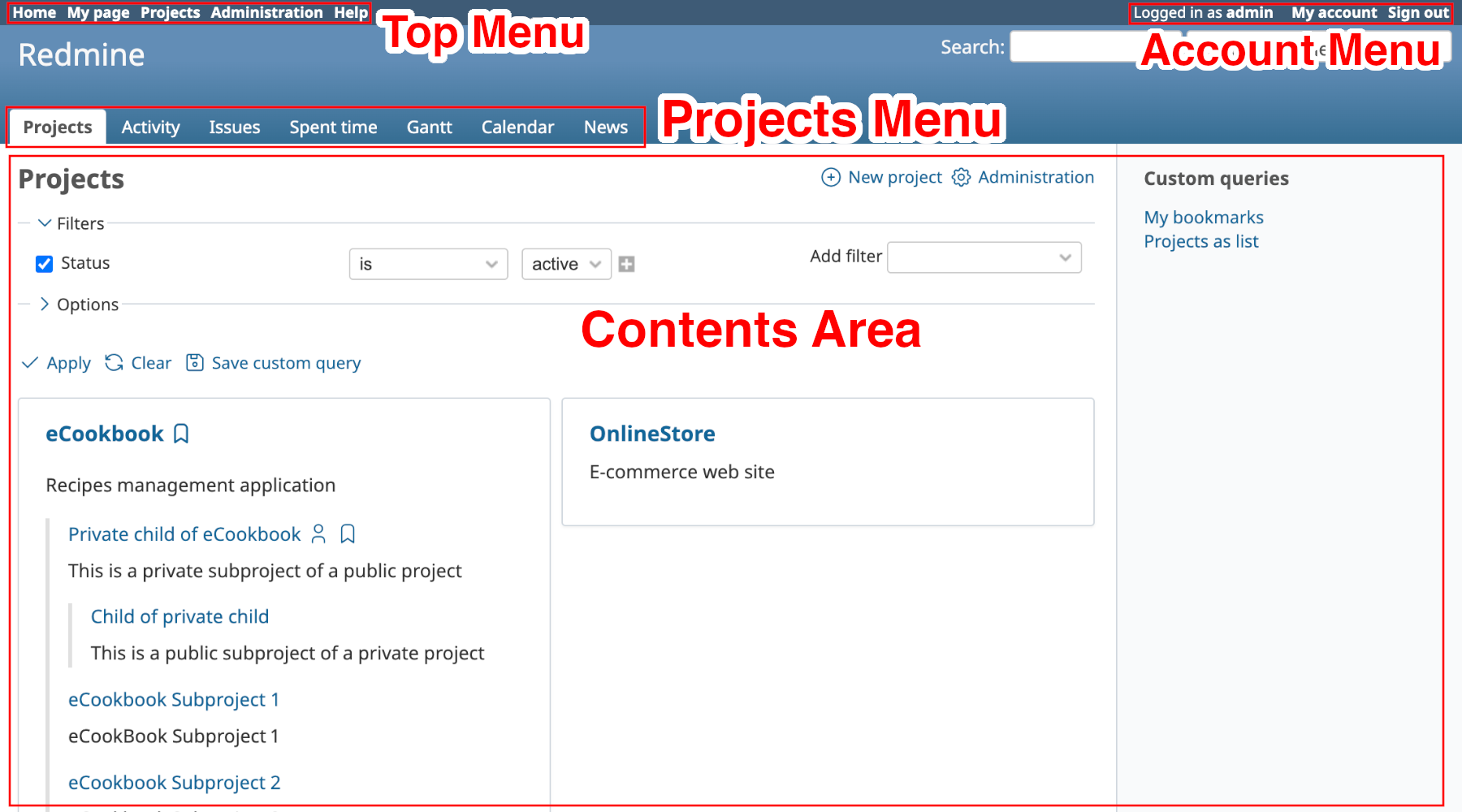
The Redmine interface includes the Top Menu and Account Menu at the top of the page. When you open a project, the Project Menu is displayed below them. The main content appears in the center of the page.
Top Menu
The Top Menu includes links to "Home," "My page," "Projects," "Administration," and "Help."
- Clicking "Home" displays the Home page.
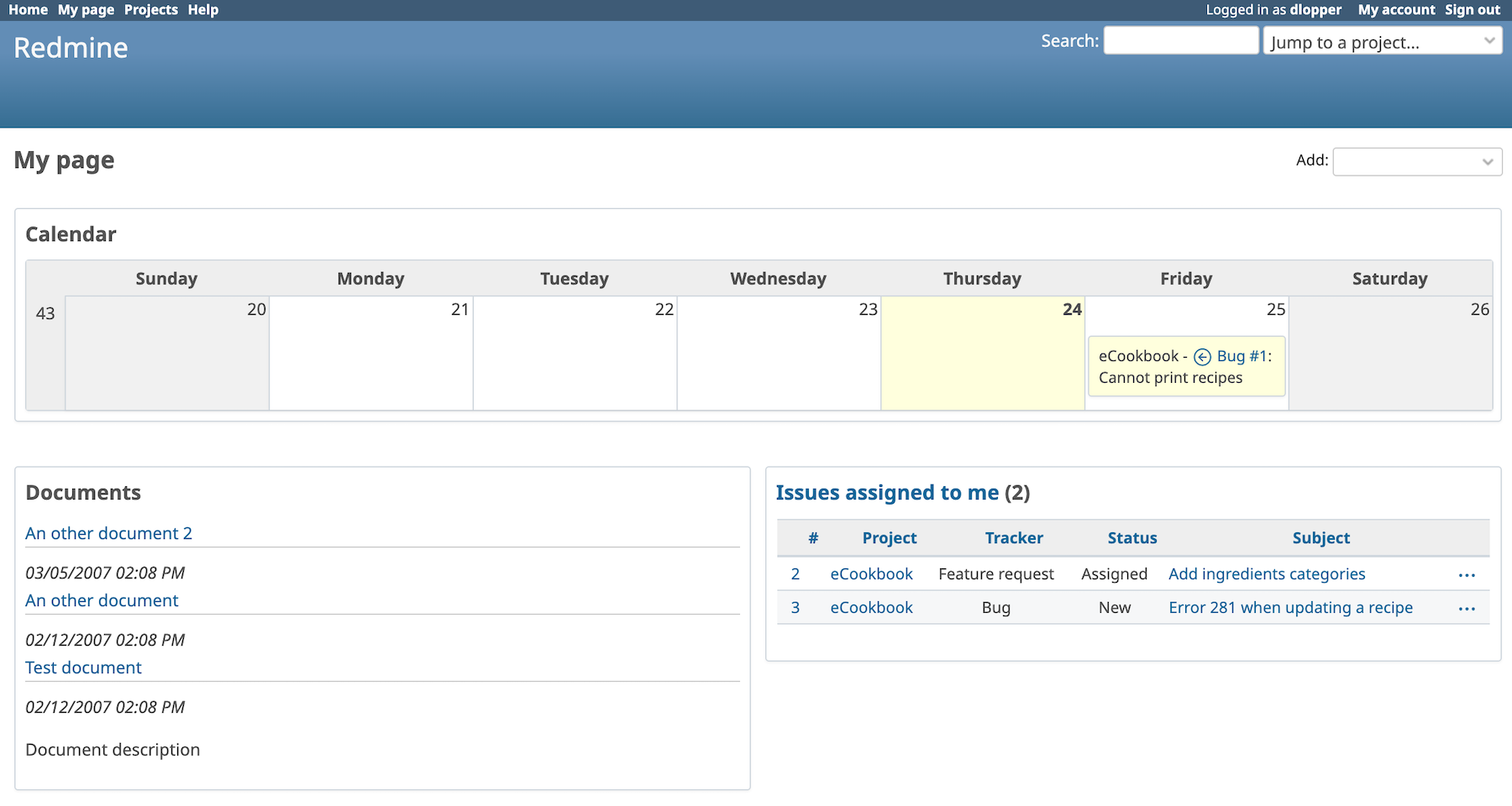
- Clicking "My page" displays your personal dashboard. For more details, see My Page.
- Clicking "Projects" displays the project list.
- "Administration" is available only to users with administrator privileges. Clicking it displays the Administration page.
- Clicking "Help" opens the Redmine Guide, the official guide to using Redmine.
Project Menu
The Project Menu contains links to the features enabled for the current project. In the example shown, features such as "Issues" and "Gantt" are available. This guide introduces the project list, issue operations, and the Gantt chart.
Account Menu
In Redmine 7.0, click the user icon in the upper-right corner of the page to open the Account Menu. The menu displays your user name and login ID, along with links to "Profile," "My account," and "Sign out."
- Clicking "Profile" displays your user profile.
- Clicking "My account" displays a page where you can edit your account information, change your password, and configure personal settings.
- Clicking "Sign out" signs you out of Redmine.
In Redmine 6.x and earlier, account-related links such as "My account" and "Sign out" are displayed directly in the upper-right corner of the page instead of in a drop-down menu.
Project Operations
In Redmine, information is organized into projects. This section explains the main project-related operations.
Project List
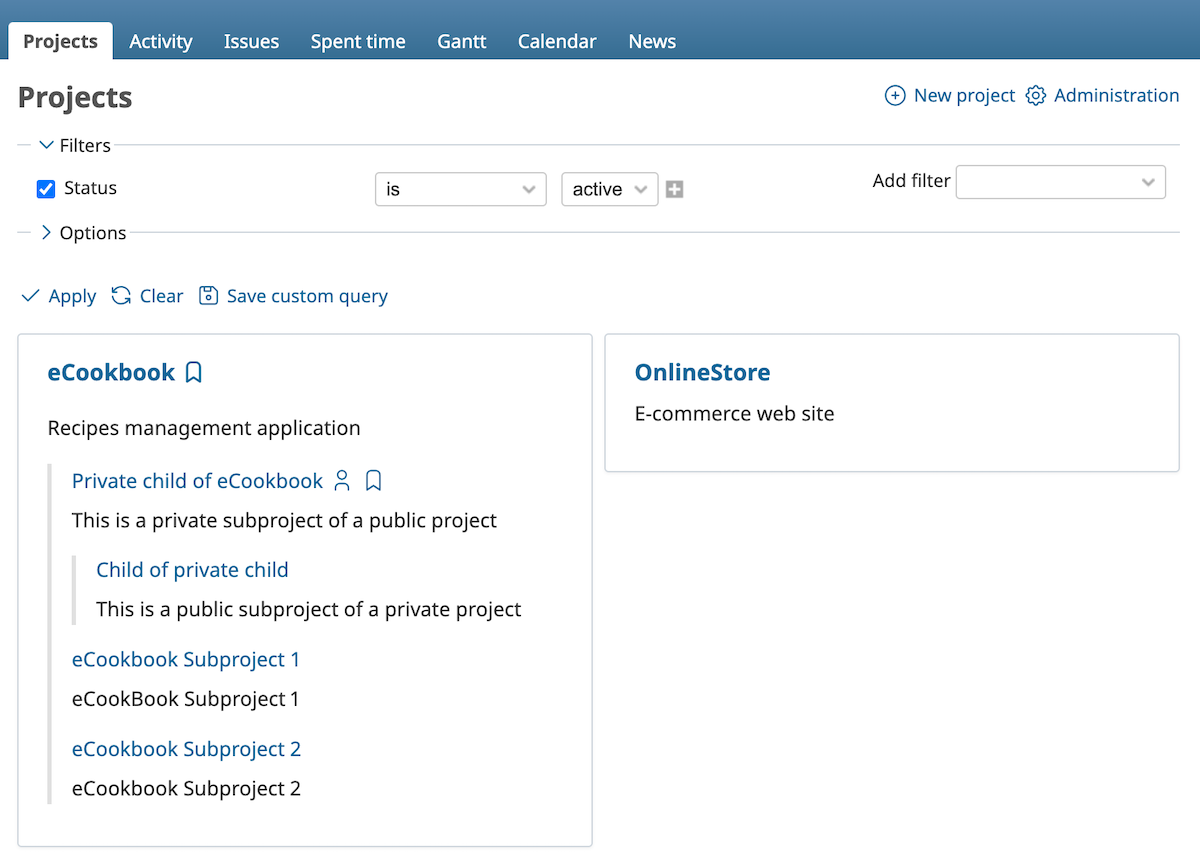
Clicking "Projects" displays a list of the projects you can access. Click a project name to open its page.
Create a Project
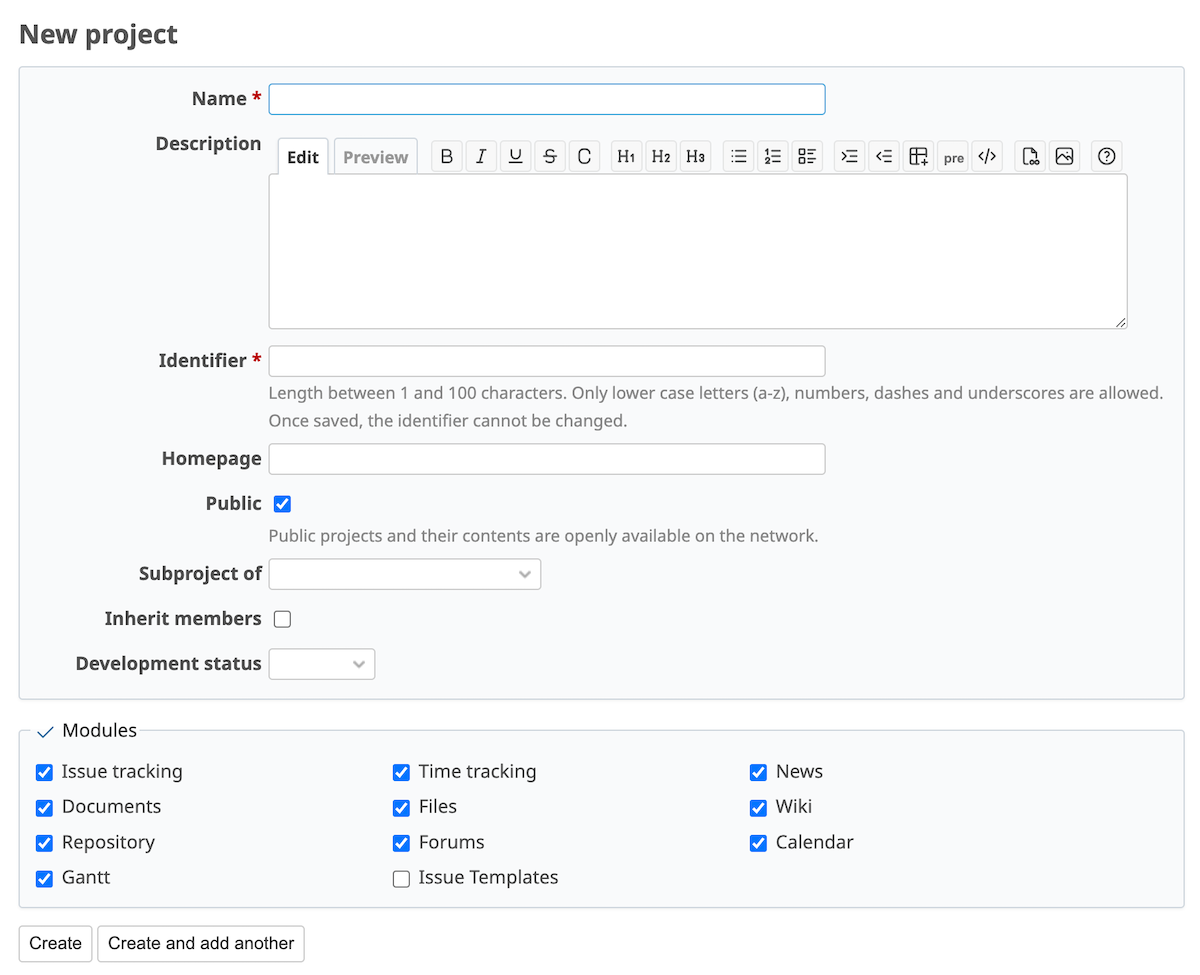
If you have permission to create projects, you can create a project by clicking "New project" on the project list page. Enter the required information, and then click "Create" to create the project.
Issue Operations
This section explains how to use issues, one of Redmine's core features.
Issue List
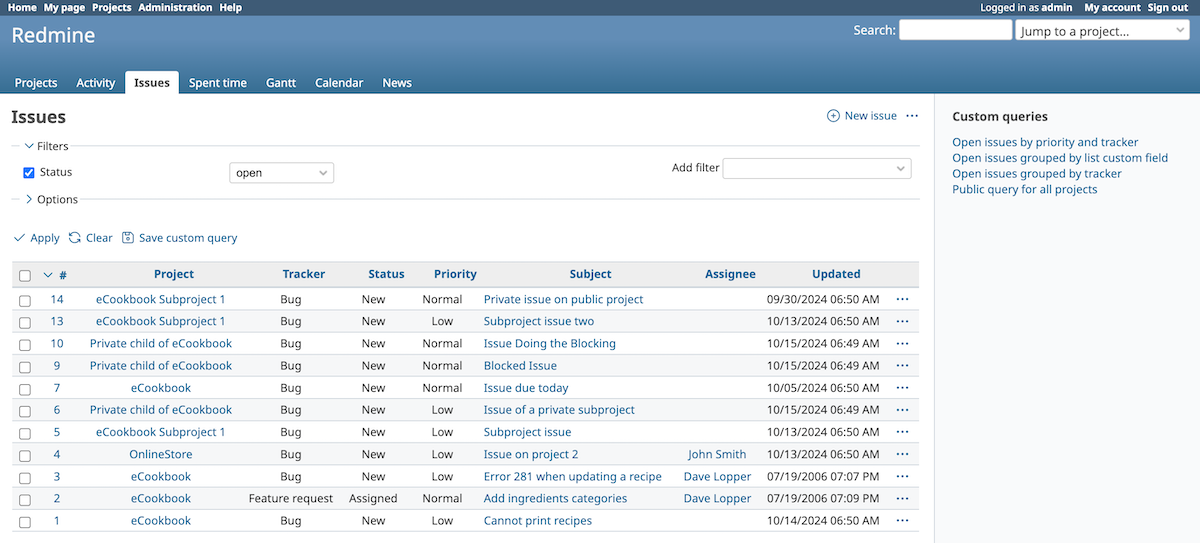
Open a project and click "Issues" in the Project Menu to display the issues registered in that project.
Create an Issue
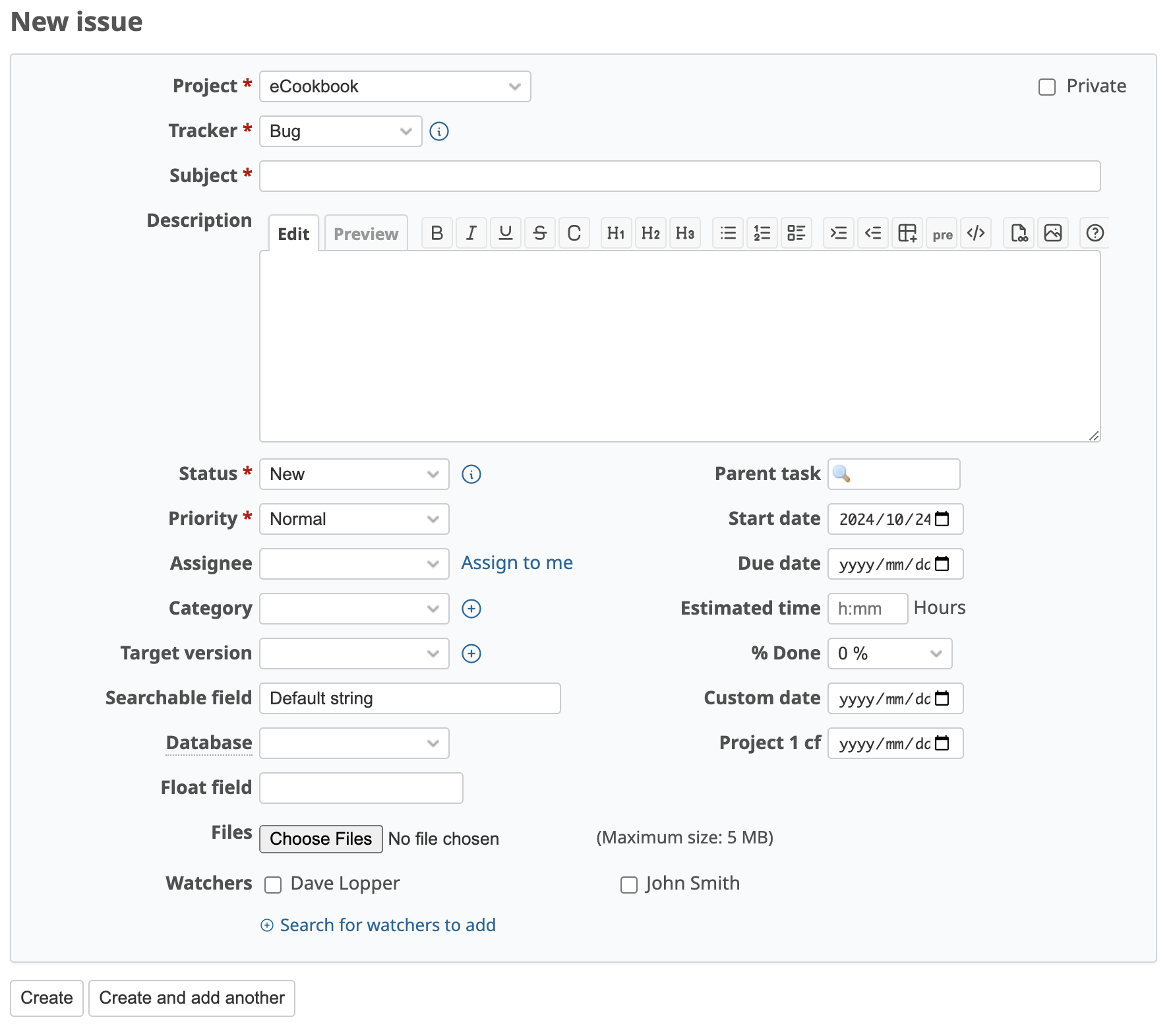
Click "New issue" on the issue list page to display the form for creating an issue. Enter the required information, and then click "Create" to create the issue.
Update an Issue
Click an issue subject in the list to display the issue details page.
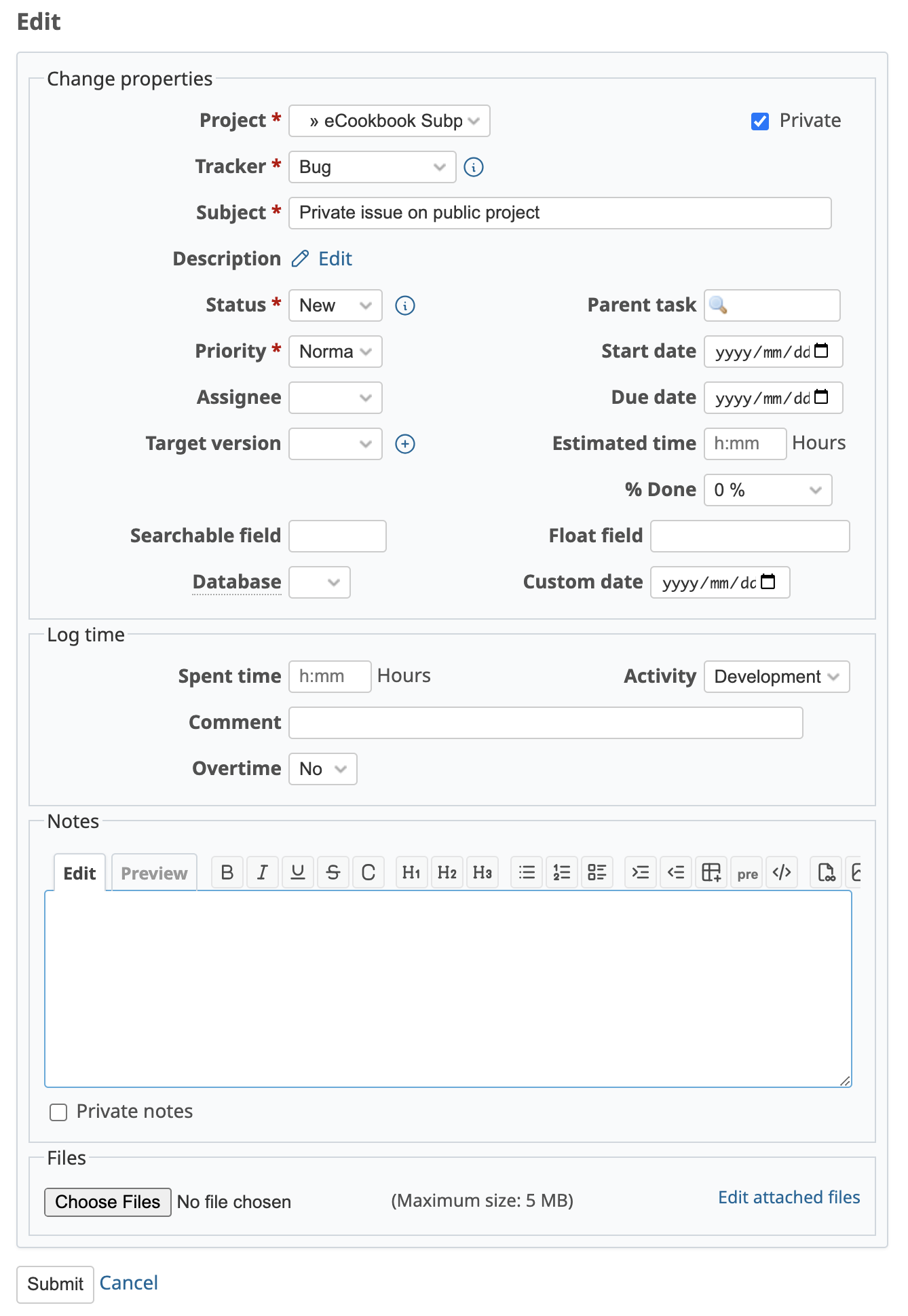
Click "Edit" to record the work you have done, update the status to reflect the issue's progress, or make other changes. After entering the information, click "Submit" to save your changes.
Close an Issue
When the work is complete, edit the issue and change its status to "Closed." By default, closed issues are excluded from the issue list. To display them, change the "Status" filter and apply the new filter settings.
Search Issues
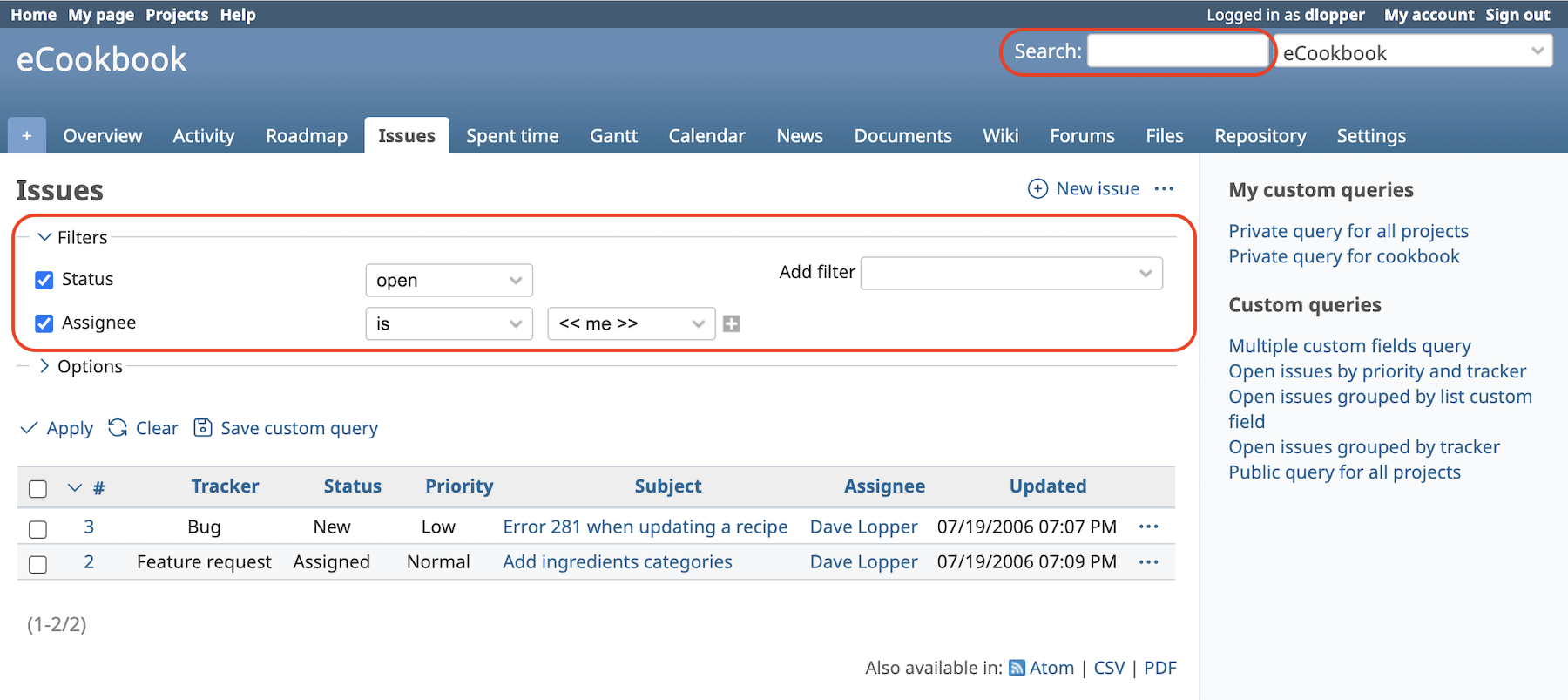
You can use filters to narrow down the issues displayed in the list.
For example, add an "Assignee" filter and select your name to display only the issues assigned to you.
You can also search for issues by entering keywords in the "Search" field in the upper-right corner of the page.
Custom Queries
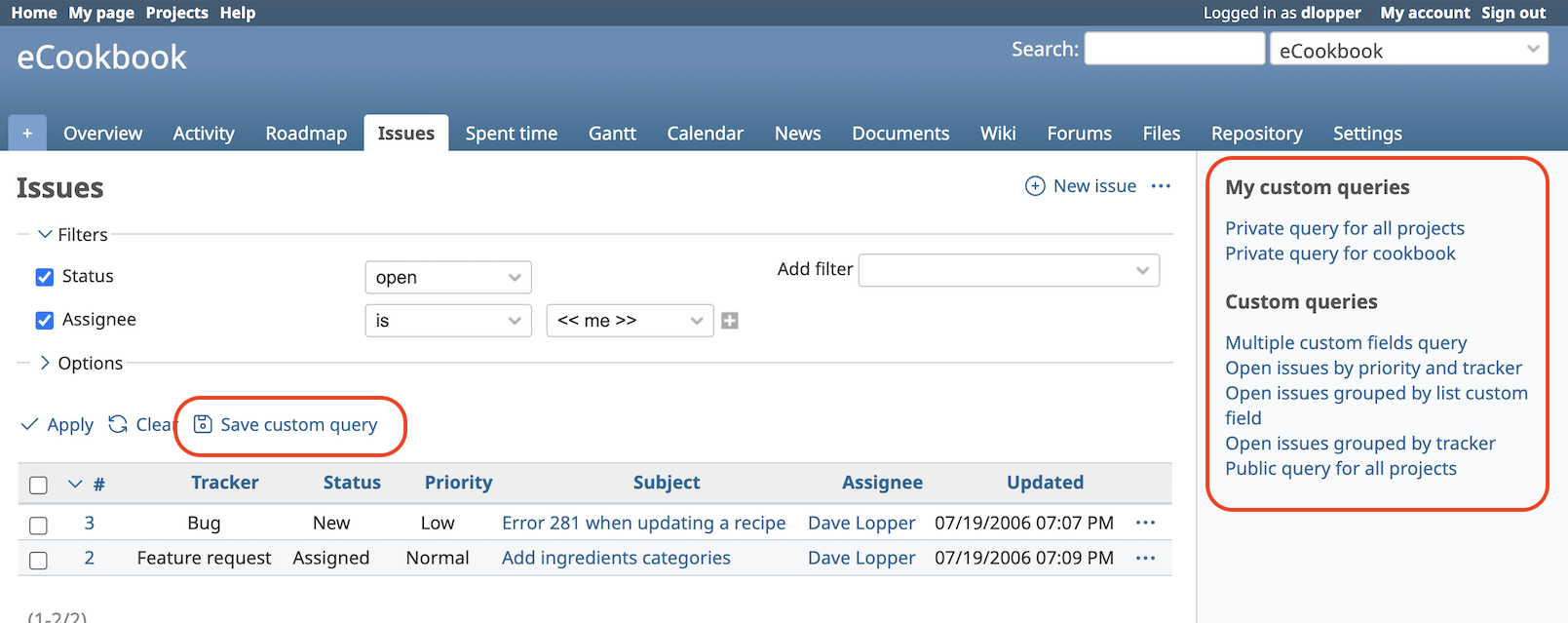
Filters are useful, but configuring the same filters repeatedly can be time-consuming. You can save filter settings as a custom query and reuse them later. Saved custom queries are displayed as links in the sidebar. Click a custom query to display the issue list using its saved filter settings.
Gantt Chart
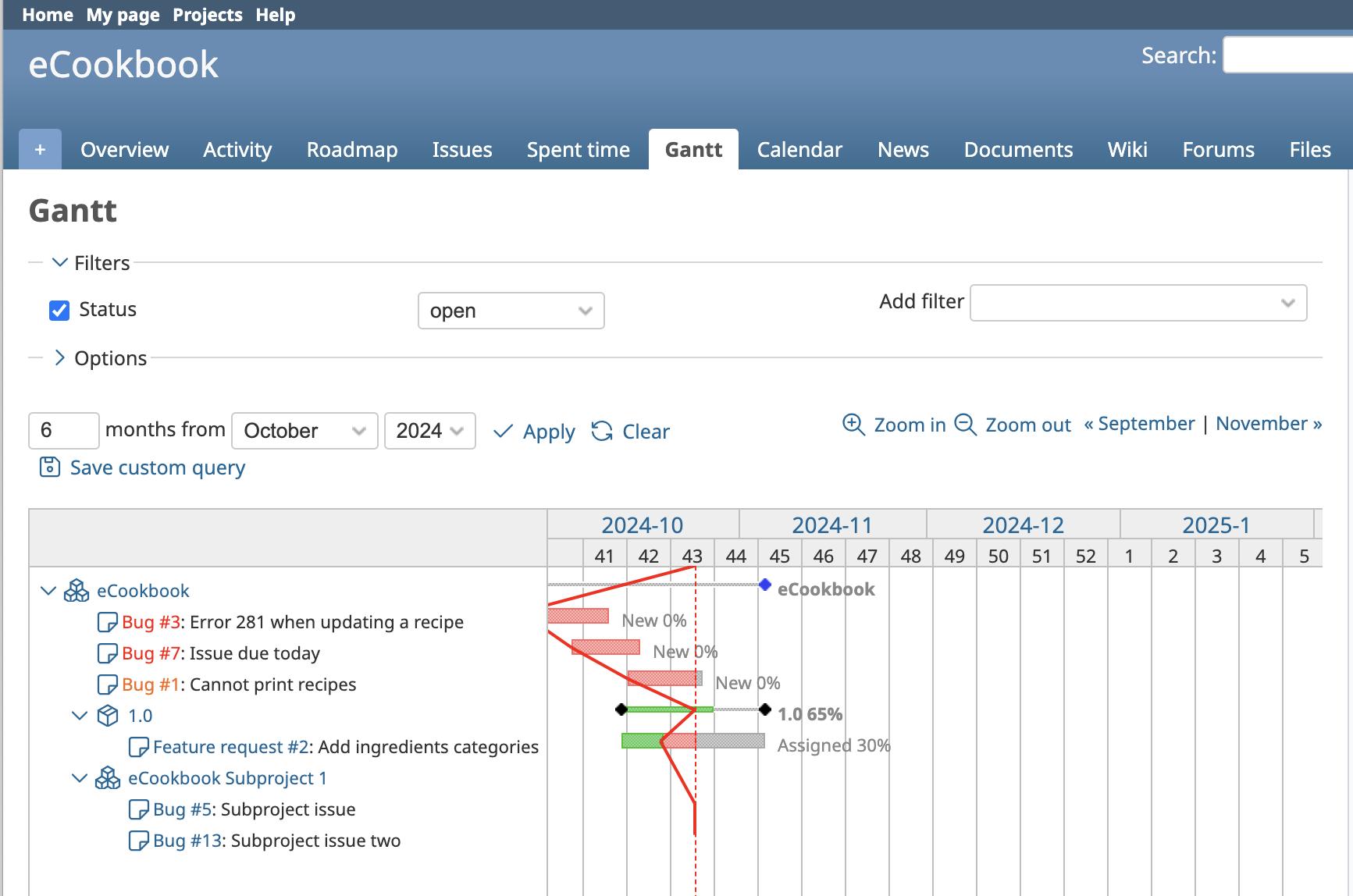
Click "Gantt" in the Project Menu to display issues in a Gantt chart.
When start and due dates are set for issues, the chart helps you understand the order of tasks and the project schedule at a glance. It also shows each issue's progress, making it easier to review the overall status of the project.
Email Notifications
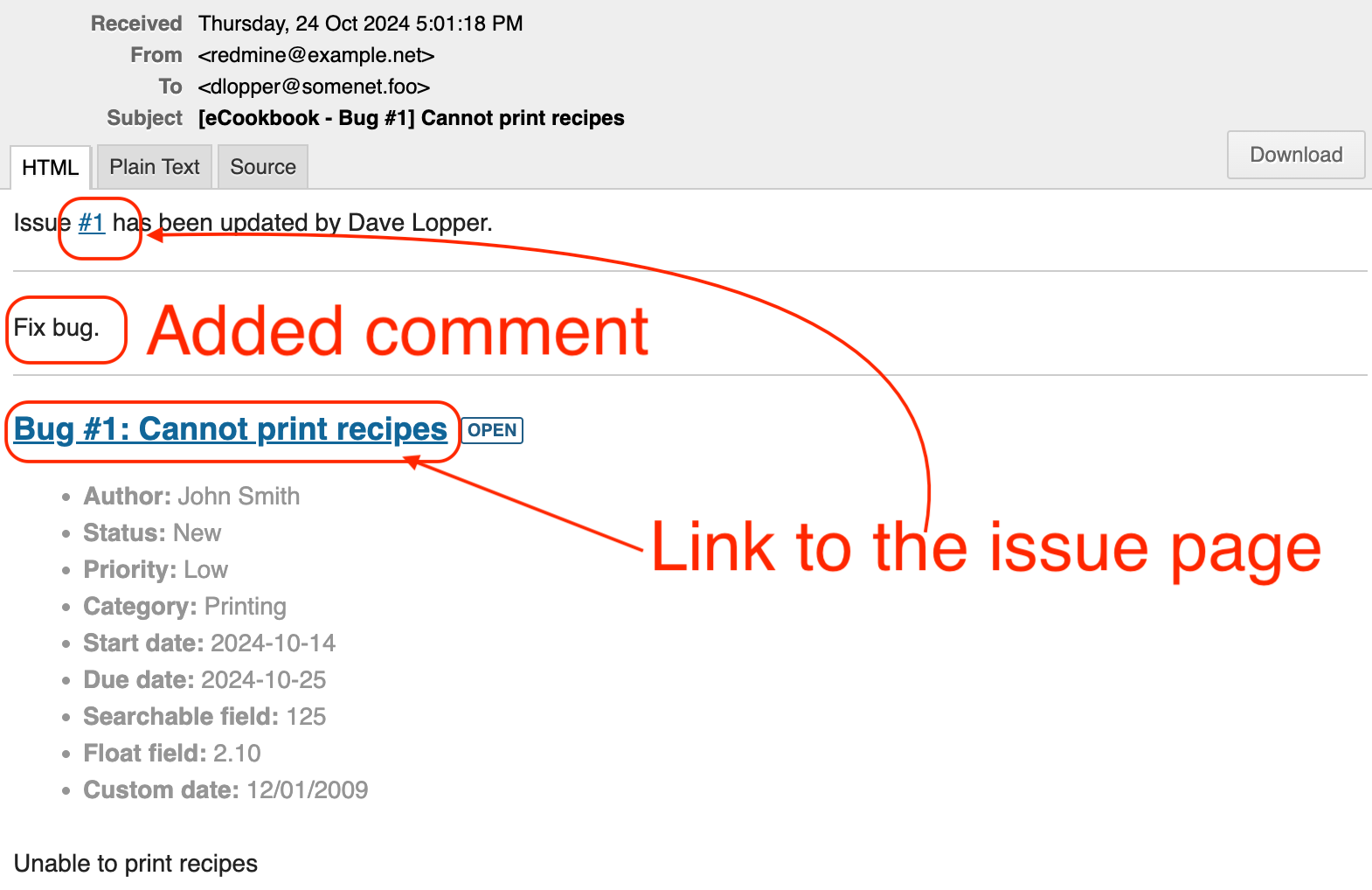
Redmine can send email notifications to relevant users when certain events occur, such as when an issue is created or updated. Notification emails include information about the update and any comments added to the issue, allowing you to review the changes without signing in to Redmine. They also include a link that opens the issue directly.
The notifications you receive depend on the system settings, project settings, and the email notification preferences configured in "My account."
My Page
"My page" is your personal dashboard. You can add, remove, and rearrange blocks to customize the information displayed. For example, you can display issue lists such as "Issues assigned to me" and "Watched issues." You can also display issue lists based on your custom queries.
Return to the "Quick 5-Minute Guide to Redmine" Article List