Conditions for users to appear or not appear in the autocomplete candidates of mentions in Redmine
Created on 2026-01-16
•

Redmine has a mention feature. If you enter @ followed by the login of a user in a text input field, for example in an issue, an email notification is sent to that user.
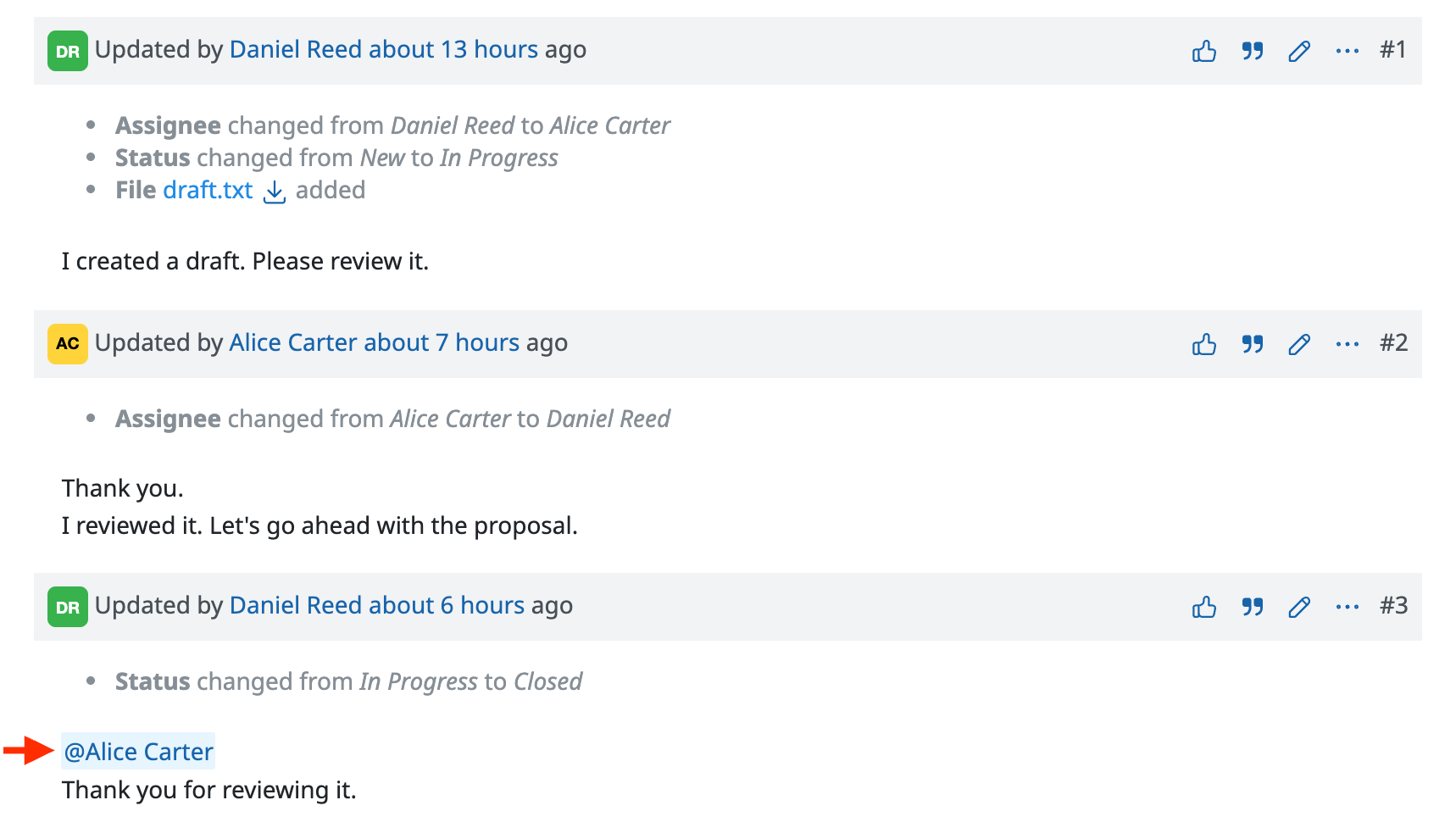
If you have the "Add watchers" permission, autocomplete starts when you enter @, and a list of candidate users is displayed.
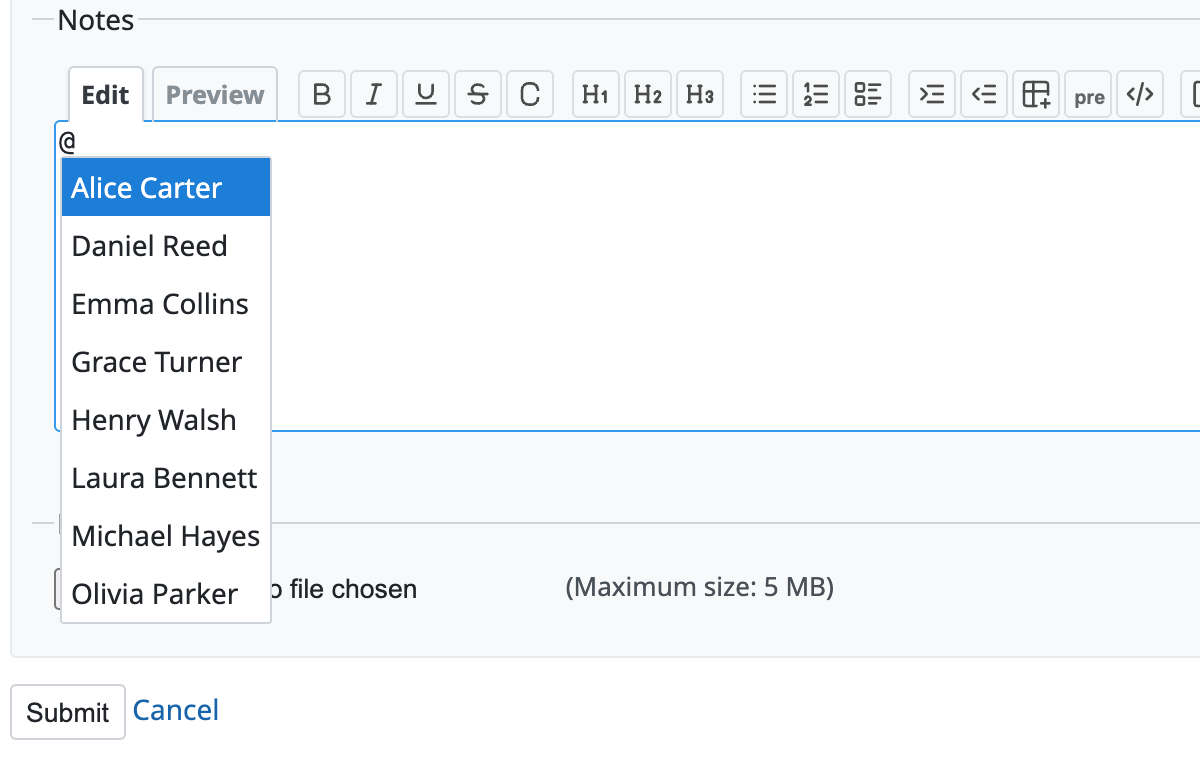
At this time, not all users are displayed. A combination of several conditions decides which users are displayed.
1. When you enter only @
Immediately after you enter @, before you enter any text, the users who meet all of the following conditions are displayed as candidates.
- The user is a member of the project that the object, such as an issue, belongs to, and the user is not locked
(A user who is displayed in Settings > Members of the project and is not locked) - The user is visible to the user who entered
@- For administrators, "All active users" are displayed without any condition.
- For users who are not administrators, only the visible users are displayed, based on the "Users visibility" setting of the role. (For details, please see How the displayed users are determined)
2. When you enter text after @
When you enter text after @, the users are narrowed down. Among the narrowed down users, the users who meet all of the following conditions are displayed as candidates.
- The user is active (this includes users who are not members of the project that the object, such as an issue, belongs to)
- You can check the active users on the Administration > Users page by applying the "Status" filter with "is" and "active".
- The text that you entered partially matches the name, email address or login of the user
- This is the same behavior as a search with the "Name, email or login" filter in Administration > Users.
- The user is within the first 10 users when the narrowed down users are sorted in ascending order of "Users display format" in Administration > Settings > Display
- If there are more than 10 users, only the first 10 are displayed. To narrow them down further, enter more text.
- The text that you entered after
@partially matches the name or the login of the narrowed down user- The email address is not included in this partial match.
- The user is visible to the user who entered
@- For administrators, "All active users" are displayed without any condition.
- For users who are not administrators, only the visible users are displayed, based on the "Users visibility" setting of the role. (For details, please see How the displayed users are determined)
How the displayed users are determined by the "Users visibility" setting of the role
For users who are not administrators, only the visible users are displayed, based on the "Users visibility" setting of the role.
When the user is logged in
- If the logged-in Redmine user is a member of any project, the users are displayed if at least one of the assigned roles has the "All active users" setting
- If 1. does not apply and the logged-in Redmine user is not a member of any project, the users are displayed if the built-in role "Non member" has the "All active users" setting
- In other cases, the display is limited to "Members of visible projects"
The following table is a summary.
| No | State | Which roles are referenced | Evaluation of the "Users visibility" setting | Users that appear in the search results |
|---|---|---|---|---|
| 1 | The user is a member of at least one project | All roles assigned to the user | If at least one is "All active users" | All active users (except the built-in groups "Non member users" and "Anonymous users") |
| 2 | The user is not a member of any project | The built-in role "Non member" | If it is "All active users" | All active users (except the built-in groups "Non member users" and "Anonymous users") |
| 3 | Neither 1 nor 2 above applies | (Not relevant) | None is "All active users" | Limited to "Members of visible projects" |
When the user is not logged in (anonymous user)
- The users are displayed if the built-in role "Anonymous" has the "All active users" setting
- In other cases, the display is limited to "Members of visible projects"
The following table is a summary.
| No | State | Role that is referenced | Evaluation of the "Users visibility" setting | Users that appear in the search results |
|---|---|---|---|---|
| 1 | Anonymous user | The built-in role "Anonymous" | If it is "All active users" | All active users |
| 2 | Same as above | Same as above | Other than the above | Limited to "Members of visible projects" |
Related information