Switching the language of the Redmine user interface
Created on 2010-12-28
•

In Redmine, each user can switch the language used to display menus and field names. Even when the project members have several different native languages, each user can switch to the language that the user prefers.
How to switch
Switching by the user
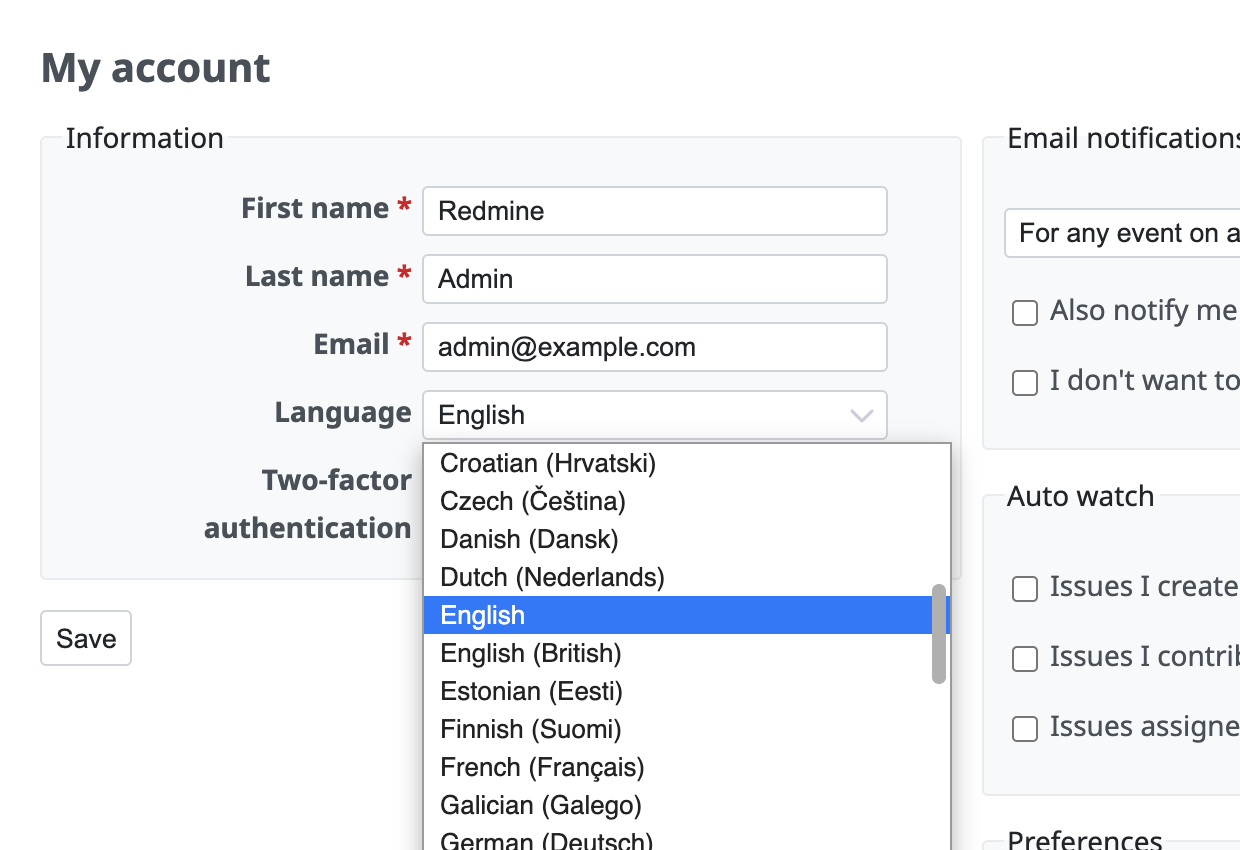
Click "My account" in the account menu at the top right of the page, and change "Language" in the "Information" section of the page that opens.
If you select "(auto)", Redmine selects a suitable language automatically according to the settings of the web browser that you use for access to Redmine.
Switching by an administrator
On the "Administration" → "Users" page, click the login of the user to open the user edit page.
You can switch the language used for the pages with "Language" in the "General" tab of the edit page.
Notes
PDF export
Redmine selects the font for PDF export according to the language of the user. For this reason, if issues or other data contain Chinese, Japanese, or Korean text, the text is garbled in the exported PDF unless the language of the user is set to that language. The same applies when a different language is selected automatically with the "(auto)" setting.
Names of trackers, statuses, and priorities
Tracker names, issue status names, issue priority names, and similar names are displayed in the language selected at the time of the Redmine installation, regardless of the language setting of the user. For example, if English was selected at installation, the tracker names remain "Bug", "Feature", and "Support" even if the user switches the language to French.
If you want to change these names after installation, change them one by one in the administration pages.
| Names to change | How to open the page to change them |
|---|---|
| Trackers | Administration → Trackers |
| Issue statuses | Administration → Issue statuses |
| Issue priorities | Administration → Enumerations |
| Roles | Administration → Roles and permissions |