Customizing the Administration → Users screen of Redmine (filters, column changes, custom queries)
Created on 2023-01-26
•

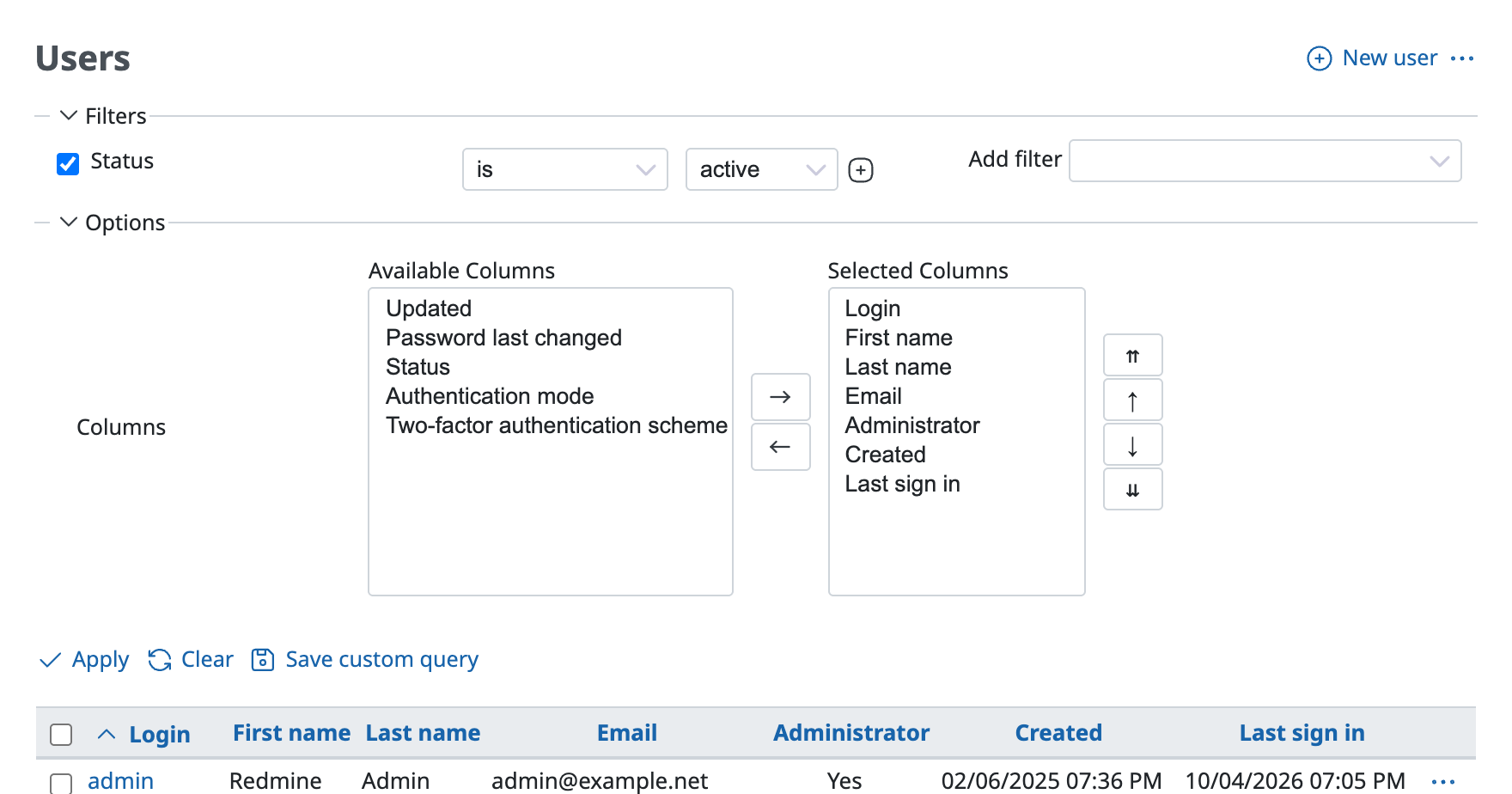
When you click "Administration" → "Users", the user list is shown. By default, a filter is set so that "Status" is "active". If you customize the list with filters and options, you can narrow down the users, change the columns that are shown, and change the sort order.
Filters
You can set conditions to narrow down the users that are shown.
Steps
- In "Add filter", select the item that you want to add to the conditions
- Select or enter the condition
- Click "Apply"
Examples
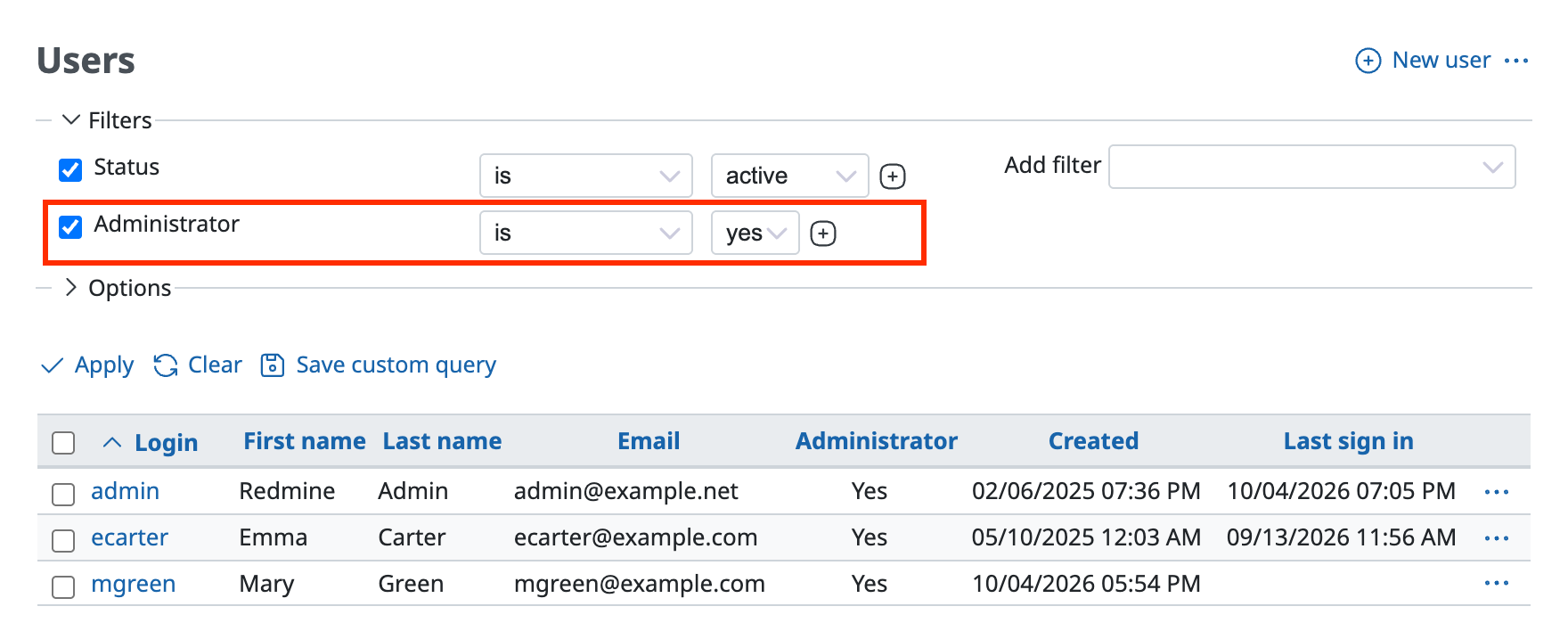
Show only administrators
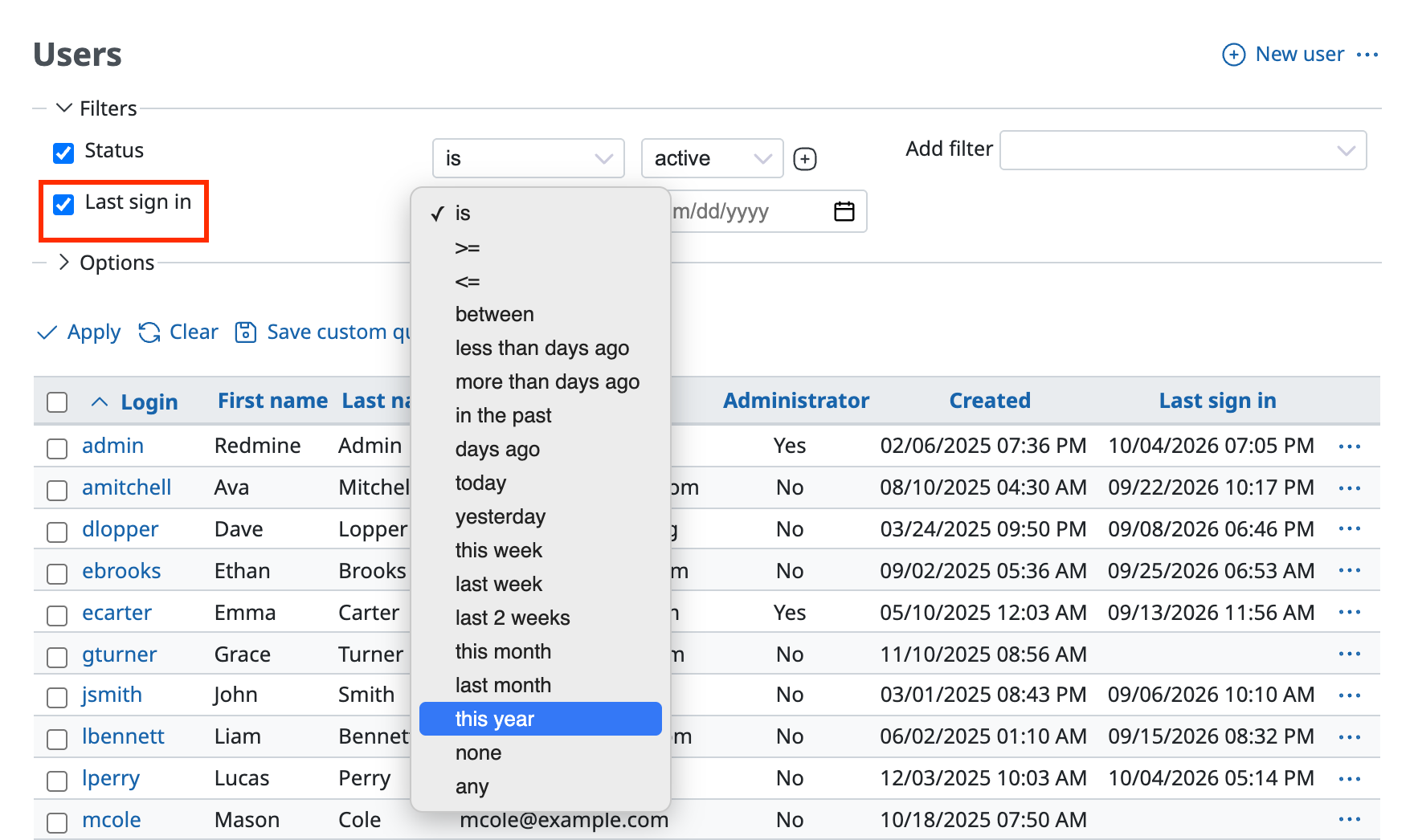
Narrow down by the last sign-in date
Options (changing the columns)
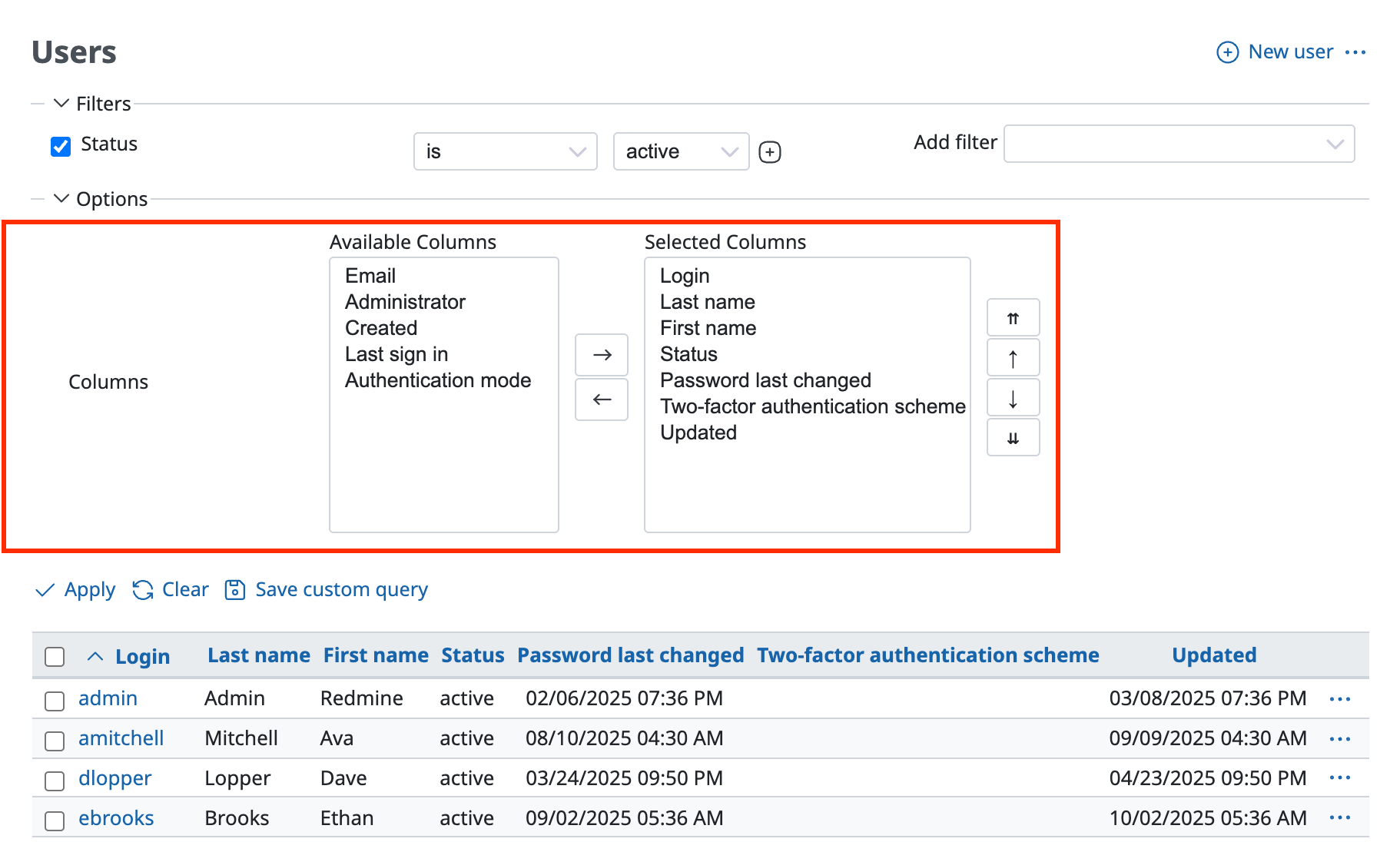
You can change the columns that are shown and their order. You can create a user list screen that is easy to read and shows only the information that you want to know.
Steps
- Click "Options" to open it
- Click the left and right arrows to move columns from "Available Columns" to "Selected Columns", and click the up and down arrows to change the order
- Click "Apply"
Custom queries
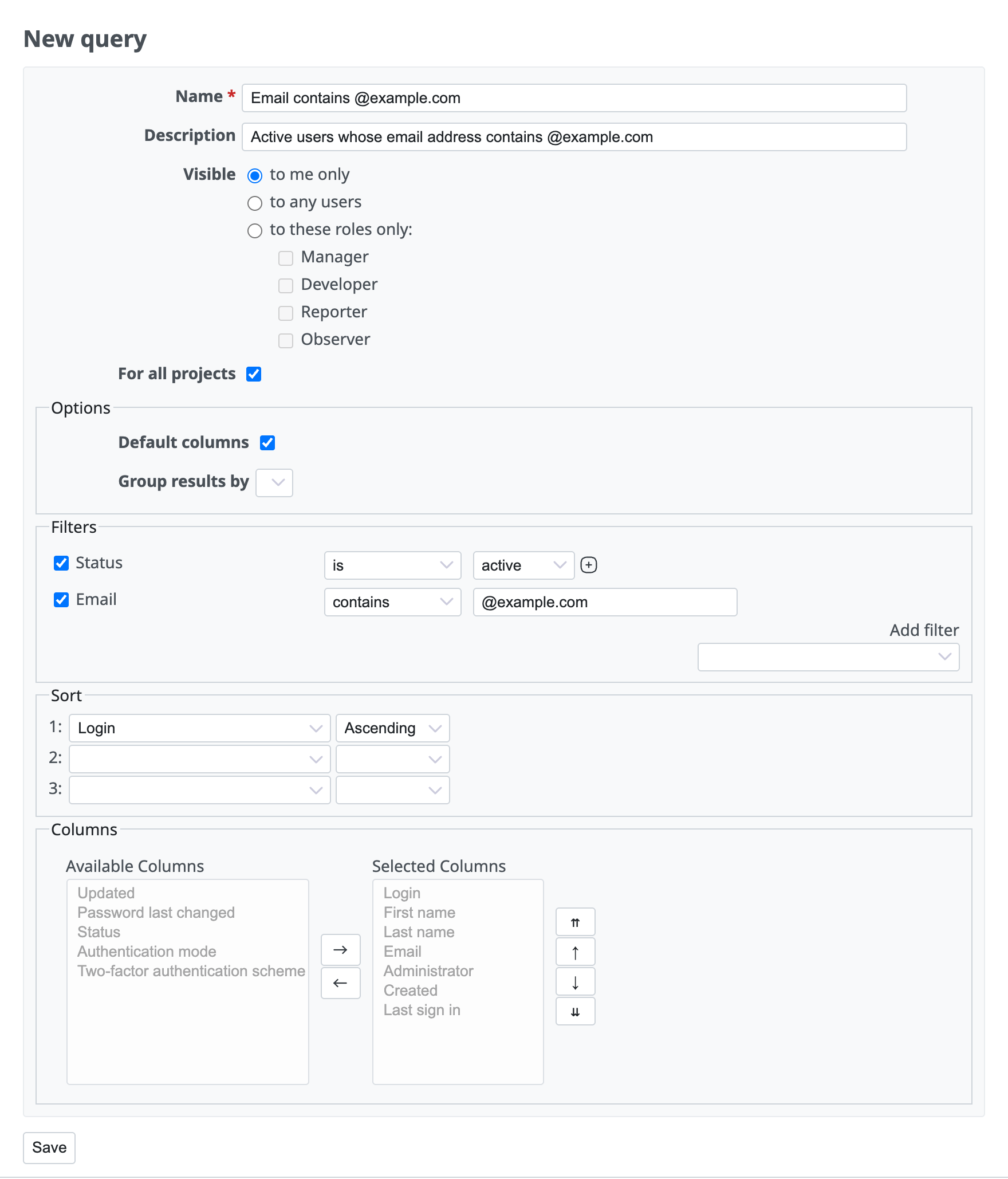
You can save the filter and option settings as a "custom query". You can call a saved custom query with one click from the sidebar of the user list screen, so you do not need to set the filters and options again.
Steps
- Set the filters and options and click "Apply"
- Click "Save custom query"
- Enter the name and other items
- Click "Save"