Cannot log in to Redmine with two-factor authentication after changing smartphones
Created on 2024-05-16
•

If you can no longer get the one-time password for two-factor authentication because you changed your smartphone or your TOTP app, there are two ways to solve the problem. The method depends on whether you generated backup codes in advance.
A backup code is a code that you can use instead of the authentication code when you cannot use your two-factor authentication app. You can generate backup codes on the "My account" screen.
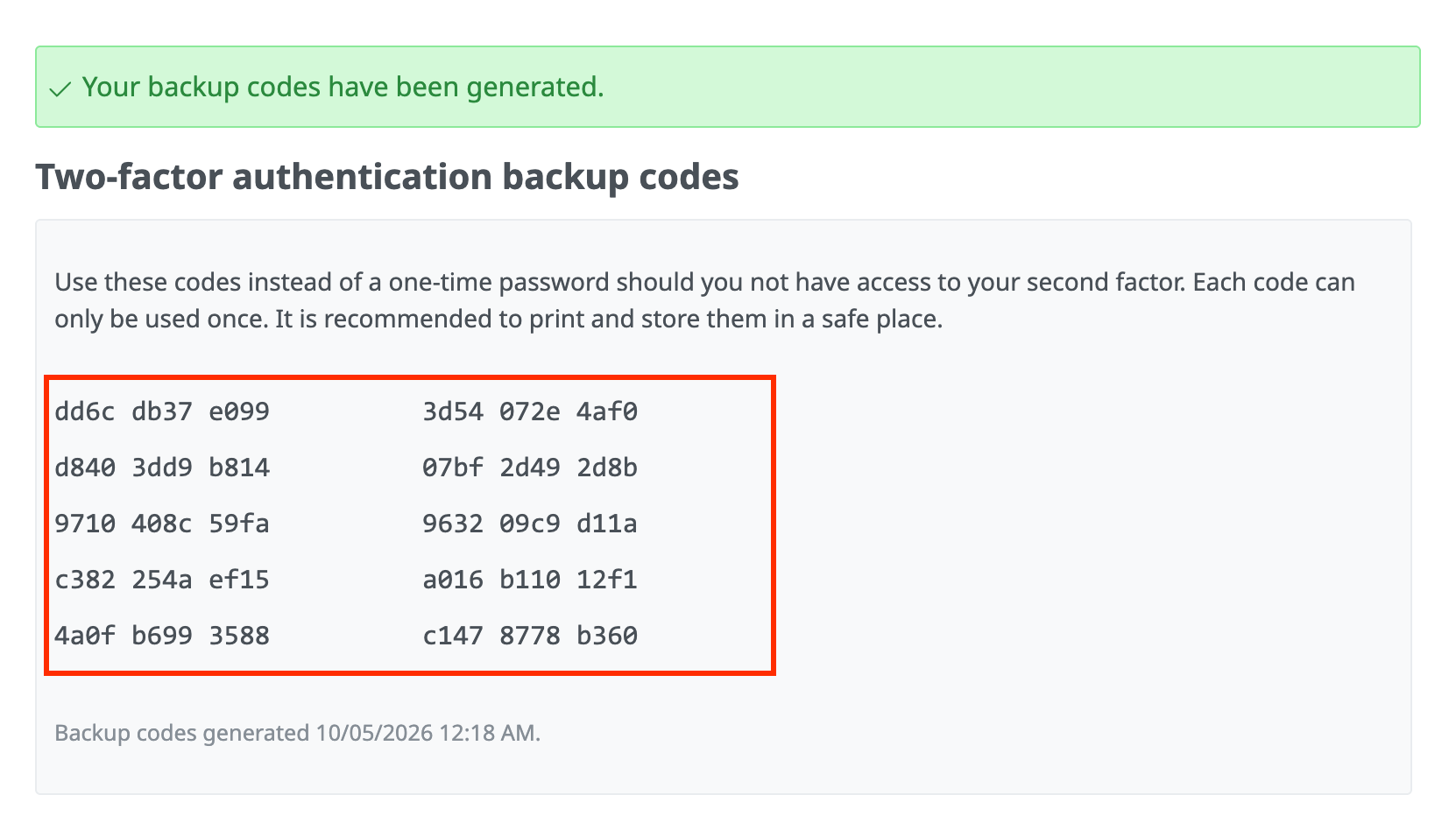
You can generate 10 backup codes
If you have backup codes
If you have backup codes, you can log in by entering a backup code instead of the authentication code. Log in with a backup code and disable two-factor authentication once. After that, enable it again with the app on your new smartphone or another device.
- On the login screen, enter your login and password and click "Login"
- In the field for the two-factor authentication code, enter one of the 10 backup codes (12 digits) and click "Login"
- Click "My account" in the account menu at the top right of the screen, and then click "Disable" in "Two-factor authentication"
- Enter one of the remaining 9 backup codes (12 digits) and click "Disable"
Note: You can use each backup code only once. - Click "Enable authenticator app" and set up two-factor authentication with the app on your new smartphone


If you do not have backup codes
Ask a user who has administrator privileges (privileges to change the settings of the whole Redmine, register users, and so on) to disable your two-factor authentication. After it is disabled, you can log in with your password. After you log in, enable two-factor authentication again with the app on your new smartphone or another device.
- [Operation by an administrator] Disable two-factor authentication temporarily
- Log in as another user who has administrator privileges and click "Administration" → "Users" in the top menu
- In the user list, click the login of the user whose two-factor authentication you want to disable
- Click "Disable" in "Two-factor authentication"
- [Operation by the user] Enable two-factor authentication again
- On the login screen, enter your login and password and click "Login"
- Click "My account" in the account menu at the top right of the screen, click "Enable authenticator app" in "Two-factor authentication", and set up two-factor authentication with the app on your new smartphone
Note: If two-factor authentication is required, the "Enable two-factor authentication" screen is shown automatically.
- On the login screen, enter your login and password and click "Login"