Redmine Monthly Digest — November 2026
2026-11-27
•
Tags: new-feature-before-release, 7.1
•

Your monthly selection of useful Redmine resources and the latest news you need to know.
This month, we cover practical resources for Redmine users and administrators, new maintenance releases with security fixes, and migration from self-hosted Redmine to My Redmine Global Edition.
Contents
- Recommended Articles & Resources
- Redmine News & Development Updates
- My Redmine: Cloud-based Redmine Hosting Highlights
1. Recommended Articles & Resources
Redmine Dashboard Plugin: Live Project KPIs Without a Spreadsheet
Source: RedmineShop
URL: https://redmineshop.com/blog/redmine-dashboard-plugin
Want a quick overview of the issues in your project?
RedmineShop introduces its Custom Dashboard Community plugin, which adds a project dashboard with cards for open, resolved, overdue, in-progress, and upcoming issues, along with an assignee table.
The guide explains how the figures are calculated and where the plugin’s limits matter. It covers individual projects without rolling up subprojects, and some card totals can differ from the issue lists opened by clicking them.
This is a useful read for teams evaluating whether a dashboard would help their daily work or whether saved issue queries already provide the information they need.
Redmine Attachment Storage: S3 vs Local Disk
Source: RedmineShop
URL: https://redmineshop.com/blog/redmine-attachment-storage-s3-vs-local
As attachments accumulate, storage capacity and backup time can become important parts of Redmine administration.
This guide compares Redmine’s standard local attachment storage with RedmineShop’s Community Cloud Attachment plugin, covering Amazon S3, S3-compatible storage, Google Cloud Storage, and Azure Blob Storage.
It explains how new uploads and downloads work, why existing attachments require a separate migration, and what administrators should understand about temporary download links. The article also distinguishes the plugin’s stated compatibility targets from versions with published testing evidence.
How to Use Product Analysis to Build Better Features
Source: Planio
URL: https://assets.plan.io/blog/product-analysis/
How do you decide which features deserve a place on your roadmap?
Planio’s article introduces product analysis as a way to combine qualitative and quantitative information when deciding what to build. It provides a step-by-step framework, examples, and a free template.
For teams managing feature requests in Redmine, the article offers a useful starting point for reviewing requests and deciding which problems to address next.
2. Redmine News & Development Updates
Redmine 7.0.3, 6.1.6 and 6.0.12 Released
URL: https://www.redmineadvisor.com/articles/7_0/redmine-7_0_3-released/
Redmine 7.0.3, 6.1.6 and 6.0.12 were released on November 1, 2026, bringing security fixes and maintenance improvements.
All three versions address vulnerabilities involving wiki macro argument parsing and URL validation. Redmine 7.0.3 and 6.1.6 also fix OAuth token scope issues. Redmine 6.0.12 includes fixes for private information disclosure through the REST API that were previously released in the newer branches.
The Redmine project also announced that the legacy stable branch, currently 6.0.x, will receive updates when vulnerabilities rated High or Critical are fixed.
Administrators should review the release details and plan an upgrade.
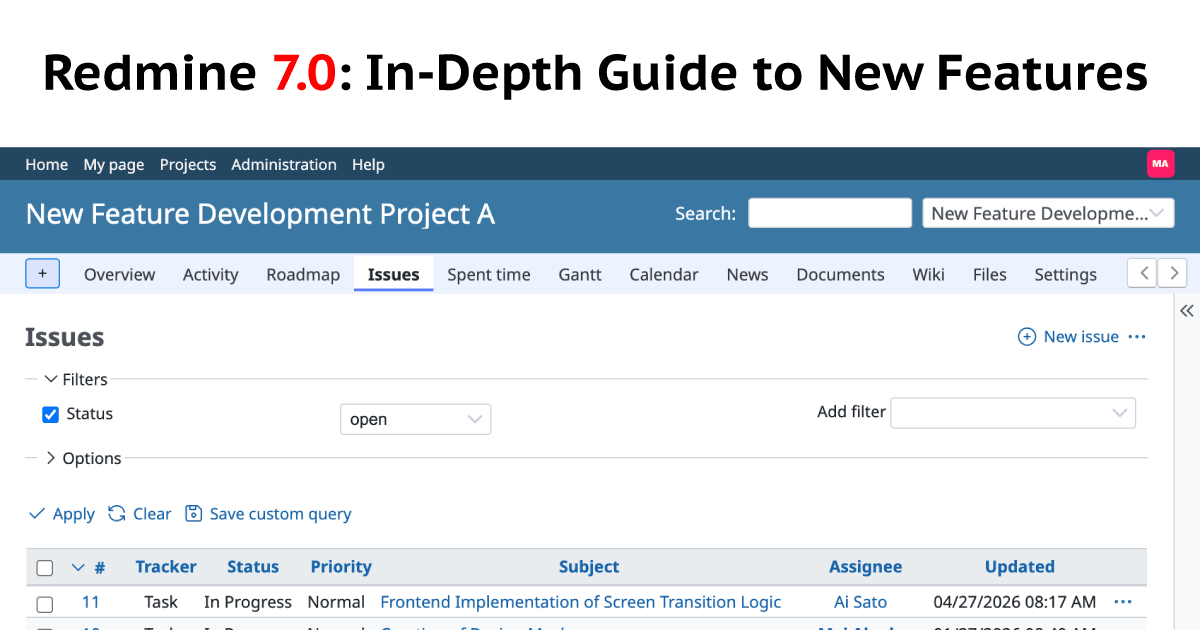
Preview of New Features in Pre-release Redmine!
I would like to introduce the new features that were committed to the official Redmine repository last month. Let's check out the new features that make Redmine even more useful.
This month, I'll highlight 6 issues out of the 60 issues committed in October 2026.
- Register Public and Company Holidays as Non-working Days
- Display Mermaid Diagrams in Issues and Wiki Pages
- Upload an Avatar Directly to Redmine
- Jump from an Attachment to the Note That Added It
- Save and Auto-fit Gantt Column Widths and Highlight Entire Rows
- Upload a Custom Favicon from Administration
Register Public and Company Holidays as Non-working Days
Redmine will let you register public holidays and company holidays alongside regular non-working days such as weekends. To add a date, go to Administration → Settings → Issue tracking and follow the Manage non-working dates link under Non-working days.
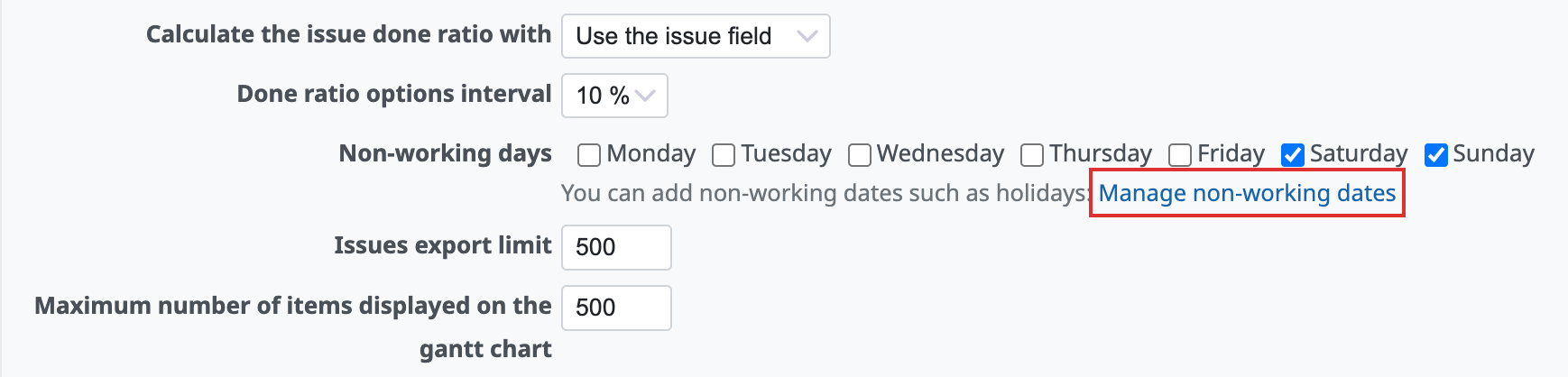
Open the non-working dates page from Issue tracking settings
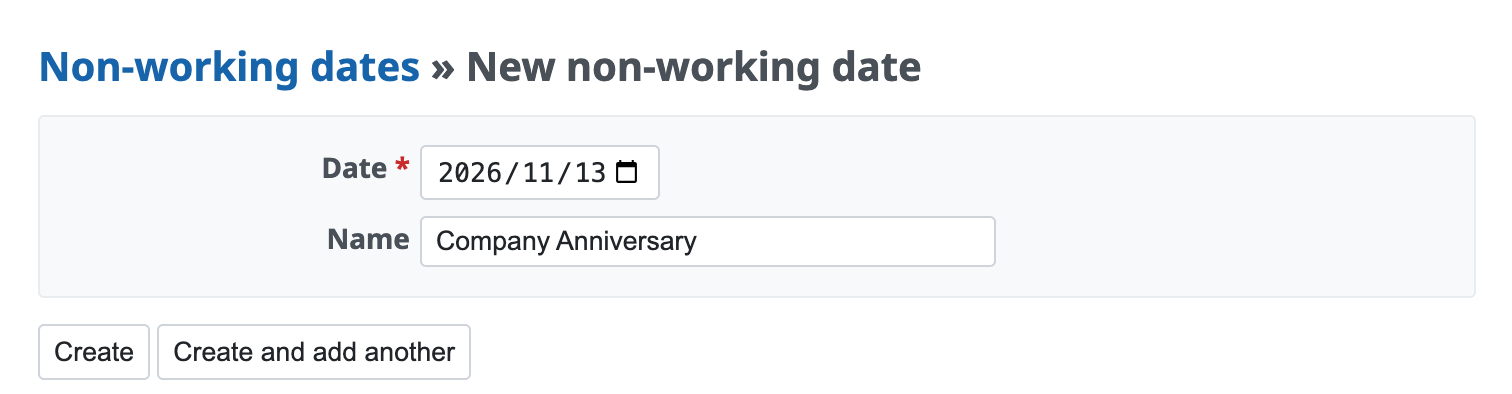
Enter a date and a name for the holiday
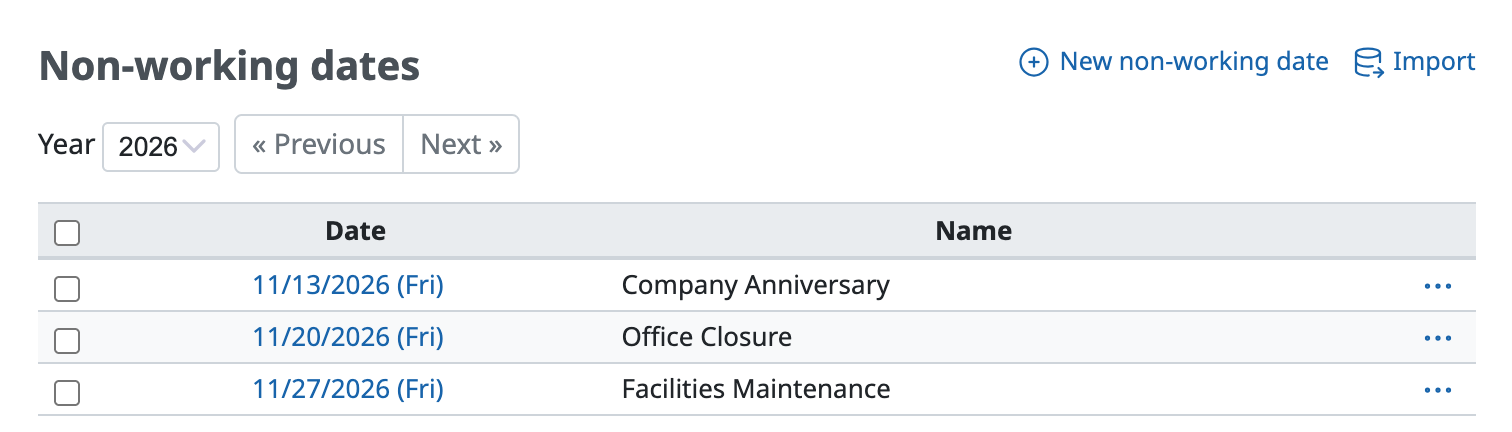
Review the registered non-working dates
Redmine takes these dates into account when it automatically reschedules successor issues. Both the calendar and the Gantt chart show them as non-working days, and the calendar also displays names such as “Company Anniversary.” This makes it easier to plan work around office closures.
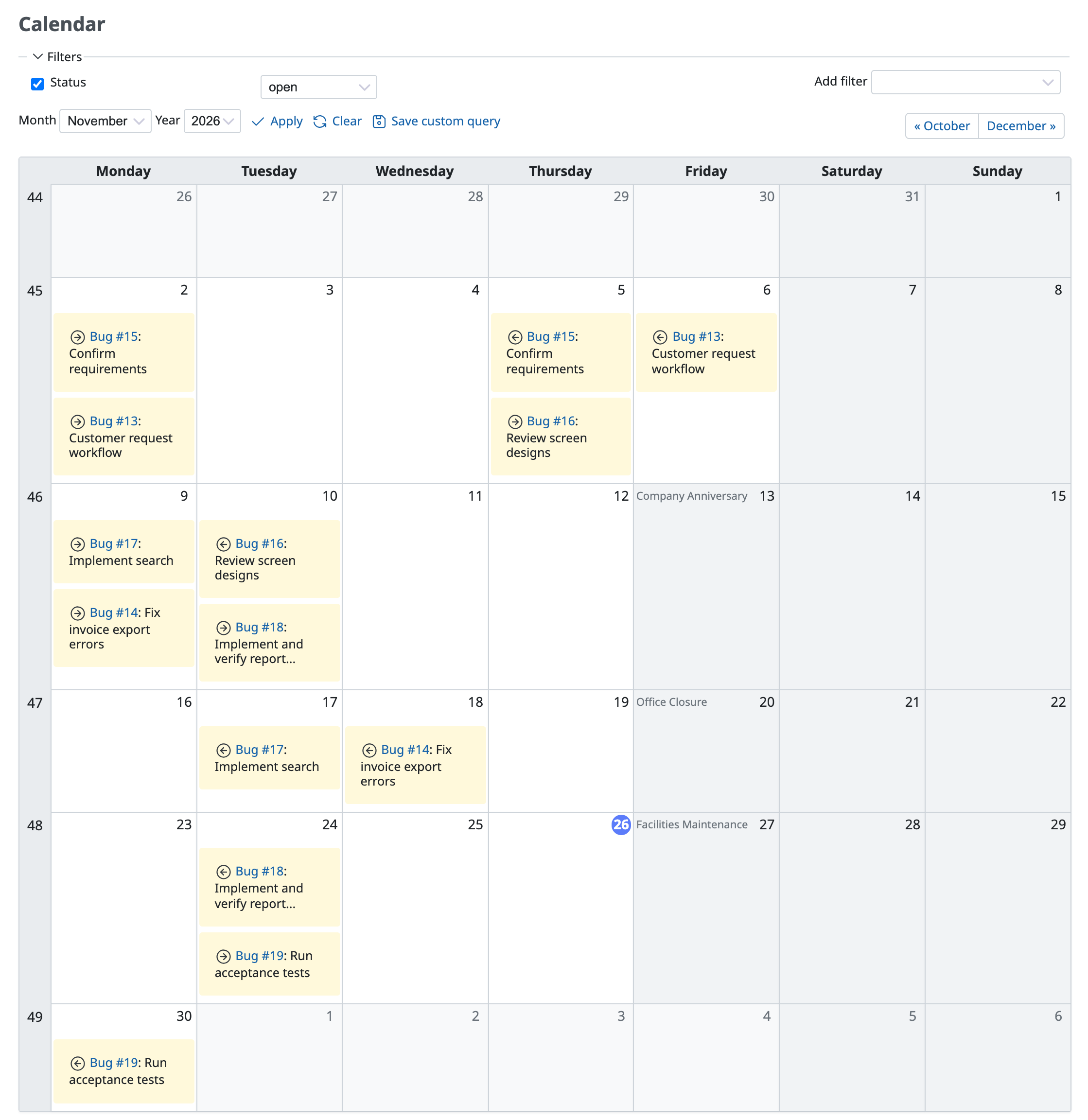
The calendar displays registered holidays by name
You can import and export dates in bulk using CSV, which helps when adding a full holiday calendar or sharing it across Redmine instances. Enter each date individually for recurring holidays such as January 1 and for substitute holidays.
- Implemented version: Redmine 7.1.0
- Official site issue: Feature #1459: Allow holidays to be registered as non-working days
Display Mermaid Diagrams in Issues and Wiki Pages
Redmine will render Mermaid text as diagrams in issues, wiki pages, and other formatted content. Mermaid lets you describe flowcharts, sequence diagrams, and other diagrams in plain text. You can edit the diagram alongside the surrounding text in Redmine without creating and attaching a separate image.

Redmine renders Mermaid code as a diagram
In Markdown, set the code block language to mermaid. For example, this flowchart shows a request moving from intake through resolution. Textile also supports Mermaid diagrams.
```mermaid
flowchart LR
    A[Intake] --> B[In progress]
    B --> C[Resolved]
```
A server administrator must install Mermaid.js to enable rendering.
- Implemented version: Redmine 7.1.0
- Official site issue: Feature #44425: Render Mermaid code blocks as diagrams
Upload an Avatar Directly to Redmine
You will be able to upload your profile picture directly to Redmine. Select Change avatar on My account to upload, replace, or delete an image. Administrators can also change another user's avatar from that user's edit page. Users who have uploaded no image will continue to see a fallback such as a Gravatar image or initials.
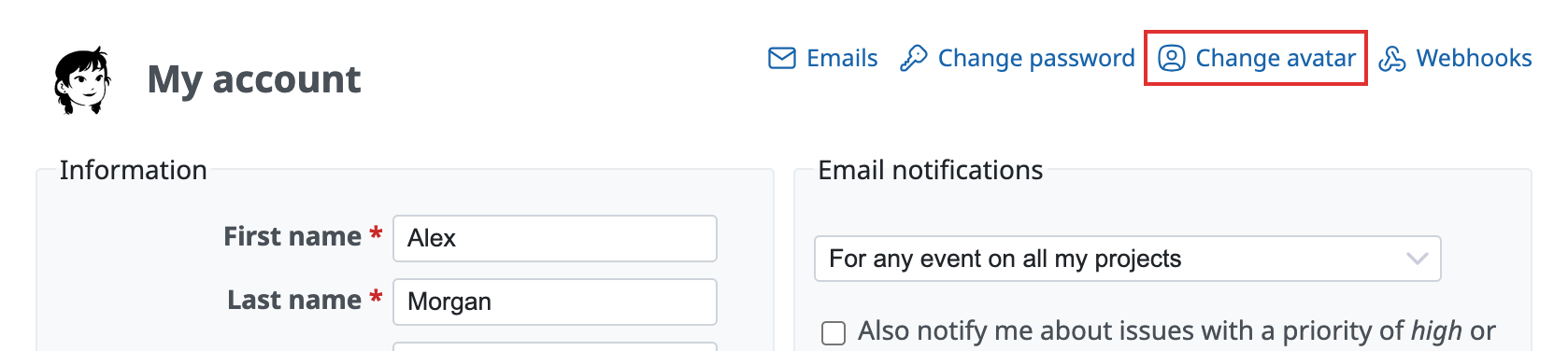
An uploaded avatar appears on My account
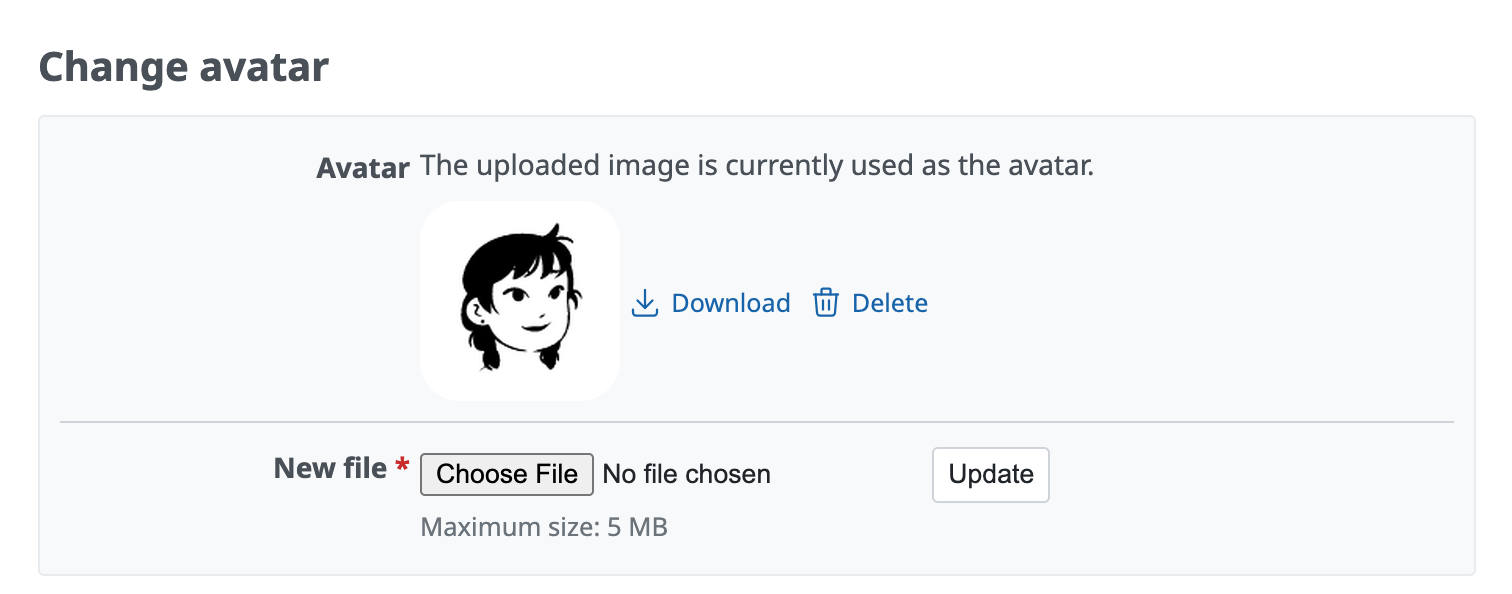
Review, replace, or delete an uploaded avatar
Avatar uploads are enabled by default. Administrators can disable them by clearing Allow users to set their avatar under Administration → Settings → Display. The feature requires ImageMagick, which Redmine also uses to generate thumbnails.
- Implemented version: Redmine 7.1.0
- Official site issue: Feature #12197: Allow users to set their avatar in Redmine
Jump from an Attachment to the Note That Added It
A new icon beside an issue attachment takes you directly to the note where the file was added. If you want to know why a document was attached or which change a screenshot illustrates, you can open the relevant note with one click. This saves time on issues with long histories and many attachments.
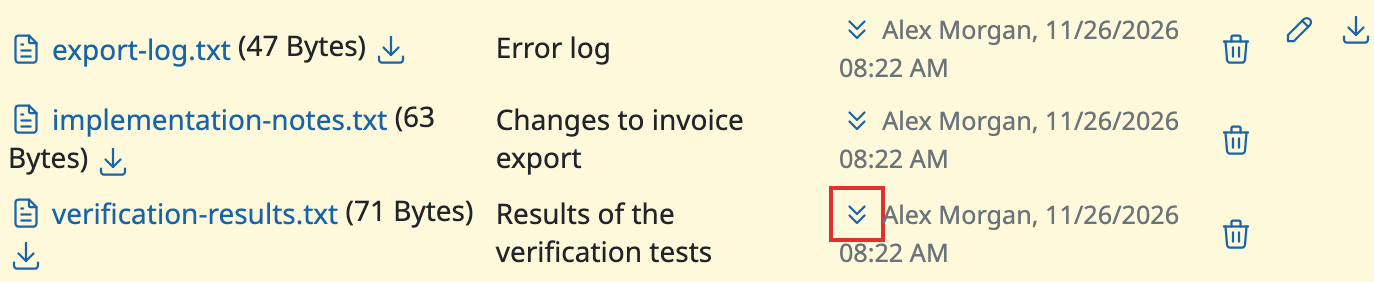
Click the icon beside the file to jump to its note

The note provides context for the attachment
- Implemented version: Redmine 7.1.0
- Official site issue: Feature #44552: Add a link from each issue attachment to the note in which it was added
Save and Auto-fit Gantt Column Widths and Highlight Entire Rows
Redmine will remember the column widths you set in a Gantt chart when you change the date range, zoom level, or filters. Other Gantt charts opened in the same browser will use those widths too. Double-click a column divider to fit the width to the heading and the currently visible rows. Redmine saves the fitted width as well.
Double-click each divider to reveal the full Status, Priority, Assignee, and Updated values. The fitted columns keep their widths as you zoom in and change the starting month.
Hovering over a row will highlight it across the entire chart, from the subject and other columns on the left to the timeline on the right. This makes it easier to match issues to their schedules on a wide chart or while sharing your screen.
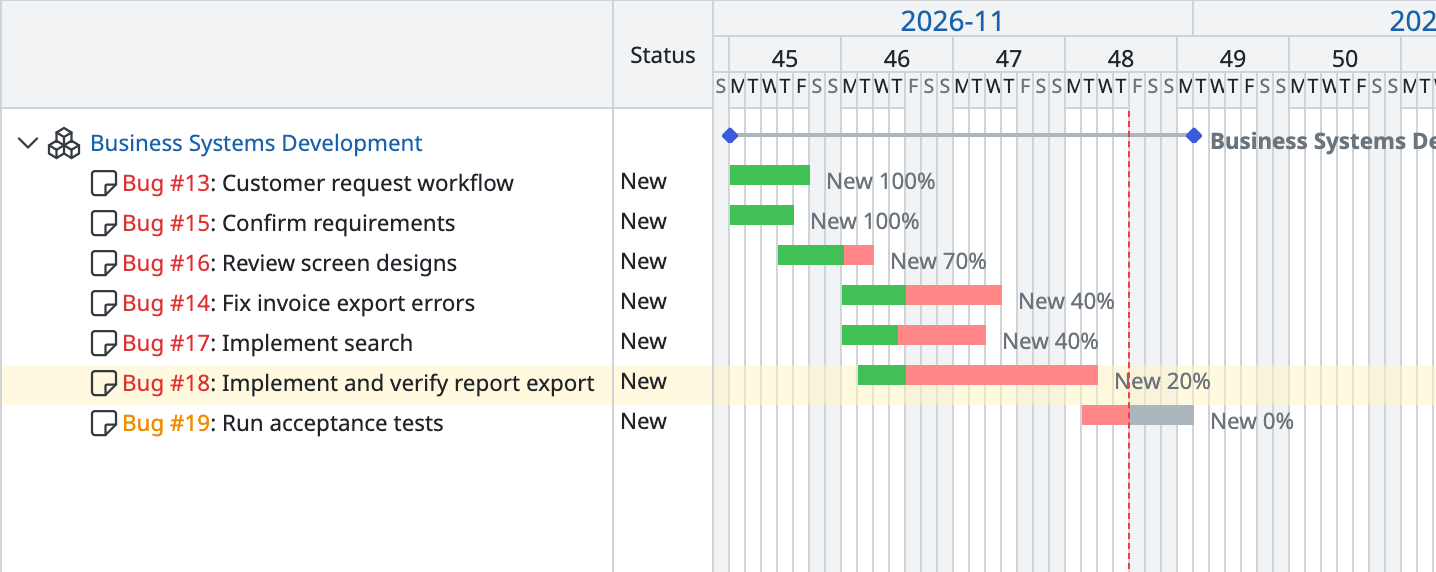
Hover over a row to highlight it from the subject to the timeline
- Implemented version: Redmine 7.1.0
- Official site issues: Feature #44608: Remember and auto-fit Gantt column widths and Feature #44580: Highlight the entire hovered row in the Gantt chart
Upload a Custom Favicon from Administration
Administrators will be able to change the small icon that appears in browser tabs. Under Administration → Settings → Display, use Custom favicon to upload a PNG or ICO image up to 32 KB.
Previously, changing the favicon required a theme that supplied its own icon or replacing a file on the server. A company logo or a distinct icon for each instance makes it easier to tell open Redmine tabs apart.
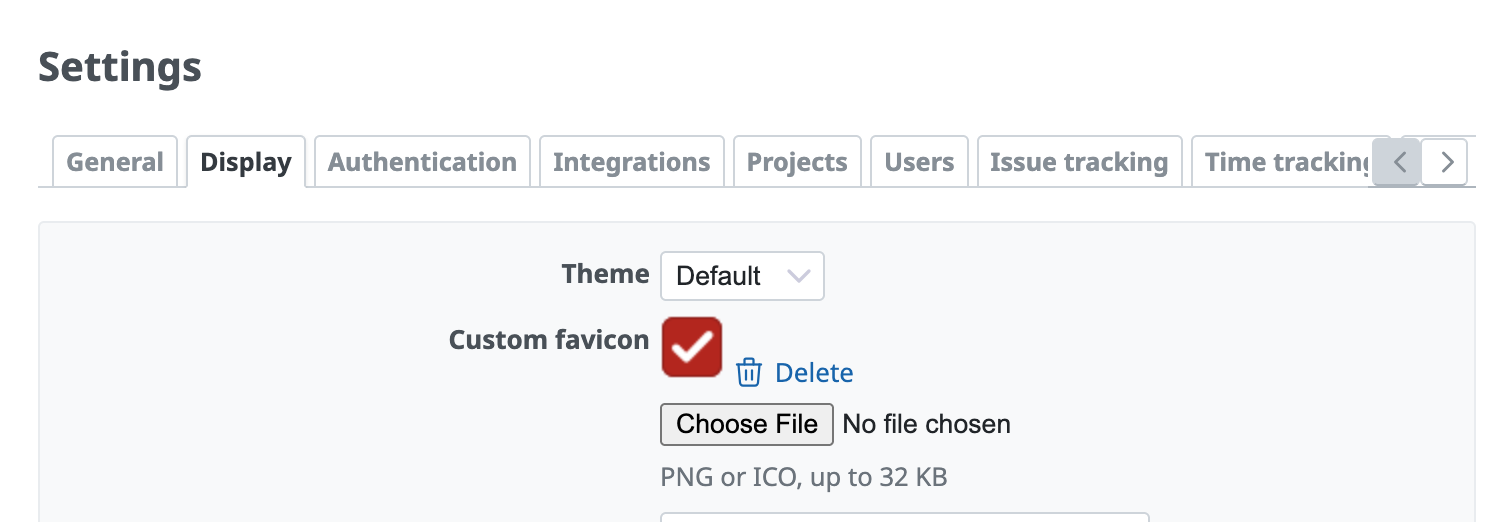
Upload or delete a favicon from the administration page
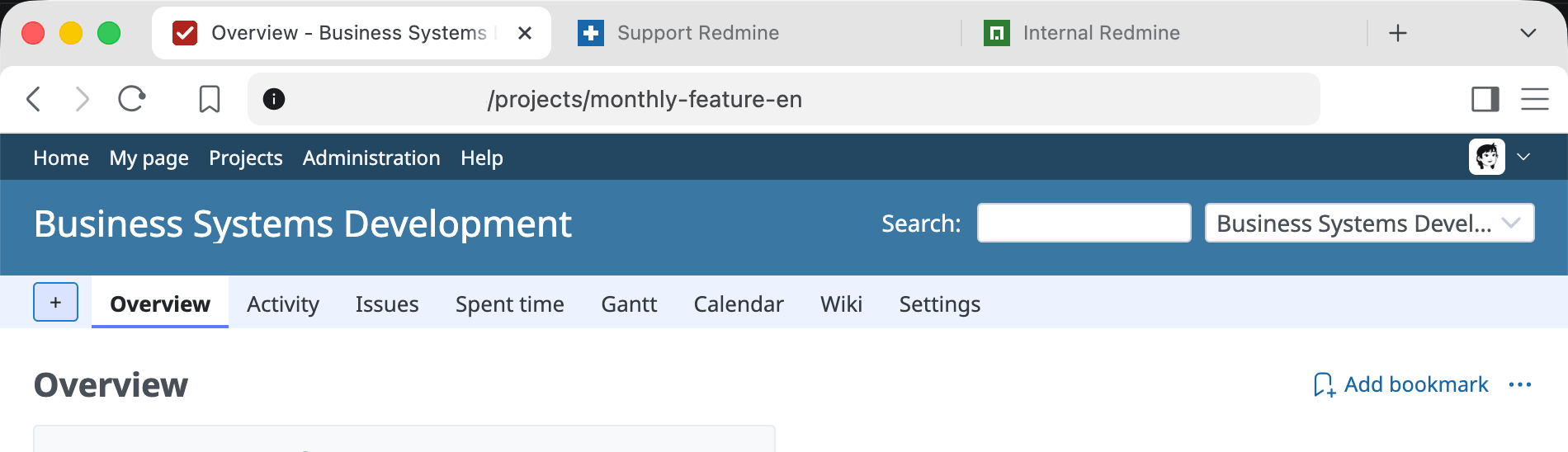
Different favicons make Redmine tabs easier to tell apart
- Implemented version: Redmine 7.1.0
- Official site issue: Feature #44646: Allow administrators to upload a custom favicon
3. My Redmine: Cloud-based Redmine Hosting Highlights
Migrate from Redmine to My Redmine Global Edition
Source: My Redmine Global Edition
URL: https://www.redminecloud.net/support/option/data-migration/
Looking to reduce the work involved in maintaining your own Redmine server?
My Redmine Global Edition offers a migration service that transfers your existing Redmine environment to its cloud service, including projects, issues, users, custom fields, settings, and attachments. Moving to the hosted service reduces the need to manage servers, backups, troubleshooting, and Redmine upgrades.
Data migration is free for customers who subscribe to the service. Customers prepare a database dump and attachment files, while the My Redmine team checks migration feasibility and coordinates the schedule.
The guide explains the required information, preparation steps, and important limitations. Migration transfers the entire environment and overwrites any existing data at the destination. Plugins cannot be migrated, and direct links containing the old Redmine URL may need to be updated manually.