Custom Queries
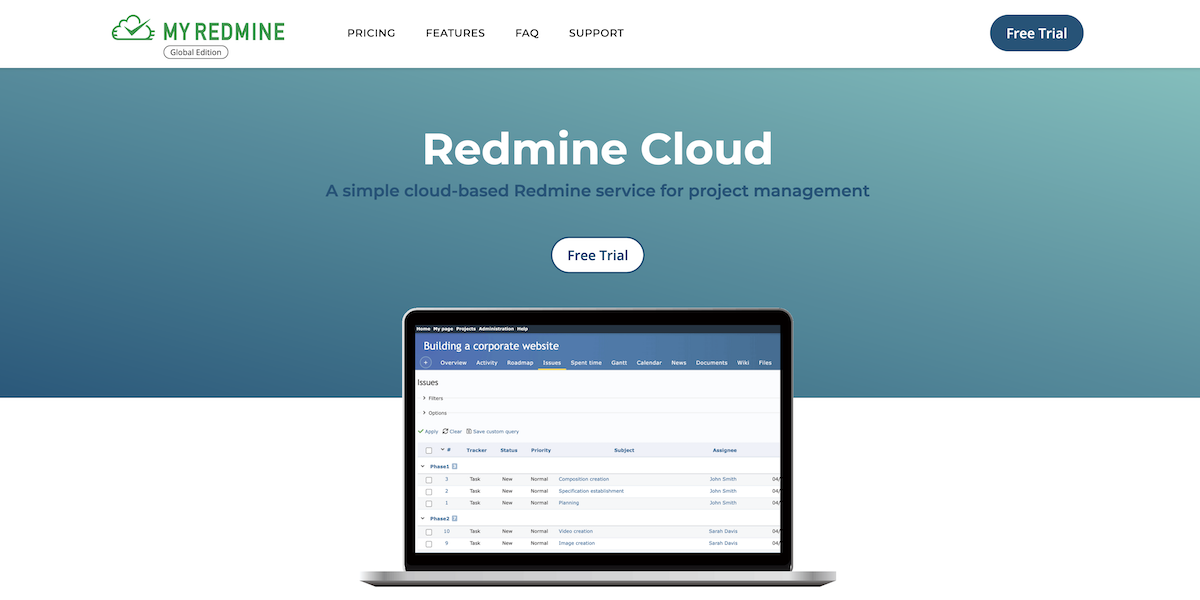
When you open the issue list, Redmine displays all issues with the status set to Open by default.
By adjusting filters and options, you can easily narrow down the list to find the issues you are looking for.
For example, you can:
- Show only issues assigned to you
- Show only issues with a due date in the current month
- Choose which columns are displayed in the list
- Change the order of displayed columns
A custom query allows you to save these filter and option settings for later use.

Creating a Custom Query
Filters
Filters are used to narrow down the issues displayed in the list by specifying conditions.
The example below shows how to filter issues where the Assignee is Me:
- From Add filter, select the field you want to filter by (in this example, Assignee).
- Select the condition.
- Click Apply.

Options
Options allow you to choose which columns are displayed in the issue list and how the list is organized.
- Click Options to expand the section.
- Move columns
- Click → to move items to Selected columns (displayed in the list).
- Click ← to move items back to Available columns (hidden from the list).
- Click → to move items to Selected columns (displayed in the list).
- Reorder columns
- Use ↑ and ↓ to change the display order of items in Selected columns.
- Group results by
- Group issues based on the selected field.
- Display
- Turn on Description or Last notes to display them in the list.
- Totals
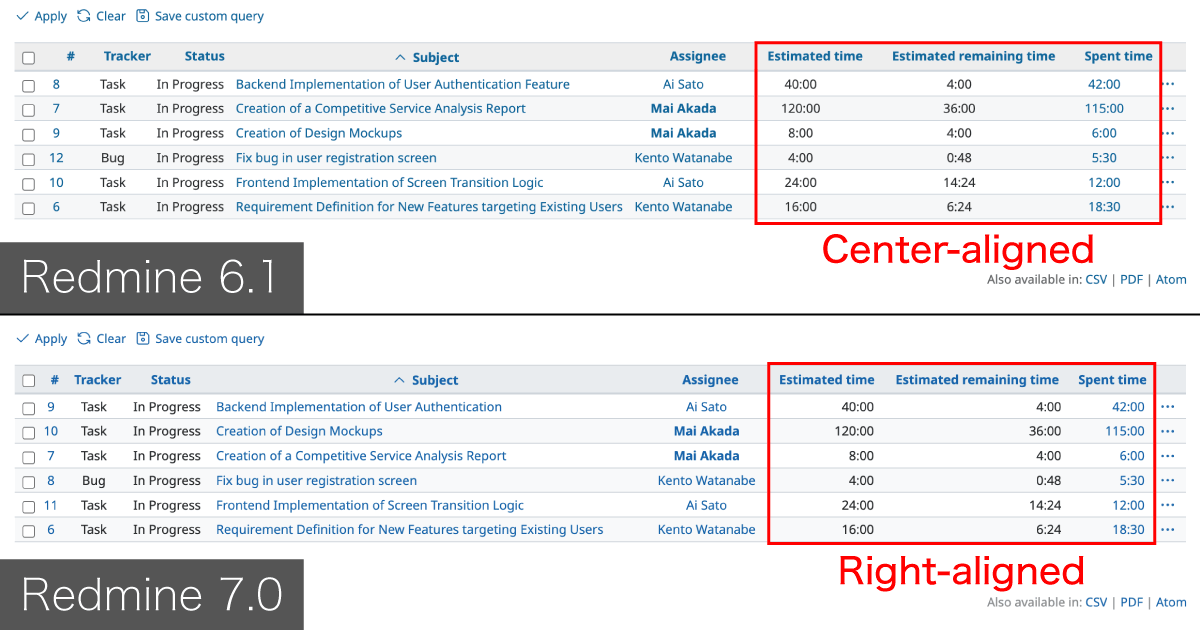
- Turn on Estimated time or Spent time to show their totals.
- Click Apply.

Saving a Custom Query
After configuring filters and options, click Save custom query to save the current settings as a custom query.

Clicking Save custom query opens the New query screen.
Settings
- Name
The name displayed in the sidebar of the issue list. - Visible
Select who can see this custom query. - For all projects
When turned on, the query is available in all projects. - Default columns
Turn this off to customize displayed columns.
When turned on, the columns defined under
Administration → Issue tracking → Columns displayed in the issue list
are used. - Sort
Specify how issues are sorted.
For example, selecting # and Descending displays issues in order of highest issue number first. - Click Save.

Visibility Options
- Private
Visible only to you (My custom queries). - All users
Visible to all users. - Roles only
Visible only to users with the specified roles.

Using Custom Queries
Saved custom queries can be displayed with a single click from the sidebar of the issue list.

Editing or Deleting a Custom Query
- Click the custom query you want to edit or delete in the sidebar.
- Click Edit custom query or Delete custom query.

Setting a Default Custom Query
By setting a default query, the issue list opens with a specific custom query already applied.
Setting frequently used custom queries as the default eliminates the need to select them each time, allowing you to review issues more efficiently.